TIP: This Channel Sheet contains all channel-specific information for Amazon. |
CHANNEL BASICS
The following channels are available for Amazon:
CHANNEL |
SIGN |
ID |
CURRENCY |
|---|---|---|---|
Amazon.com.be |
ambe |
926 |
EUR |
Amazon.co.uk |
amuk |
10 |
GBP |
Amazon.de |
amde |
8 |
EUR |
Amazon.fr |
amfr |
11 |
EUR |
Amazon.es |
ames |
45 |
EUR |
Amazon.ie |
amie |
924 |
EUR |
Amazon.it |
amit |
46 |
EUR |
Amazon.com |
amco |
47 |
USD |
Amazon.com.tr |
amtr |
810 |
TRY |
Amazon.nl |
amnl |
290 |
EUR |
Amazon.pl |
ampl |
815 |
PLN |
Amazon.se |
amse |
925 |
SEK |
Due to a migration of the product data interface, the following additional Amazon channels currently exist for value mapping:
CHANNEL |
SIGN |
ID |
|---|---|---|
Amazon.de Mapping |
amma |
476 |
Amazon.co.uk Mapping |
ammu |
794 |
Amazon.fr Mapping |
ammf |
795 |
Amazon.es Mapping |
amme |
796 |
Amazon.it Mapping |
ammi |
797 |
Amazon.com Mapping |
ammc |
798 |
Amazon.nl Mapping |
ammn |
799 |
PRELIMINARY INFORMATION
•New to TB.One? Our webinars help you find your way around the software.
•Add GPSR information in the Amazon Seller Central under Account Health.
•The sale of products containing perfluoroalkyl and polyfluoroalkyl substances (PFAS) is prohibited in France since the 1st of January of 2026. PFAS is commonly used in waterproof or stain-resistant finishes and cosmetics, please audit your articles on French platforms to ensure they are compliant.
•In the Amazon Seller Central, create your shipping template(s) and add an appropriate flag to your products. Your Tradebyte Solution Delivery Manager configures the connection between the Seller Central shipping template(s) and the related flag(s) in TB.One. You manage all settings regarding shipping costs and international shipping directly in the Seller Central. Attention: Only relevant if an assignment base has been assigned.
This requirement only applies to you if you have selected an assignment base under "Channels > Amazon.xy > Settings", section "Name of the shipping template". If the field is still empty, as in the following screenshot, there is nothing for you to do: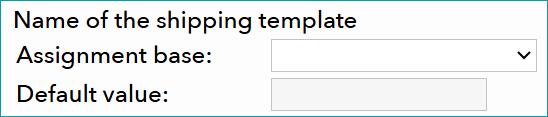
Have you configured shipping templates in TB.One?
Fetch the shipping template ID and its name from the Amazon Seller Central and forward them to your Tradebyte contact. Do the following to find the IDs in the Seller Central:
1.Select "Settings > Shipping Settings".

2.Select a shipping template by clicking on its name and select "Edit".
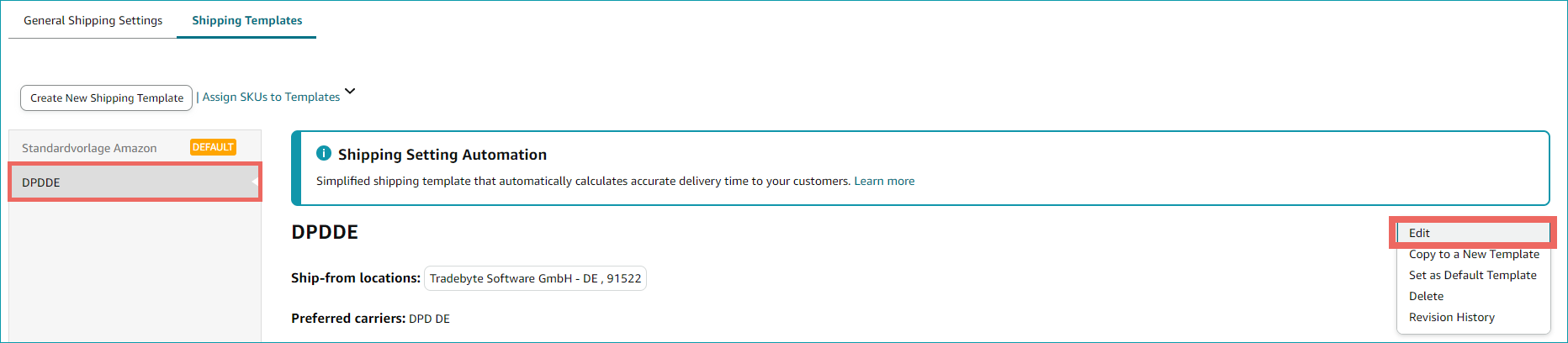
3.Copy the shipping template ID from the URL.

Step-by-step interface authorization and refresh authentication token
Grant access to Tradebyte:
Grant Tradebyte access to the interface and forward the merchant token and authentication token to your Solution Delivery Manager. Tradebyte will then establish the connection between TB.One and the Amazon Seller Central.
TIP:
|
Refresh authentication token:
Once you have authorised the interface to Tradebyte for the first time, you can authencicate the token yourself with self-authentication. The authentification token expires after 1 year. You have to be logged in to the Amazon Seller Central during self-authentication.
1. Access the menu "Channels > Amazon > Settings".
2. Click on "Grant access" in the menu section "Amazon Accounts" and follow the steps on the screen.
3. You can now get the new token in the Amazon Seller Central.
Language and translations of product data
•Provide your product data in Language of the country channel.
•Amazon offers a feature for automatic translations for your product information, if you want to offer products with the same ASIN or EAN internationally. Note: This feature is not connected to the translations in TB.One. Instead, Amazon will translate your offer automatically depending on the customers' language settings.
For more information, contact Amazon directly.
Warehouse Settings
•Go to the menu "Basic data > Storage > Warehouse settings" and check your settings for the channel (for more information, click here).
CHANNEL-SPECIFIC SETTINGS, FEATURES, AND PROCESSES
REFERENCE NUMBER |
CHANNEL-SPECIFIC INSTRUCTIONS |
||
|---|---|---|---|
B-01: Payments |
Find your payment methods at "Basic data > Payment > Payment methods". Payments are managed by Amazon. When the channel is activated or, at the latest, when the first order comes in, a payment method with the channel name is created automatically. For the export to an ERP-system, you can freely select an export key. |
||
D-01: Product designation |
The length of the product designation is limited to 75 characters.
|
||
D-02: Special text |
Amazon will process information you enter in the field "Special text". It is optional to provide special text as part of the product description. |
||
D-03: Description |
•The length of the product description is limited to 2.000 characters. •Bullet points: Mandatory o3 to 5 bullet point recommended. oLimited to 500 characters per bullet. |
||
D-04: Components |
The following components are mandatory at Amazon: •Care instructions •Energy efficiency class (electrical devices) •Search colour (ColorMap) and search size (SizeMap) •Leg length, rise, width (Jeans) •Weight and volume (suitcases |
||
D-05: Attributes |
The following attributes are mandatory at Amazon: •Adult products (required for products that are only permitted for people that are 18 years or older; select the channel attribute "Ist Produkt für Erwachsene (IsAdultProduct)" in the middle column of the value mapping and then activate the checkbox in the right column. •Product type (mandatory for products with the category "sporting goods"/"Sportartikel") Optional: •Gift box available (yes/no as values) •Gift message (yes/no as values) |
||
E-01: Article numbers |
Provide the following article numbers: •Article number •EAN Attention: Manufacturers can be exempted from the EAN requirement. In this case, no EANs may be assigned to the articles, and the channel attribute "RegisteredParameter" has to be mapped. •Secondary article number •Manufacturer's article number |
||
E-02: Shipping information |
Provide the following shipping information: •Pack sizes (height, length, width in cm) •Weight •Country of origin and Intrastat category •Number of packing pieces |
||
E-03: Variant dimensions |
The following requirements apply for variant dimensions: •Size and colour are mandatory variants for fashion articles. •Other articles variants are optional. •For each variant value you can use a maximum of 50 characters. |
||
F-01: Media |
•Provide images in a commonly used format such as png or jpg. •Number: Min 1 article image, max. 9 images, product images are transmitted per article •Size: 500 x 1.000 px (zoomable in webshop) •Resolution: no DPI requirement •Plain white background •Circa 85% of the image must show the product •No logos or watermarks may be shown on the images •The product data sheet has to be added as a PDF for each product •Images are not published, if the product is matched to an existing ASIN
|
||
G-01: Carrier |
•Use a carrier of your choice •You can define surcharges for your Amazon shipping types at "Basic data > Prices > Surcharges/Discounts".
|
||
G-02: Delivery note |
You can configure the Amazon delivery notes at "Admin > System settings > Documents" and add custom text. |
||
G-03: Invoice |
Attention: •For Amazon, uploading your invoices is mandatory
•Invoices contain all information about coupons and vouchers used. •Please note that it is absolutely mandatory to keep the rate of invoice deficiencies below 5%. Failure to do so may result in the deactivation of the account. If your invoice deficiencies excel the mandatory 5% benchmark, the VAT Calculation Service (VCS) by Amazon is a helpful feature to help you with your billing. To benefit from Amazon Business, it is mandatory to use the VCS. To benefit from Amazon Business, it is mandatory to use the VCS. Alternatively, you can upload your own invoices within one business day via REST or directly in the Amazon Seller Central. To use REST for the invoice upload, contact your Solution Delivery Manager directly.
|
||
G-04: Proposed return code |
You don't have to send return codes to the channel with your dispatch advices. |
||
G-05: Delivery documents in package |
Delivery note (optional) |
||
G-06: Refund deduction |
At Amazon you can deduct a percentage from the reimbursed amount, if an article is returned in bad condition. In that case, specify the precentage you want to deduct on corresponding order's "Returns" tab. |
||
G-07: Return causes |
To create return causes and states, go to "Basic data > Returns > Return causes" and "Basic data > Returns > Return states" . Amazon processes the return causes and states you transmit. Map them to the return causes and states used by the channel by assigning a key. Mapping a return cause |
||
X-01: Size grid |
Amazon does not use size grids. |
||
X-02: Base prices |
Provide base prices (price per kg, price per liter, etc.) for all articles that legally require you to do so. •Provide base prices for the mapping channel via the following properties in the value mapping menu: •Unit count (key: unit_count): For products with a weight, length, etc., provide the net content a customer will receive when ordering one piece of the article. If one article contains multiple pieces, provide the number of pieces here (e.g. for a 4-pack of lightbulbs: 4). For articles that come in pairs, indicate the number of pairs. For sets of non-identical articles (e.g. a sponge and soap in one package), each set is counted as one piece. •Unit count - type (key: unit_count.type): Enter the unit type (e.g. pieces, litres, centimetres, etc.). |
||
X-03: Categories |
•For a complete list of all categories, go to "Channels > Amazon.xy > Categories". Consult the channel's style guide for optimal data maintenance, particularly regarding the definition of categories! The style guide is available for different product ranges in the Amazon Seller •At Amazon you can not create links between your products. |
||
X-04: Value mapping |
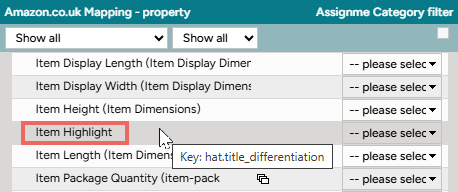
Map at the category level for Amazon. The available channel values may differ from category to category. •If you ship article via Amazon FBA, note the mandatory values •Perform the value assignment for the new Amazon.xy mapping channel (“Channels > Amazon.xy Mapping > Value Assignment”) as usual. •You can optionally use value mapping to maintain so-called “Item highlights” via attributes/components. Please note the character limit of 125 characters. |
||
X-05: Pending orders |
Amazon does not transmit pending orders. |
||
X-06: Partial deliveries |
Partial cancellations and partial deliveries on article level. |
||
X-07: Commission group |
Amazon does not use commission groups. |
||
X-08: Service logos |
Amazon will not display service logos you transfer in the shop. |
||
X-09: Error and status messages |
Find the channel's error and status messages at "Channels > Amazon.xy > Article status". |
||
X-10: Templates |
At Amazon you cannot use templates. |
||
X-11: Text configurator |
The text configurator cannot be used for Amazon. |
||
X-12: Product text profile |
You can use the product text profile to customize the product descriptions shown in the channel's shop (you can add information like components and bullet points, and configure the order in which these elements are displayed). ▪Go to "Basic data > Templates > Product text profiles" to create a profile. ▪Click on "Create new product text profile" in the left navigation bar (tab "Pages"). Enter a designation and click "Create". ▪Click on your profile's designation in the list and select which elements should be part of the product description. ▪Go to "Channels > Amazon.xy > Settings" and switch to the tab "Product texts". ▪Select the option "Use configurable product text". ▪Select an assignment base (for example an attribute). All products containing this attribute will use the product text profile. ▪In the drop-down "Default value" choose the product text profile you want to use. ▪If you want to use different product text profiles for the different values of your assignment base, you can select them in the table below. |
||
X-13: Title profile |
You can use title profiles to configure the product titles shown in the channel's shop. For more information on title profiles, click here. |
||
X-14: Cross prices |
Under certain conditions, Amazon displays so-called "was" prices (cross prices) in the Amazon store based on the former RP or MSRP. Amazon calculates "was" prices according to the prices' history, see the Amazon Policy on Reference Prices in the Amazon Seller Central. The calculation does not incorporate discount. Mandatory price data: •Retail price (RP) •Manufacturer's suggested retail price (MSRP) The MSRP for Amazon must comply with the price you or other sellers have set with the exception of short-term discounts. It must always be up to date! Refer to the Amazon Policy on Reference Prices in the Amazon Seller Central. Optional price data: •Former RP (former retail price) Unused price data: •Channel PP (channel purchase price) •Article PP (article purchase price) |
 . All legally required information is automatically added to the invoice.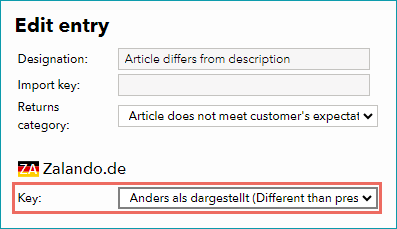
SPECIAL REQUIREMENTS
Password requirements
Amazon's password requirements for TB.One are stricter than the system's minimum requirements. Configure the password rules so they match those of Amazon:
1.Open the menu "Admin > User > Password rules"
2.Change the field "Minimum password length" to 12 characters
3.Activate the checkbox "Maximum password validity" and set the maximum validity to 365 days
4.Click on "Save"
5. Click on "Force password change" to implement the new rule for all existing users
When they next log in, users will be prompted to choose a compliant new password. When a password is older than the maximum validity period allows, users are also prompted to choose a new password. Affected users cannot access TB.One until they change their password.
Anonymization of personal data
•Set a data anonymization period of 30 days for Amazonunder "Admin > System settings > Order processing" in the section "Anonymization of personal data". This deadline was specified by the channel and must be implemented.
•Amazon Seller Central
•When using our interface, product data maintenance and order processing must be done via TB.One. It is not permitted to change product data or process orders in the Amazon Seller Central. Otherwise there is a huge risk that the two systems contain differing data sets, which can cause critical errors in the data exchange process.
•The European Amazon channels typically share one stock in the Seller Central. Although you can set up different warehouses (stocks) in TB.One, the stock in the Seller Central doesn't necessarily coincide with the TB.One stocks. While the Seller Central maintains one stock per article across all European channels, TB.One deducts the stock correctly from the specific warehouse enabled for the Amazon channel on which the order originated.
•Amazon.com has its own Seller Central for which a separate US account is required.
ASIN Matching
If an identical product is already available in the shop, the channel checks and compares the data records. You will receive an error message saying that Amazon already offers the product with differing information.
Tip: |
This is how you proceed:
1.Navigate to "Channels >Amazon > Error/status messages".
2.Select "Product Feed" in the drop-down menu "Feed type".
3.In the menu section "Processing result", you can see the error messages of the rejected products.
4.The column "SKU/Order" contains the article number rejected by the channel.
5.Click on the channel article number (ASIN) and view the current live product of the competitors.
6.If this product corresponds with your data record, activate the error message's checkbox.
7.Then, click on the button "INHERIT ASINS".
8.The ASIN is now used instead of the EAN in the export of your product.
Attention:
But if the suggested ASIN does not correspond with your product, please reach out to your channel contact directly!
In such cases, you may use the option to enter the valid ASIN in TB.One manually
(navigate to "Articles > Article list"; click on the article number of the article and open the article detail view; on the tab "Article data", in the section "Channel data", free text field "Channel article number").
Create offers for existing ASINs
You can use existing ASINs to create an offer. This allows you use a shortened product data catalogue to add articles from your assortment to offers from other vendors who are selling the same articles on Amazon.
It is required you have already performed the corresponding ASIN matching.
Provide the following data for your article and product catalogue
•ASIN
•Stock
•Prices
Attention: Note that articles for which you have not performed ASIN matching will continue to be exported to Amazon in the product data feed.
Products without a brand ("generic")
For unbranded products, assign a brand named "Generic". The maximum number of characters for brands at Amazon is 50. You can additionally indicate the brand's manufacturer in the basic data. The differentiation of brand and manufacturer is in line with the Amazon SellerCentral.
Featured Offers
The so-called "Featured Offer" is displayed near the top of a Amazon store's product detail page. Please refer to further details in the Amazon Seller Central.
To qualify for a featured offer, enter discount prices in sales price lists to export them to the channel only for defined promotion periods.
Tip: Highlighting vouchers and discount promotions |
Where to find Settlement Reports provided by Amazon?
1.Access via the graphical user interface:
•Go to "Channels > [Your Amazon channel] > Billing lists".
•Download a settlement report for your own records by selecting  for the respective document.
TIP: 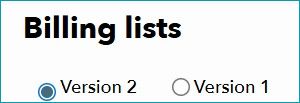 Version 1 will be removed at the end of June 2026. If you still need to download old reports, ensure to do so before the deadline. |
2.Automated retrieval of billing lists/settlement reports:
•The reports are automatically placed in your SFTP output directory (sync/out).
•If your accounting processes are automated, ensure that your system is configured to pick up these files. The version ID at the end of the file name is "1118".
DATA EXCHANGE TIMES
DATA |
TIME/FREQUENCY |
|---|---|
Catalogue (Full) |
Weekly |
Catalogue (Delta) |
Daily, Monday to Friday |
Stock (Full) |
Daily |
Stock (Delta) |
Twice an hour at minutes 5 and 35 |
Media |
With catalogue |
Prices |
Daily, every 2 hours |
Retrieve and import orders |
Four times an hour |
Confirmation of incoming orders |
Hourly |
Delivery messages |
Twice a day |
Cancellation/Return messages |
Twice a day |
Error and status messages |
Several minutes after sending data |