TB.One > Setup, Configuration & User Accounts > Order-Related Basic Data > Stock and Storage Configuration
Stock and Storage Configuration
To manage your inventory and for processing orders, it is necessary to create storage facilities in TB.One and to configure them for imports. Additionally, you need to define whether order messages (dispatch, cancellation, and return) automatically cause inventory changes in TB.One. If necessary, you can define inventory discrepancies for each channel.
1. STORAGE FACILITIES
At "Basic Data > Storage > Storage facilities" you will see the default warehouse "Standardlager". You may change its designation at any time. To create a new storage facility, select the tab "Pages" in the left navigation bar and click on "Create new warehouse". Enter a name for the warehouse in the field "Designation". If you would like to update your stock numbers via import as part of your daily business, enter an import key in the respective field (freely configurable) and define an import ratio if needed.
Setting an import ratio allows you to distribute the imported article stock by warehouse. If you, for example, set an import ratio of 80% for the warehouse "Station Square", and specify a stock of 10 articles in your import file, a stock of 8 will be added to the warehouse's inventory. The two remaining articles will be ignored. The export key is currently not relevant. Upon creation, storage facilities are valid across all channels. In the warehouse settings you define which channel should be supplied from which storage facility.
2. WAREHOUSE SETTINGS
2.1 ORDERS AND STORAGE
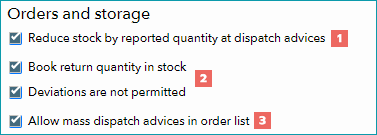
Define the default settings for behavior related to dispatch advices in the section "Orders and Storage" in the menu "Basic Data > Storage > Warehouse settings".
FIELD |
DESCRIPTION |
|---|---|
|
Activate this checkbox if the stock numbers should automatically be reduced by the amount shipped upon creation of the dispatch advice for an order position (i.e. one or more articles of the same type). If you disable this feature, you need to monitor your stock numbers in TB.One in a different way (manually/via import) to avoid oversales. |
|
If you enable the option "Book return quantity in stock", returned articles will automatically be added to the stock as soon as the returns message is created in TB.One. If you enable the checkbox "Deviations are not permitted", the option "Book return quantity in stock" cannot be edited on the order's "Returns" tab (it will be grayed out). The global setting can then no longer be changed at the order level. |
|
If this checkbox is active, the button "Create messages" at "Orders > Order list" will be displayed. The button will allow you to mark multiple orders in the order list and create their dispatch advices simultaneously. |


2.2 STORAGE FACILITIES
In the section "Storage facilities", you can choose the option "Add stock of external warehouses to cumulated inventory". The term "external warehouses" refers to the channels' warehouses, the stock of which can be imported in TB.One but will not be editable. This is useful for Zalando ZFS or Amazon FBA for example.
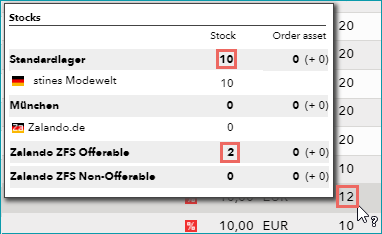
If the stock at Zalando ZFS is 1 and the standard warehouse lists a stock of 23, the article list will show the total stock of 24 when the option is enabled. Otherwise only a stock of 23 would be indicated in the inventory in TB.One.
The stock of storage facilities you have created yourself and which you maintain via an import ratio or a different method will always be accounted for in the total stock.
2.3 BIN LOCATIONS / DELIVERY TIMES PER DISTRIBUTION CHANNEL
In the lower section of the screen at "Basic data > Storage > Warehouse settings" you configure storage and delivery specifications for each channel.
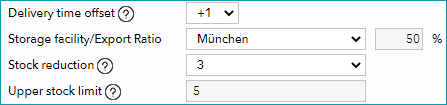
Set a channel-specific delivery time offset if you, for example, only offer freight forwarding goods on a channel, or if a channel adds transport times which are already accounted for in the delivery times you specified at the article.
The drop-down list "Storage facility" lets you assign a warehouse to the channel. With the export ratio, you can define which percentage of the stock registered for that warehouse should be exported to the channel.
A stock reduction will reduce the amount of available stock at the channel by the indicated number.
Specifying an upper stock limit will limit the stock that is exported to the channel for each article to the indicated number.
The variables are applied in the following order: export ratio, stock reduction, upper stock limit. How much stock is exported to each channel for an article can be seen by hovering over the "Inventory" column in the article list (see screenshot at 2.2).
Export ratio and stock reduction may also be overwritten on an article-by-article basis across all channels. To do that, you need to create an attribute that you assign to all affected articles. The attribute's value needs to state the number of articles that should be subtracted from the available stock. Select that attribute from the drop-down list "Stock control" (above the individual channel settings).

Example: You configure a stock reduction of 3 and an export ratio of 50 % for a channel. In this case, a stock of 2 would be transferred for an article with a stock of 10 pieces. 10 (stock) / 2 (export ratio) - 3 (stock reduction) = 2 You create a stock control attribute and assign it to an article. Assuming you assign the value "2" for the attribute and select it in the field "Stock control", the value "2" would be subtracted from the stock and the remaining amount would be transferred to the channel. 10 (stock) - 2 (attribute value) = 8 If you want to transfer the complete stock of an article to the channel, set the value of the attribute selected at "Stock control" to "0". 10 (stock) - 0 (attribute value) = 10 |
|---|
ATTENTION: |
ATTENTION: In the import file, the field must be provided as A_TAG[attribute name], the value has to be a positive integer. You must not assign multiple values for this attribute to the same article, even though that is technically possible. |
For further information, see also:
•Entering stock data manually (1, 2)
•Assigning stock data via CSV
•Assigning stock data via XML
•Naming conventions for stock updates via CSV
•Naming conventions for stock updates via XML