TB.One > Import & Export > Master Data Import via CSV > Conventions on CSV column headers
Conventions on CSV column headers
Generally, there is no mandatory quantity or order of fields in the import file. During the import process, all column headers (i.e. the first row) will be checked, and then the contents will be processed according to the headers. Empty fields or columns are ignored during the import process.
ATTENTION: |
1. CHANNEL SIGN
Every channel has a unique identifier in TB.One. For the purposes of this documentation, channel-specific data is indicated with "[channel]".
EXAMPLE: Prices: "a_vk[channel], "a_vk_old[channel]", "a_mwst[channel]", etc. |
This means, that import files must contain an instance of the column marked with "[channel]" for each booked channel. Instead of the word "channel", the square brackets must contain the corresponding channel sign.
TIP: |
2. KEYS
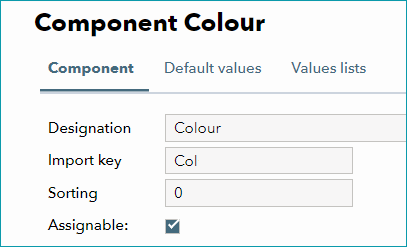
In TB.One, you can assign import keys for components, attributes, brands, and service logos. In this documentation, keys are indicated by the word "[key]" in square brackets. In the CSV file, replace the word "key" with the corresponding information's respective key.
In the import settings, you may activate a feature that will automatically create the elements belonging to the indicated keys in TB.One during import.
The lists in which you can create the keys can be found at "Basic Data > Properties".
3. MULTIPLE VALUES
If multiple instances of one field can be provided (e.g. for bullet points), a unique number is added as "{seqno}". It is recommended to number these fields sequentially in ascending order.
4. MULTI-LANGUAGE IMPORT
Most information can be imported in multiple languages. In order to be able to import multiple languages, any additional languages (and their import keys) first need to be created in TB.One ("Articles > Translation > Languages"). To import information for these languages, add the assigned import key in angle brackets (< >) at the start of the column header. Which values can be provided in multiple languages are indicated in the tables on the pages "Product Fields" and "Article Fields".
5. EXAMPLE

In the square brackets [ ], enter the import key of a component. If the import key is not found in TB.One and the import settings for automatic creation are active, a new element will be created. When comparing the table to the screenshot above, you will see that the component's import key in not "Width" but "wid". TB.One would not be able to make the connection and would create a new component using "Width" as the name and import key.
For further information, see also:
•Master data import via CSV - overview