Marketplaces > Marketplaces A-F > Amazon > How to Stop TB.One from Overwriting Seller Central Product Data
How to Stop TB.One from Overwriting Seller Central Product Data
If you want to update or change product/article data manually in the Amazon Seller Central, and want to prevent TB.One from overwriting them, implement a Data Lock attribute:
•TB.One no longer exports data for products/articles marked with the attribute to Amazon.
•Stock, prices, and activation states are still updated by TB.One when the Data Lock is active.
•You can manage/edit specific pieces of data (descriptions, etc.) directly in Seller Central if the Data Lock is active.
•A Data Lock configured at the product level applies to all of the product's articles.
Preparing the Data Lock Feature
1.Go to "Basic data > Properties > Attributes".
2.Select "Create new attribute" in the left side bar.
3.Enter a descriptive designation (for example, "Lock"; see Fig.1). If you import your product/article data, you also must define an import key.
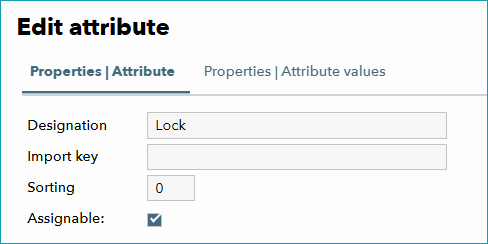
Fig.1: Choosing a designation for the new attribute
4.Switch to the tab "Properties | Attribute values" and create the values "true" and "false" (see Fig.2). If you import your product/article data, remember to define import keys here as well.
5.Contact Tradebyte Support and request activation of the Amazon Data Lock. Include the name of the newly created attribute in your request
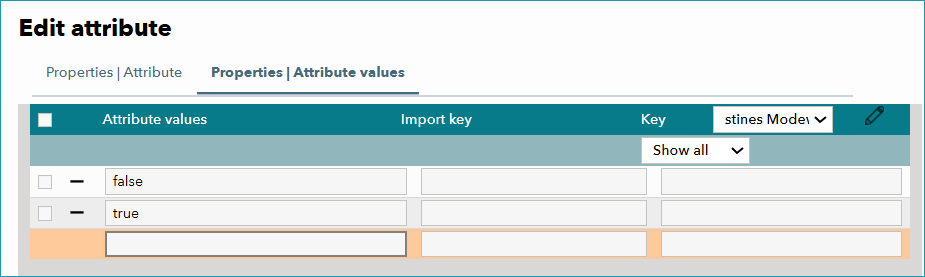
Fig.2: Creating the attribute values "true" and "false"
Applying the Data Lock
You can either lock single articles or an entire product.
ATTENTION: You must export the product/article to Amazon at least once before you lock it. Otherwise, the product/article will not go live. |
Locking an Entire Product
Add the new "Lock" attribute to your product and select the attribute value "true". Depending on how you provide data choose one of the following methods:
a)Add the attribute to the product manually in the graphical user interface via the product description menu.
b)If you import data via CSV, create a new "p_tag" column for your attribute.
c)If you import data via XML, provide the new attribute in a <P_TAG> node.
Locking a Single Article
Add the new "Lock" attribute to your article and select the attribute value "true". Depending on how you provide data choose one of the following methods:
a)Add the attribute to the article manually in the graphical user interface by editing the article properties.
b)If you import data via CSV, create a new "a_tag" column for your attribute.
c)If you import data via XML, provide the new attribute in an <A_TAG> node.
Deactivating the Data Lock
There are two ways to deactivate the data lock and start exporting the respective product/article to Amazon again:
a)Remove the "Lock" attribute from the product/article.
b)Set the "Lock" attribute's value from "true" to "false" for the respective product/article.