TB.One > Product and Article Data > Manual Master Data Creation > Creating Articles > Article Detail View - Article Properties
Article Detail View - Article Properties
TIP: The article detail view is used to change settings for variants that differ from others (in ways that are not part of the variant-forming article properties). This is rarely the case. Usually, article data is entered on the tabs "Article list" and "Article data" in the product details or via the master article. |

 ) at the top right.
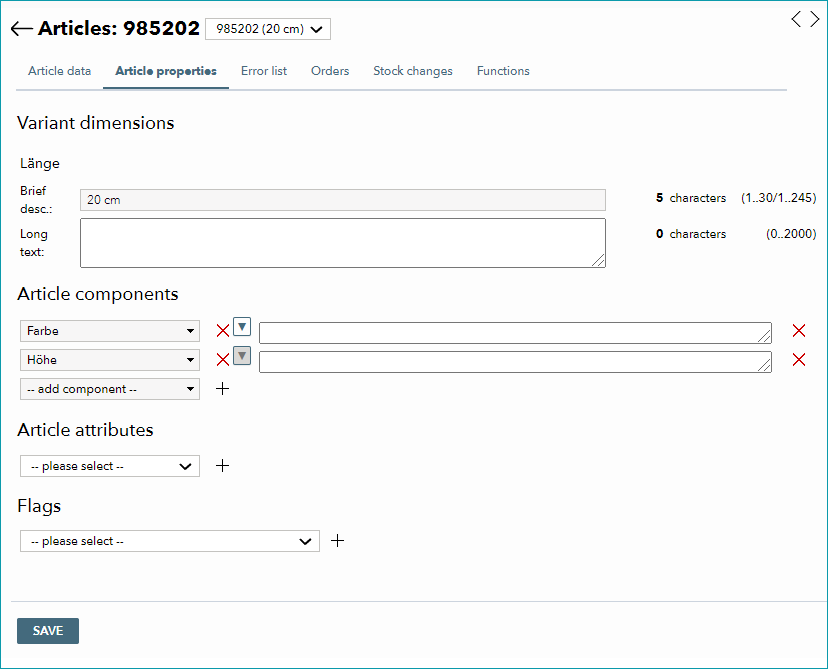
The section "Variant dimensions" provides an overview of the variants you have created.
If there are properties that only apply to one of your product's articles, you can provide this information as an article component or article attribute (note that article attributes are not exported to the channels but some article components are). To assign this information, proceed in the same way you would when adding it to a product.
TIP: You defined the properties "size" and "color" as variant dimensions for the a product", and have created a number of articles that differ in size and/or color. Size is, however, not just a letter or number: it also stands for a certain arm length, shoulder width, etc. This information could be of interest to a customer and, if provided, may reduce your return rates. You can add these pieces of information to the article in the form of article components. |
It is also possible to add flags to articles in this menu.
ATTENTION: |
For further information, see also:
•Manual master data creation - overview
•Article Detail View - Article Data