Marketplaces > Marketplace Integration > Order Data (Marketplace Integration)
Order Data (Marketplace Integration)
TB.One offers you three different ways to process orders:
•Manual processing in the graphical user interface.
•Exporting orders and importing order messages via CSV (order processing in a third-party system).
•Exporting orders and importing order messages via XML (order processing in a third-party system).
During integration, discuss with your Solution Delivery Manager which method best suits your business needs. The order data and processing requirements listed in this article apply to all three methods.
This article highlights where channels differ in their requirements for order processing and shipping. For general information on order processing, refer to the articles linked above (manual processing/CSV/XML).
1. Incoming orders
Incoming orders are usually "open orders". Some channels also send "pending orders".
1.1 Open orders
When your articles are ordered from the channel’s shop, TB.One receives an order file from the channel. All incoming orders are displayed in TB.One’s order list (“Orders > Order list”). When you first open the list, the filter is set to show only open orders. To view orders from a specific channel, select it from the “Channel” drop-down menu.
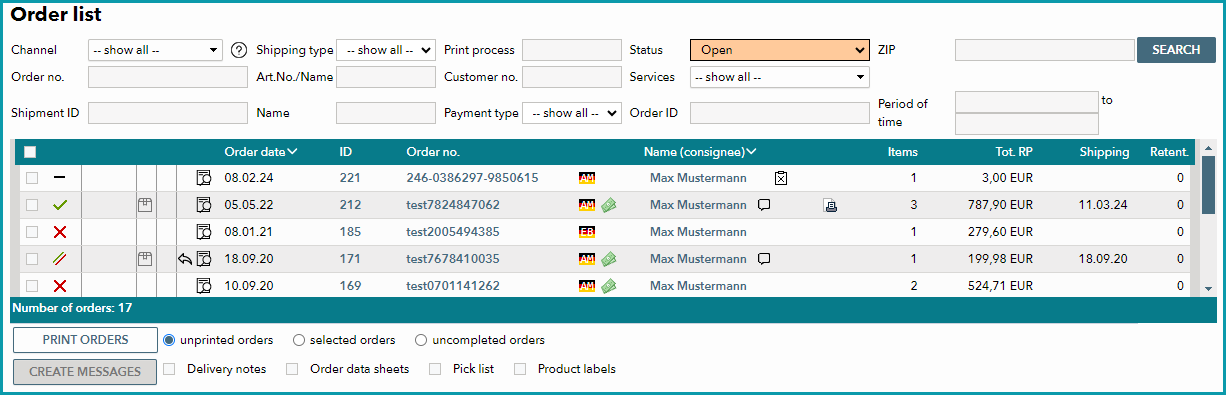
Fig.1: Order list
To filter for orders that are ready to be processed, set the “Status” drop-down menu to “Open”. The list now displays all orders that you can fulfill at this point in time. Process/ship open orders as soon as possible.
1.2 Pending orders
Some channels also forward pending orders to TB.One (check “X-05: Pending Orders” on the Channel Sheet). Do not process/ship pending orders until they are confirmed and their status changes to “Open”. Pending orders have not yet been confirmed by the channel, for example because payment has not been received. TB.One automatically reserves stock for pending orders to avoid oversales. To view all pending orders, set the “Status” filter in the order list (“Orders > Order list”) to “Pending” or open the menu “Orders > Reservations”.
2. Order Change & Cancellation
If you receive an order for an article that is out of stock, you will have to cancel it. Check “X-06: Partial deliveries” on the Channel Sheet to find out how to fulfil partially cancelled orders. If a customer cancels an order before it has been confirmed, the channel sends a cancellation message or withdraws the order. In the order list, cancelled orders are marked with the  icon.
icon.
3. Delivery and Documents
Depending on the channel, you may need observe the following when processing orders:
3.1 Carrier
When it comes to carriers and shipping, the channels have different requirements. They differ in the types of carriers you can use (for example DHL only) and whether or not they allow you to charge shipping fees. Check “G-01: Carrier” on your Channel Sheet to find out whether there are any specific requirements.
3.2 Delivery Note
Channels usually require a specific layout and content for their delivery documents. If you do not print your delivery documents from TB.One, you must submit the layout to the channel for approval.
Some channels transmit a ready-to-print delivery note with each incoming order. Other channels allow you to customise some of the text on the delivery notes through TB.One. Check “G-02: Delivery note” on your Channel Sheet to learn about the rules for delivery notes at your channel.
TIP: |
3.3 Invoice
Some channels require that you include invoices in the packages you send to customers, others handle the entire invoicing process themselves. Find the invoicing requirements for your channel under “G03: Invoice” on your Channel Sheet.
To print invoices for a specific order, open the order details on the tab “Consignee & Positions” and click on “Print invoice”/”New invoice”/”Last invoice print” (the button changes depending on the context).
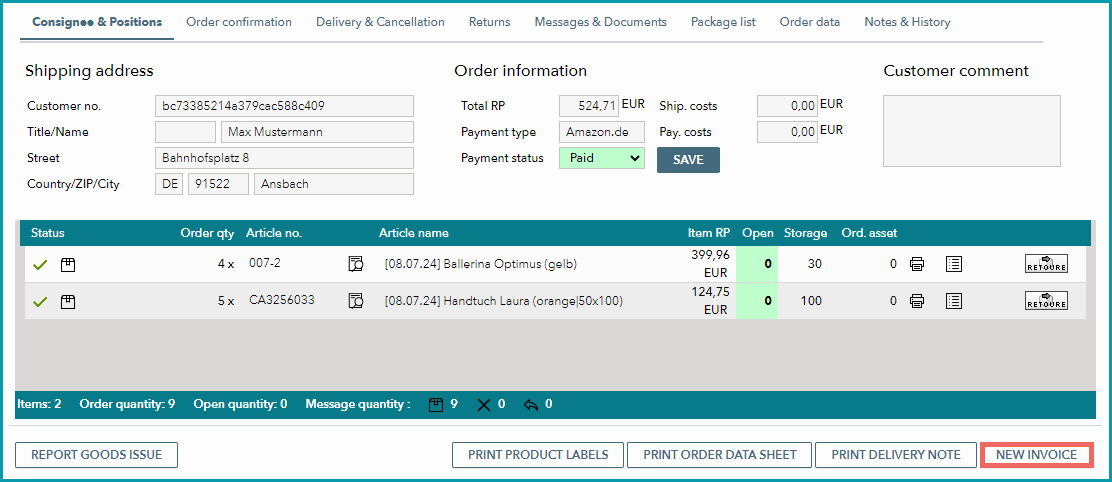
Fig.2: Print invoice
3.4 Other Documents and Requirements
For a list of all documents that must be included in shipments to the channel’s customers see “G-05: Delivery documents in package” on the Channel Sheet.
To print shipping and return labels in TB.One:
•Book a range of shipping numbers with a carrier and store the details in TB.One (“Basic data > Shipping > Number ranges”).
•Define a return address at “Basic data > Returns > Return addresses”.
For some channels you have to transmit a shipping code for potential returns during order processing. Find the requirements for your channel under “G-04: Proposed return code” on your Channel Sheet.
TIP: |
4. Returns Handling
Whenever a customer returns articles to your warehouse, you must record the returns in TB.One. TB.One will then send a returns message to the channel. For more information on how to process returns in the user interface, click here.
Some channels allow you to deduct a percentage of the refund amount if the returned items are in poor condition. Check “G-06: Refund deduction” on the Channel Sheet, to find out how your channel handles these cases.
TIP: Even if the channel does not process return causes, assigning them may still be valuable for internal tracking and evaluation purposes. |