Marketplaces > Marketplaces T-Z > Zalando > Error Messages for Zalando > How to Solve PSERR_133
How to Solve PSERR_133
TIP: |
Description
The Zalando error PSERR_133 occurs for products where EANs (articles) already exist at Zalando. When the size grid assigned to an EAN in TB.One does not match the size chart that was assigned to the parent product in Zalando's system during the initial onboarding, PSERR_133 is triggered.
Common reasons for a size grid/chart mismatch are usually:
a)Zalando has changed the size chart in their system during onboarding to match the sizing in their shop.
b)You have unintentionally changed your product's size grid in TB.One after initial onboarding.
Zalando applies a so-called content-freeze to existing articles. When you change product/article data in TB.One after the first upload, Zalando keeps the article in its original state. Because of this, Zalando usually only notices size mismatches when you onboard additional articles (color/size variants) for an existing product.
Article rejected, because it contains a size that is not contained within the given size-chart. |
Solution
TIP: a)Onboard additional articles using the "original" size grid Zalando is currently using for the product (this is the solution described below). b)Onboard your entire product including original and additional articles/variants in the new size grid: Request a "size chart migration" at Zalando. |
Step 1: Find the Correct Zalando Size Chart
Ask Zalando support which size chart is currently in use for the existing product variants.
Step 2: Check Mapped Size Grids
ATTENTION: |
•Go to the Zalando value mapping menu "Channels > Zalando (main channel) > Value mapping".
•Select "--global mapping--" in the left column. Size grids are mapped globally.
•Go to the middle column and select the "size register" property (Key: sizeRegister) .
•Go to the right column.
•Set the filter to "Show all" (see Fig.1).
•Look for the size chart determined in step 1. It may be helpful to switch to key-based display (see Fig.1; this will show Zalando size chart code numbers, such as 1FE3000E0A).
•Check if you have already assigned one of your size grid values to the size chart used by Zalando (see step 1). If so, note down that size grid value and skip to step 3-B, otherwise continue with 3-A.

Fig.1: How to set the filter to "Show all" and switch to key-based display.
Step 3-A: Using a New Attribute Value
•Go to "Basic data > Properties > Attributes".
•Look for the attribute you use for the size grids and select it (in the screenshot "Fig.2" it is named "Size grid", but your attribute may have a different name).
•Go to the "Edit attribute" section on the right.
•Switch to the tab "Properties | Attribute values".
•Add a new attribute value for the size chart (see Fig.2).
•If you import your products and articles using CSV or XML, assign an import key.
•Save your settings.
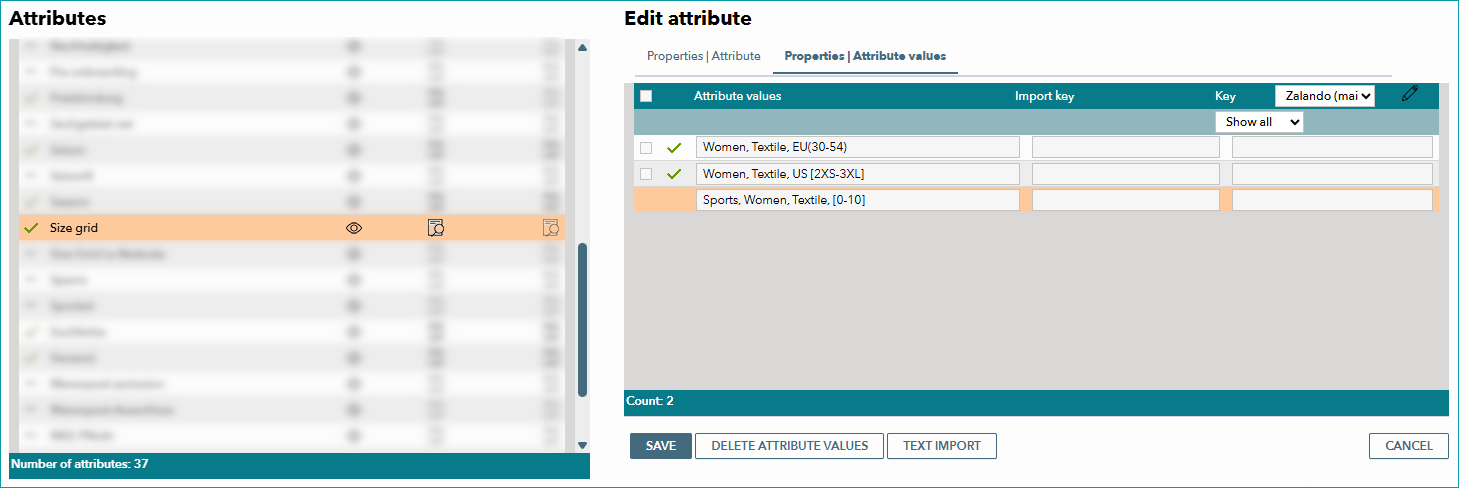
Fig.2: How to create a new attribute value
•Open your product using the product list ("Articles > Product list").
•Scroll down to the product attributes and assign the newly created size grid value (see Fig.3).
•If additional values are assigned to this attribute, remove them.
•Save your settings.
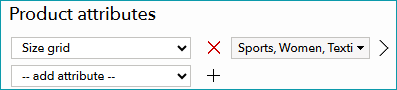
Fig.3: How to assign the attribute value to a product
•Go to "Channels > Zalando (main channel) > Value mapping".
•Select "--global mapping--" in the left column and the "size register" property in the middle column.
•In the right column, look for the attribute value you have just added to your product. Assign it the Zalando size chart determined in step 1.
•Save your settings. Continue with step 4.
Step 3-B: Using an Existing Attribute Value
•Open your product using the product list ("Articles > Product list").
•Scroll down to the product attributes.
•Replace the current size grid attribute value with the one you noted down at the end of step 2.
•If additional values are assigned to this attribute, remove them.
•Save your settings.
Step 4: Wait for the Next Export to Zalando
•When you have configured all settings, wait for the next daily Zalando export.
•Monitor the status in zDirect to confirm that the error is resolved.
For further information, see also: