TB.One > Product and Article Data > Product-Related Basic Data > Creating Attributes
Creating Attributes
Attributes can be created manually or via import. If you choose to add them via import, check the import settings at "Admin > Import > Settings". Especially the sections "Delete content no longer provided in the import" and "Create import keys from import file automatically" are important.
CREATING ATTRIBUTES MANUALLY
Go to "Basic data > Properties > Attributes". Select the tab "Pages" in the left navigation bar and click on "Create new attribute". Enter a designation and, if necessary, an import key in the editing section on the right side. Since attributes serve internal purposes or the mapping of channel attributes, the designations are entirely up to you. However, some channels allow adding attributes to the product description via the product text configurator.
If you do not assign a sorting value, the attribute will automatically be saved with the value "0", which means "unsorted". You can exempt attributes that are no longer in use from being displayed at products by disabling the checkbox "assignable".
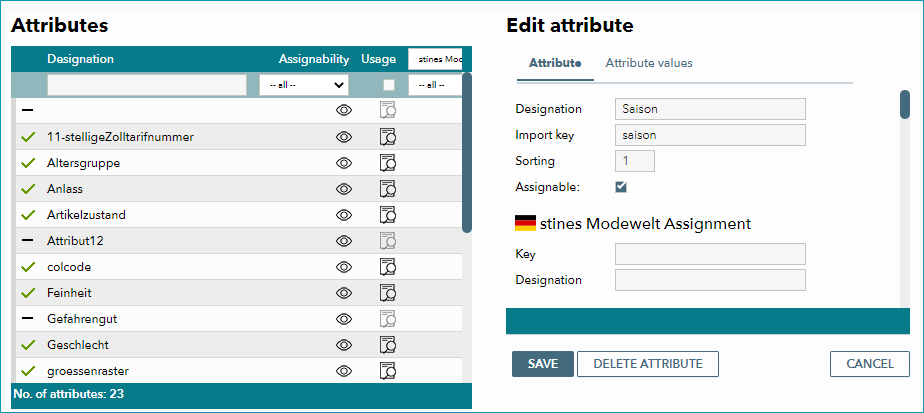
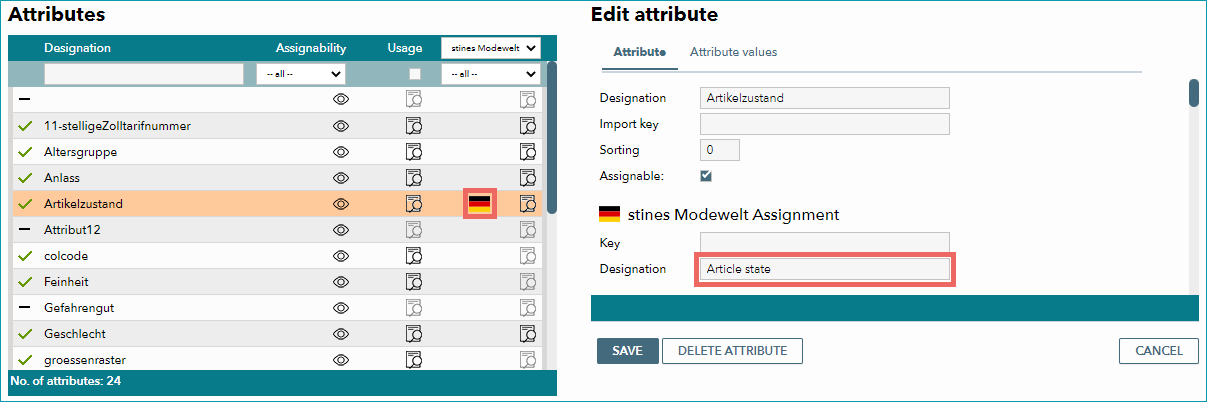
The assignment fields for individual channels are usually only relevant for custom channels, for which value mapping is not possible. If an attribute should be transmitted to one of these channels, you need to indicate a signifier in the field "Key". The field "Designation" is used to translate the designation IF the designation is published at the channel, or it could be used if the original designation is not useable (e.g. because it is an internal reference code).
The main purpose of attributes is, however, to assign properties that are of interest internally or to map channel attributes (e.g. search criteria). Another difference between components and attributes is, that multiple values may be assigned for one attribute (e.g. the attribute "Season" with the values "Spring" and "Summer").

Once you have created the attribute, you need to define a list of values on the tab "attribute values". For attributes, unlike components, you may only choose among these predefined values when assigning them to products/articles.
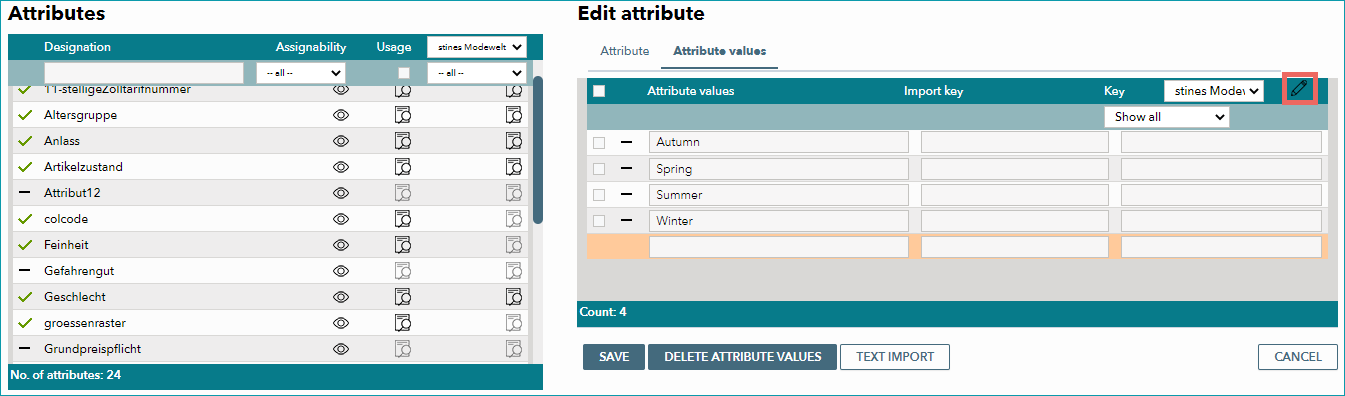
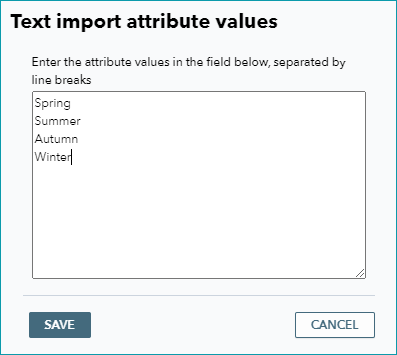
To create a list of values, either enter the values line by line and save after each value or click on "Text import" on the bottom of the menu. This will open a window into which you can either paste an externally generated list or enter the values manually. If you enter the values manually, separate them with line breaks. Click on "Save" to enter the values into the values list.
TIP: |
You can specify your own import key and a channel-specific key for each value in your values list. Like the attribute key described above, these value keys are used to transmit attribute values to custom channels that do not offer value mapping. Instead of entering all keys manually, you may use all the attribute values' designations or import keys as the channel-specific keys. To do this, click on the pen-icon (to the right of the channel drop-down menu; red box in the screenshot of the "edit attribute" menu above) to open the editing menu. Choose your preferred option and click "Copy" to confirm. If necessary, activate the checkbox "Overwrite existing values".
FILTERING ATTRIBUTES
The filters in the attribute list are similar to those of the component list. Both lists show a channel flag if a channel-specific assignment exists for the designation or the key.
COLUMN |
DESCRIPTION |
|---|---|
Designation |
Filter by search term |
Assignability |
Filter by assignable/non-assignable attributes (checkbox "assignable" in the menu "edit attribute" on the right) |
Usage |
Hide all unused attributes. |
Channel filter |
Usage of the attribute based on the channel selected in the top row:
|
 "No usage": shows only attributes that are not in use at the selected channel.
For further information, see also:
•Assigning attributes to a product manually
•Assigning attributes to an article manually
•Assigning attributes to a product via CSV
•Assigning attributes to an article via CSV
•Assigning product attributes (TB.Cat 1.2/TB.Cat 1.4) and article attributes via XML