Marketplaces > Marketplaces T-Z > Zalando > FAQ - Zalando > Add Videos to Zalando Article Media
Add Videos to Zalando Article Media
This guide shows you how to add videos to your Zalando article media in TB.One.
How does it work?
While the basic article onboarding process remains the same, you can now add videos to your Zalando article media in TB.One.
To learn the technical requirements regarding videos and thumbnail images (size, aspect ratio, framerate, ...), check the Video Guidelines on the Zalando Partner University.
ATTENTION: Restrictions for article videos: •Videos are currently only exported to the Zalando channels. •Videos can only be provided at the article level, not at the product level. |
How to assign videos to Zalando articles in TB.One
There are three ways to assign videos to your Zalando articles in TB.One:
1.Directly in the graphical user interface,
2.Via CSV file import,
3.Via XML file (TB.Cat) import.
ATTENTION: Videos are not stored on Tradebyte's servers! |
Assign videos via the graphical user interface
ATTENTION: The menu for media assignment is located at the product product level! |
1.Open the product list ("Articles > Product list").
2.Click on a product number or designation to open the respective product.
3.Switch to the "Media" tab (see Fig. 2).
4.At the top of the empty media group box, select a video media type from the drop-down menu (see Fig. 2). You can use the preconfigured media type "video (VIDEO) [mp4]".
TIP: About the media group boxes: An empty box is available to assign additional media. If no media are assigned yet, TB.One only shows an empty box (see Fig. 1). These boxes are called "Media groups" because you can assign multiple pieces of media in one box. 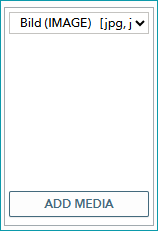 Fig. 1: An empty media group box in TB.One |
5.Click "ADD MEDIA" at the bottom of the empty media group box (see Fig. 2) to open the pop-up menu for indicating media URLs.
6.If you have not selected the correct media type earlier (see step 4), select a video media type from the drop-down menu at the top (see Fig. 2):
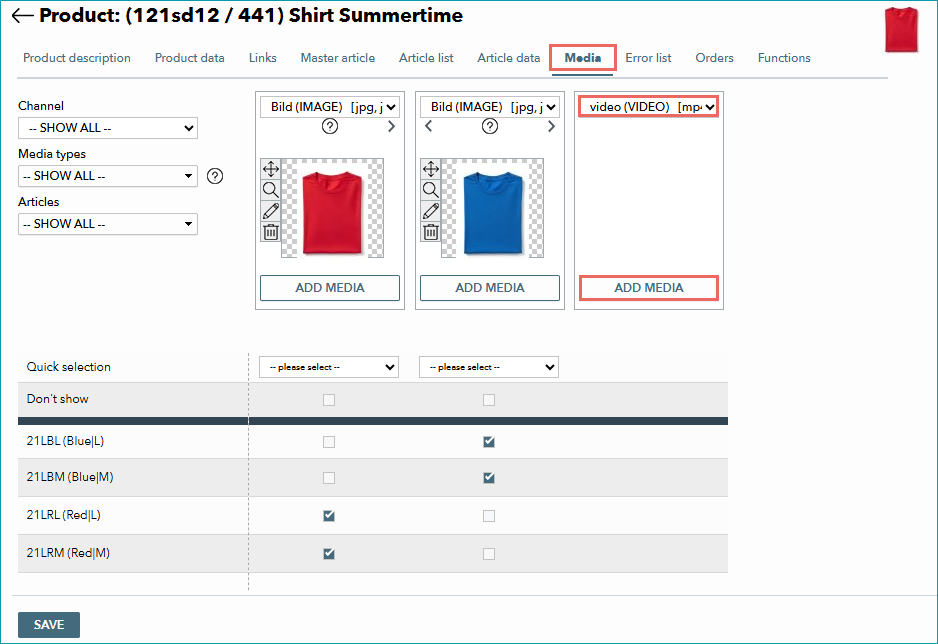
Fig. 2: Adding a new media type in TB.One
7.Indicate the video and its thumbnail image's storage locations in the following fields (both are mandatory, see Fig. 3):
•"Video-URL" - Enter the video's storage location. The video must be in MP4 format.
•"Poster-URL" - Enter the video thumbnail image's storage location. The image must be in JPEG or PNG format.
8.TB.One will then assess the compatibility and accessibility of your image (see Fig. 3):
•If TB.One cannot access or find an image in a compatible format at the URL: The field is highlighted in red.
•If TB.One can access the image or the video: The icon  is displayed next to the input field.
9.Optionally, you can also enter an alt-text for the video (max. of 255 characters, see Fig. 3):
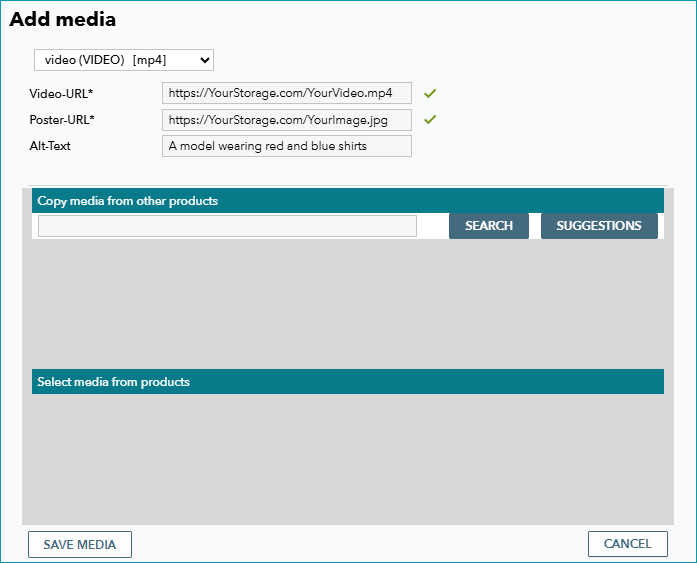
Fig. 3: Adding URLs and alt-text to a new video media in TB.One
10.Click on "Save media" to close the pop-up menu.
11.You are now back on the product's "Media" tab. Below the media group box, the menu shows a check box for each of the product's articles. Activate the check boxes to assign the video to your articles. The video will only be exported for articles selected via the check boxes (see Fig. 4). If no articles are selected, the video won't be exported for any article.
12.To preview an assigned video in TB.One, click on its image in the media group box. Once you're done, click "Save" to finish.
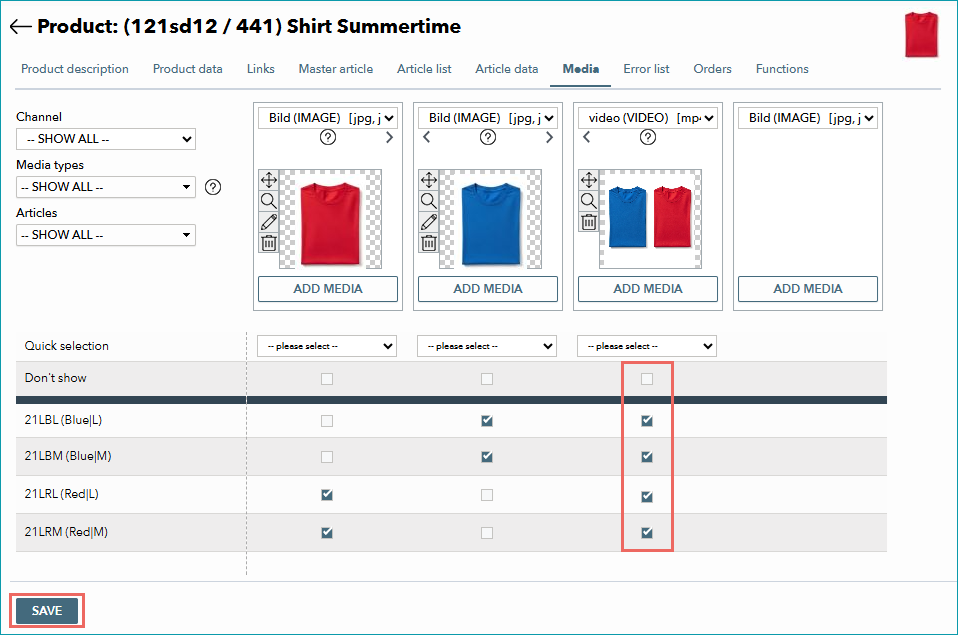
Fig. 4: Selecting the check boxes in TB.One for all articles where a video should be displayed
TIP: You can copy videos from a product to another! 1.In the "Add media" pop-up menu, look for the source product under "Copy media from other products". 2.Click "Suggestions" to view a list of suggested products. 3.Select the source product using the check box next to its name. 4.In the "Select media from products" section, select all videos to copy. 5.Click "Save Media" to finish. |
Assign a video via CSV file import
Videos can be assigned to your Zalando articles by importing a CSV article catalogue (PANDA or ARTICLE file types).
To do so, add the video data in the following columns:
COLUMN NAME |
REQ |
TYPE |
DESCRIPTION |
|---|---|---|---|
a_media[key]{seqno} |
Yes |
CHAR(254) |
This column contains the video's URL. Configure the header as follows: •For "key", enter the import key of the media type you have created for videos. •Number your media columns sequentially starting with {0}. Example: For import files containing articles with up to 3 videos that use the same import key, you need the columns "a_media[VIDEO]{0}", "a_media[VIDEO]{1}", and "a_media[VIDEO]{2}". |
a_media_poster[key]{seqno} |
Yes |
CHAR(254) |
This column contains the video thumbnail's URL (must be provided for each video). Configure the header as follows: •For "key", enter the import key of the media type you have created for videos. •Number your media columns sequentially starting with {0}. Example: For import files containing articles with up to 3 videos that use the same import key, you need the columns "a_media_poster[VIDEO]{0}", "a_media_poster[VIDEO]{1}", and "a_media_poster[VIDEO]{2}". |
a_media_alt_text[key]{seqno} |
Yes |
CHAR(254) |
This column contains the alt-text of your video. Configure the header as follows: •For "key", enter the import key of the media type you have created for videos. •Number your media columns sequentially starting with {0}. Example: For import files containing articles with up to 3 videos that use the same import key, you need the columns "a_media_alt_text[VIDEO]{0}", "a_media_alt_text[VIDEO]{1}", and "a_media_alt_text[VIDEO]{2}". |
Assigning videos via XML file import (TB.Cat)
You can assign videos to your Zalando articles by importing a TB.Cat XML catalogue into TB.One.
Use the same XML nodes as for other media. However, two additional XML attributes are available for videos:
•"poster" - Thumbnail attribute (mandatory for videos)
•"altText" - Alt-text attribute (optional)
NODE |
REQ |
DATA TYPE |
DESCRIPTION |
|---|---|---|---|
A_MEDIADATA |
Yes |
XML |
Contains all of aN article's media. |
A_MEDIA |
Yes |
CHAR(254) |
References article media. For videos, include the video URL in this node. The video must be an MP4 file. |
A_MEDIA[type] |
Yes |
CHAR(50) |
Media Type. Indicate the import key of the media type you use for your videos. The predefined video media type has the import key "VIDEO". |
A_MEDIA[sort] |
Yes |
INT |
Defines sorting within article media. |
A_MEDIA[poster] |
Yes |
CHAR(254) |
This XML attribute contains the video thumbnail's URL. The thumbnail image must be a JPEG or PNG file (mandatory for videos). |
A_MEDIA[altText] |
No |
CHAR(254) |
Use this XML attribute to provide an alt-text for the video (optional). |
EXAMPLE:
|
TIP: Additional resources for TB.Cat XML import files |
Removing videos from your Zalando article data
Articles you have exported to Zalando are subject to a so-called "Content Freeze": this means that Zalando will remember the data provided for an article and will not allow you to change it.
If you remove a video from the article data in TB.One, this will not affect the display at the Zalando shop. To remove a video, you must contact Zalando as outlined in the guide provided in the Zalando Partner University.
Create a media type for videos
Optionally, you can create a media type for videos.
By default, your account already has a predefined media type for videos that you can use:
•Name: "video"
•Import key: "VIDEO"
If you do not want to use the predefined video media type, or need multiple different media types for videos, follow the steps below:
1.In TB.One, go to "Basic data > Properties > Media types".
2.In the left side bar, click the page action "Create new media type".
3.The "Add media type" editing section appears on the right (see Fig. 5). From there, fill in the fields below accordingly:
•"Name" - Choose a name for the media type.
•"Import key" - Enter an import key. This key is needed to assign videos to articles by importing an XML (TB.Cat) or CSV file (such as a PANDA file).
•"Master media type" - Select "Video (VIDEO)".
•"Don't export to" - Select all channels, except the targeted Zalando channels.
4.Save your settings.
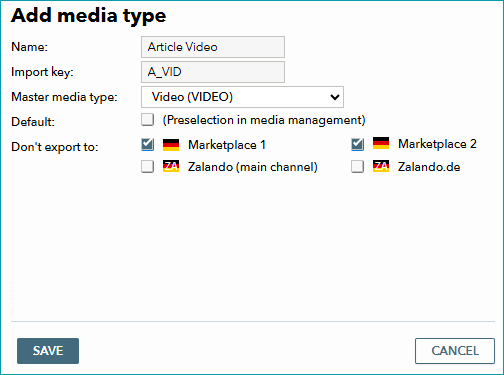
Fig. 5: Configuring a new video media type in TB.One
Resolve errors related to Zalando article videos
Sometimes, the channel may reject videos you assign to your Zalando articles via TB.One because of technical specifications (e.g. video quality) or for content reasons.
In these cases, Zalando transmits error messages to TB.One. You can find and download them under "Channels > [Your Zalando Channel] > Article status".
In the downloaded error files, check the following columns:
•"PS_PAC_UPDATE_TYPE" - Messages referring to videos show the value "VIDEO" in this column.
•"PS_PAC_UPDATE_STATUS" - Shows whether the video was accepted ("UPDATED") or whether there was an issue ("FAILED"). Videos with the status "PROCESSING" are currently being processed or checked by Zalando.
•"PS_PAC_UPDATE_STATUS_SHORT_DESCRIPTION" - Gives a short description of the message.
•"PS_PAC_UPDATE_STATUS_DESCRIPTION" - Message details. Shows why a video has been rejected.
To resolve errors, check these error messages and update your videos accordingly to comply with Zalando's requirements.