TB.One > Import & Export > Master Data Import via CSV > Files and Naming Conventions for CSV Import
Files and Naming Conventions for CSV Import
There are several types of import files used for the data import via CSV. During the import, how TB.One treats any given CSV depends on the name of the file and the column headers contained therein.
ATTENTION: To avoid any overlap of the upload and import process, you need to upload files with the extension ".tmp". Once the upload if complete, rename them (remove the extension ".tmp"). |
1. CSV FILES CONTAINING PRODUCT DATA
The PRODUCT file only contains product information. Indicate a unique product number (field: p_nr) for each product, which is referenced in the corresponding ARTICLE file.
TIP: (xxx = Unique flag for each file, we recommend a time stamp such as 20191127_104335) |
EXAMPLE: |

2.CSV FILES CONTAINING ARTICLE DATA
The ARTICLE file is used to provide article information.
TIP: (xxx = Unique flag for each file, we recommend a time stamp such as 20191127_104335) |
If you want to create new articles with the import, the file also has to contain the product number (field: p_nr) of the associated product. This way, several articles can be grouped under one product. If you want to create a product without variants, the product number (p_nr) and article number (a_nr) can be identical.
ATTENTION: |
EXAMPLE: |

3. PRODUCT AND ARTICLE DATA
Instead of uploading separate product and article files, it is also possible to provide both product and article data in one file.
TIP: (xxx = Unique flag for each file, we recommend a time stamp such as 20191127_104335) |
EXAMPLE: |

4. MEDIA
Generally, media are provided in the import files in the form of URLs. During the import process, TB.One will download the files from the specified URL and store them on the Tradebyte servers. Reference product/article media by adding the corresponding URLs in the column "p_media" or "a_media" respectively.
Alternatively, you can compress your media in a ZIP file and upload it to the input directory ("/in") via SFTP. The file will be automatically extracted to the folder "sync/media". Since this folder is emptied regularly, you cannot use it to check which files you have already provided. You need to track this information in your system.
TIP: (xxx = Unique flag for each file, we recommend a time stamp such as 20191127_104335) |
Any subdirectories in the ZIP file will be ignored. Assign the media files to products and articles by providing the information "sync/media/[file name]" in the import CSV's "p_media" and "a_media" columns.
ATTENTION: The media are transferred to the channels by referencing the Tradebyte servers. |
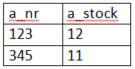
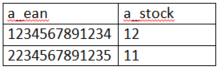
5. STOCK INFORMATION ONLY
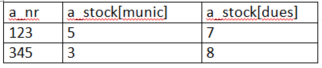
If you only want to update your stock, it is not necessary to provide a complete ARTICLE.CSV. It is sufficient to only provide the necessary information.
TIP: (xxx = Unique flag for each file, we recommend a time stamp such as 20191127_104335) |
EXAMPLE: When referencing several warehouses:
|

6. PRICE DATA ONLY
If you want to update your price data or create/edit a price list, it is possible to provide a shortened CSV file that only contains the relevant pieces of information. Create an ARTICLE.CSV file that contains the following columns:
•The article number ("a_nr")
•Whatever price information you want to transmit ("a_vk", "a_uvp", "a_vk_old"); if you want to add the prices to a price list, add the target price list's import key in square brackets in the column header instead of the channel sign ("a_vk[import key]"). If you use the channel sign, the prices refer to the respective channel's "default price list" and will overwrite any existing prices there
7. IMPORT AS AN XLS FILE
Generally, CSV files you would like to import need to correspond to the settings for CSV files you configured at "Admin > Import > Settings" in the section "CSV Import". You also have the option to upload XLS files instead of CSVs. In this case, column headers and file names still need to match the requirements described here. When you upload an XLS file to your "in" directory, TB.One will automatically convert it to a correctly formatted CSV before processing the data.
ATTENTION: •The naming conventions are identical to those of the CSV files. •Column headers match those of the CSV files. •XSLX files cannot be imported! •Only the first page of the worksheet will be taken into account. •This option is not suitable for large amounts of data. |
TIP: |
For further information, see also:
•Master data import via CSV- overview