Brands can be created manually or via import. If you choose to add them via import, check the import settings at "Admin > Import > Settings". Especially the sections "Delete content no longer provided in the import" and "Create import keys from import file automatically" are important.
CREATING BRANDS MANUALLY
Basic brand data can be created and edited at "Basic data > Properties > Brands". Only brands listed here can be chosen for your products. To create a new brand, select the tab "Pages" in the left navigation bar and click the option "Create new brand".
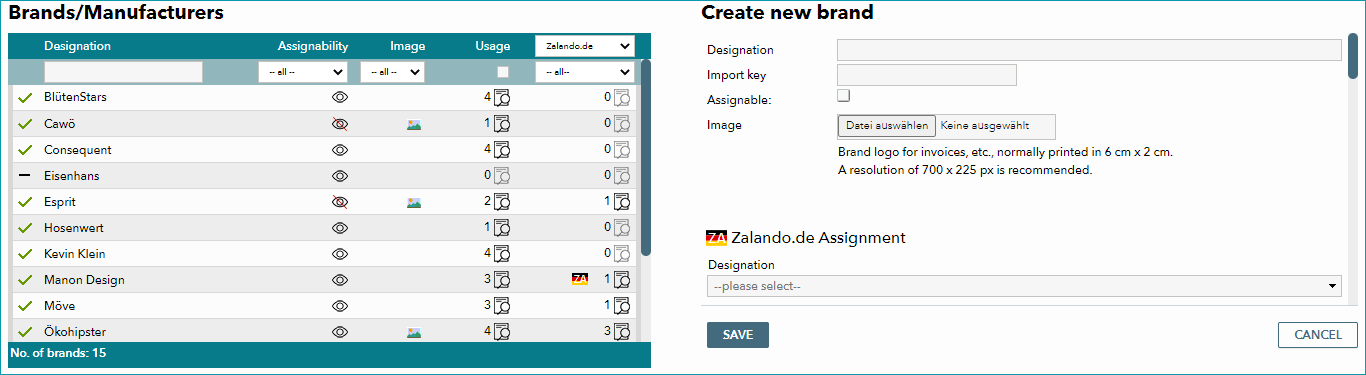
Enter the brand designation (name) and, if necessary, an import key in the editing window on the right. If you remove individual brands from your product range or if they become unavailable, you can remove the check mark from the box "Assignable". They will then no longer be selectable for products. You also need to create an entry in the list for products that do not have brand information, as most channels require the indication of a brand name, even if it is "No Name" or similar. You can store a logo for each brand in TB.One. Among other things, these logos will be printed on invoices. The image size for brand logos is 700 x 225 px. If you would like to export brands to certain channels under a different name, use the channel-specific assignment fields to define individual designations.
At "Admin > Export > Channels", the brand control can be enabled. This allows you to prevent brands that were not assigned an individual designation from being exported to certain channels.
Some channels provide a brand list of their own, to which you must map your brands via a drop-down list. Where applicable, this will be mentioned in the respective channel's pages in the section "Channel documentation".
FILTERING BRANDS
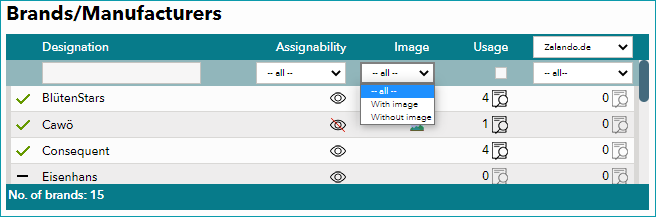
The brand list can be filtered by various criteria:
COLUMN |
DESCRIPTION |
|---|---|
Designation |
Filter by search term |
Assignability |
Filter by assignable/non-assignable brands (checkbox "assignable" in the menu "edit brand" on the right) |
Image |
Shows brands with or without an image |
Usage |
Hide all unused brands |
Channel filter |
Usage of the brand based on the channel selected in the top row. A channel flag in this column indicates that a mapping for the selected channel exists. "Not used": shows only brands that are not in use at the selected channel. "No assignment": shows all brands that do not have have specific designation for the selected channel. If the brand control at "Admin > Export > Channels" is active, you can use this filter to list the brands that do not have a channel-specific designation assigned yet and add one where required. |
For further information, see also:
•Assigning a brand to a product manually
•Assigning a brand to a product via CSV
•Assigning a brand to a product via XML