TB.One > Product and Article Data > Product-Related Basic Data > Creating Media Types
Creating Media Types
What are Media Types?
When you export a piece of media (usually an image) to a marketplace, the marketplace system knows a file exists, but it doesn't know what’s in the picture. Media types fix this by adding meta-information to your images. This helps the marketplace understand the content and also lets you control which images get sent to specific sales channels.
How to Create Media Types?
TIP: |
•Go to "Basic data > Properties > Media types". This menu list all your media types. There is a predefined group of default media types here.
•If a channel requires an additional media type, or if you would like to create a media type that ensures a group of media is only exported to one specific channel, you can create new media types in this menu:
oSelect the tab "Pages" in the left navigation bar and click on the page action "Create new media type".
oAssign a master media type (usually IMAGE or VIDEO).
oIf you want to exclude channel from the export, select the respective checkboxes under "Don't export to". You can use this option to create media types that are only valid for a single channel.
oIf a channel requires specific media types, the editing menu displays a mapping option. Assign on of the channel's export keys to complete the mapping.
oSave your settings.
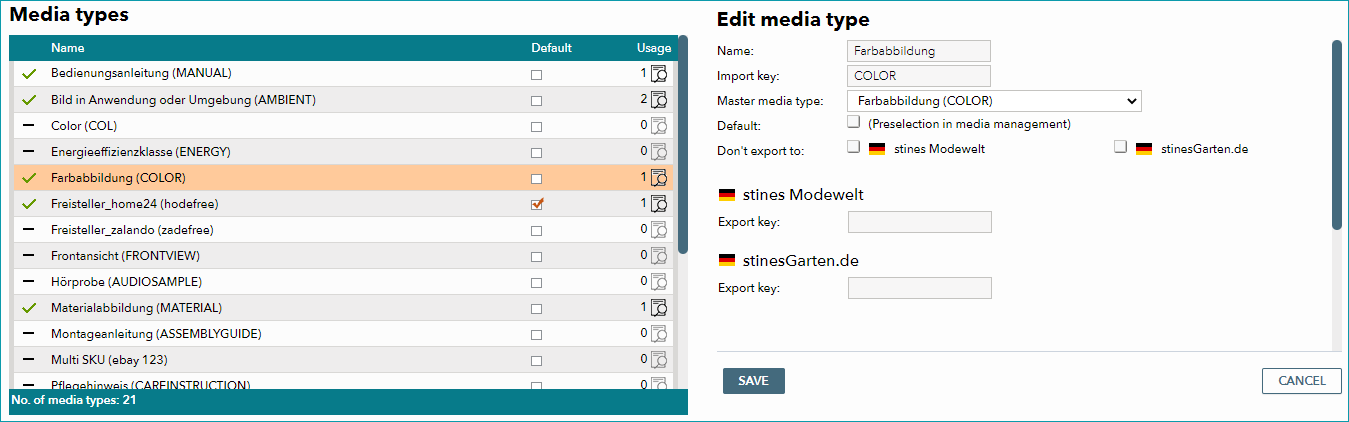
The symbols in front of the media types' designations show whether they are in use ( ) or not (
 ). A click on
  in the column "Usage" opens a list of all products which use the respective media type.
You can define one media type as the default, which will be used whenever you add media to a product (the selection can still be adjusted after). To do so, mark the respective media type's checkbox in the column "Default".
How to copy your media settings between channels
You can copy media types, sorting orders and export blocks from a channel to another to save time:
1.Go to “Channels > Your channel > Settings”.
2.Open the “Media” tab and click “Copy from Channel” in the left-hand sidebar.
3.From the popup window, select the channel you’d like to copy the media settings from using the “Source Channel” drop-down menu.
4.Click “Save” to finish.
For further information, see also:
•Assigning media and media types to products/articles manually
•Assigning media and media types to products/articles via CSV
•Assigning media and media types to products/articles via XML