TB.One > Product and Article Data > FAQ - Product and Article Data > Why is my Article Offline?
Why is my Article Offline?
There are various reasons that may cause your article to be offline.
1. Check the Activation State
•Go to "Articles > Article list" and use the filters to search for the affected article.
•Check the first column ("Article status"). It must show the icon  . If the icon is not displayed, the first activation step (general activation) is missing.
•Check the second column ("Channel activation"). Hover the cursor over the icon  to display a list of all channels for which the article is active.
oIf the target channel is not listed, the second activation step (channel-specific activation) is missing.
oIf the icon next to the target channel's name is displayed in gray, the article is active for that channel but has never been exported to it.
oif the icon next to the target channel's name is displayed in color, the article is active for that channel and was exported to it at least once.
TIP: |
2. Check if Errors in the Product/Article Data are Blocking the Export
•Go to "Articles > Article error hub".
•Check for errors on the product and the article level:
oUse the article number or EAN to search for article-level errors.
oUse the product number to search for product-level errors.
•Solve any errors listed for your product or article.
3. Check Stock Numbers and Stock Settings
Articles with a stock of 0 are usually not online at the target channel. Ensure that you export a stock >0 to the channel.
•Go to "Articles > Article list" and look for the affected article.
•Go to the column "Stock" and hover the cursor over the number displayed there.
•A pop-up window will show you which amount of stock is available for each channel. Check whether there is stock available for the affected channel.
•If no stock is available for the channel:
oOpen the affected article by clicking on the article number.
oOn the "Article data" tab, scroll down to the "Stock" section and check whether any stock is available for the article.
oIf there is no overall stock available correct the stock numbers in TB.One.
oIf there is stock available, go to "Basic data > Storage > Warehouse settings" and check whether the export ratio or stock reduction configured for the channel, reduces the exported stock to zero (see Fig.1).
oAdjust the settings for export ratio or stock reduction if necessary.
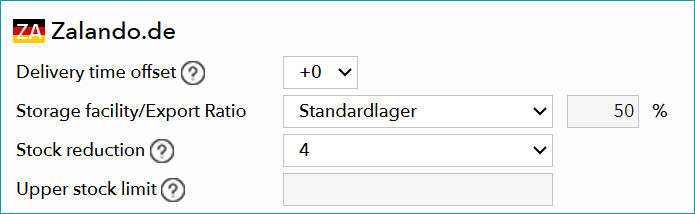
Fig.1: For Zalando.de, only 50% of the total stock is taken into account. These 50% are reduced by 4 before export. If a total stock of 8 is available, no stock would be exported to Zalando (10/2 - 4 = 0).
TIP: How TB.One calculates stock for a channel The total stock available for an article is reduced by: •Reserved articles from pending and confirmed orders across all channels. •The export ratio and stock reduction configured for the affected channel. |
4. Check Prices
If the article's price for the target channel is 0 or falls below the configured minimum price, TB.One does not export the article.
•Go to "Channels > [Your channel] > Settings" and check the field "Minimum price". Adjust the minimum price if necessary.
•Go to "Channels > [Your channel] > Price catalogue".
•Note down the name of the price list currently active for the channel. If a price list under "More price lists" is currently valid, that is the active price list. Otherwise, the "Default price list" is active.
•Go to "Articles > Article list" and open the affected article.
•On the "Article data" tab, scroll down to the section "Price data".
•Search for the name of the price list you noted down earlier and check the column "Retail price". The price must not be 0 and must be higher than the minimum price.
•If necessary, adjust the retail price.
5. Check if the Target Channel is Blocking the Article
Even if TB.One did not find any errors, the channel may have done so when reviewing the data. Depending on the channel, use one of these two methods:
a)In TB.One, go to "Channels > [Your channel] > Article status" and check whether there are any errors for your article. This menu is not available for all channels.
b)Alternatively, check the error messages in the channel's backend (for example, zDirect for Zalando).
Resolve any channel-specific errors.
The Article is Still Offline?
TIP: |
If you have tried all approaches listed above, please contact Tradebyte Support.