TB.One > Product and Article Data > Manual Master Data Creation > Creating Articles > Manual Article Activation
Manual Article Activation
After variant creation, activate the articles on the tab "Article list" in the product details.
Select the articles you would like to activate using the checkboxes on the left (to select all articles click the checkbox on top of the column). Choose "Activate" from the drop-down list at the bottom of the menu and confirm with the button "Execute". Active articles are indicated by a green check mark in the article list. By clicking the "edit" icon ( ) you can switch to the article detail view.
Below the column headlines you will find a filter with two checkboxes, which you can use if there are so many variants that they no longer fit on one page.
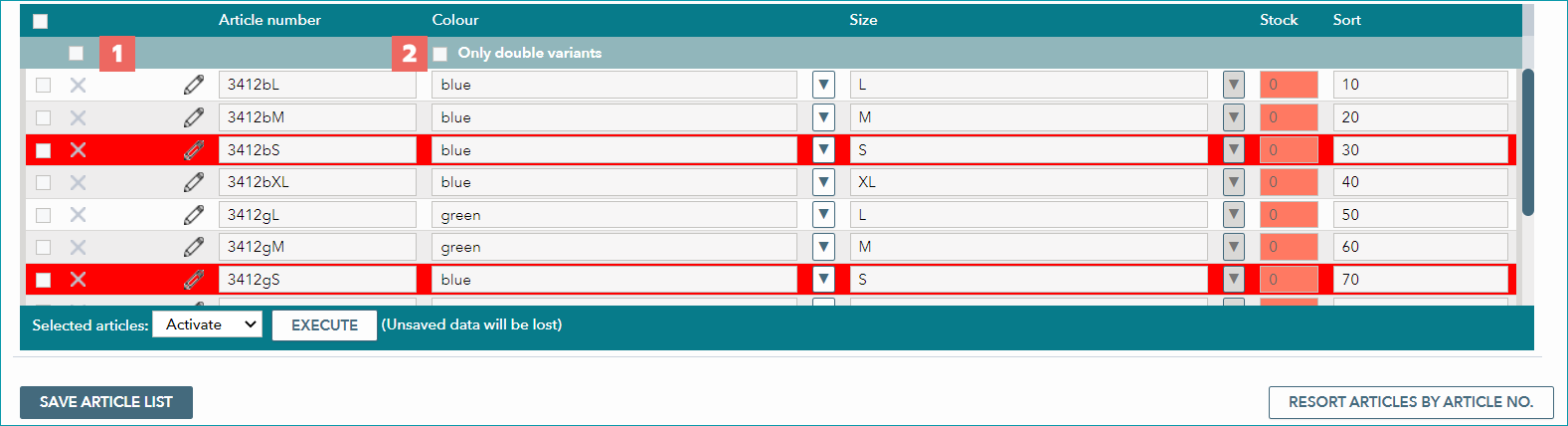
If the first checkbox (1) is marked, only activated variants will be displayed in the list. The second checkbox (2), reduces the list to doubled (i.e. faulty) variants (highlighted in red).
The article sorting can be changed via the "Sort" column, or via the button "Resort articles by article no." at the bottom right.
ATTENTION: |
For further information, see also:
•Manual master data creation - overview