TB.One > Product and Article Data > Manual Master Data Creation > Creating Articles > Article Detail View - Article Data
Article Detail View - Article Data
TIP: The article detail view is used to change settings for variants that differ from others (in ways that are not part of the variant-forming article properties). This is rarely the case. Usually, article data is entered on the tabs "Article list" and "Article data" in the product details or via the master article. |

 ) at the top right.
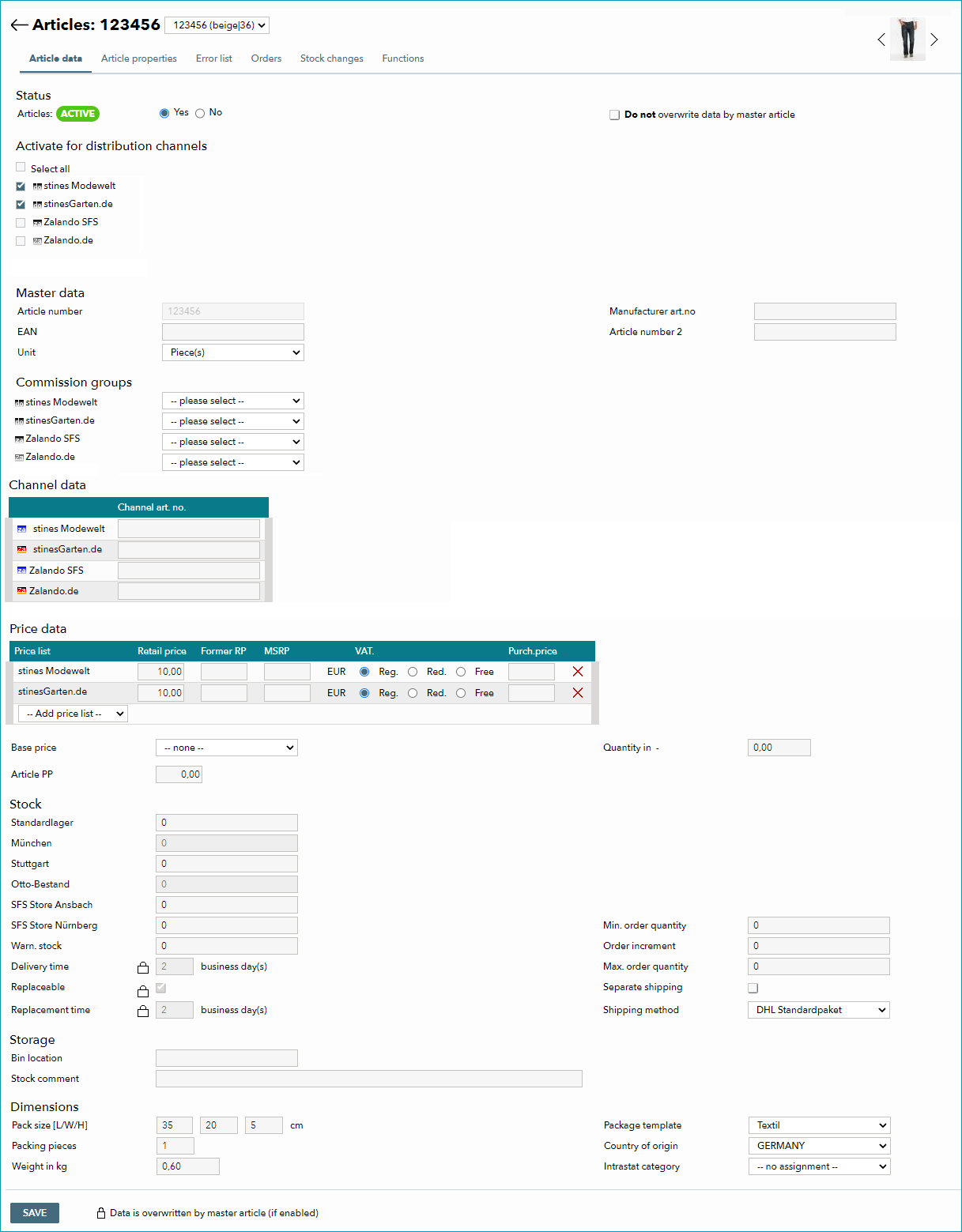
1. STATUS
Here, you can (de)activate the article (usually done via the article list in the product details). If the checkbox "Do not overwrite data by master article" is activated, settings from the master article will have no impact on this variant.
2. ACTIVATE FOR DISTRIBUTION CHANNELS
Check the boxes for all channels on which you want to sell the article. Save your selection.
Alternatively, you may configure the channel-specific article activation via the menu "Channel activation".
ATTENTION: |
3. MASTER DATA
Besides the article number, EAN, manufacturer article number, and article number 2, you can change the unit in this section. You can choose between "Piece(s)", "Centimeter" and "Square meter". The default setting is "Piece(s)". If you need any other units, please contact your Tradebyte Integration Consultant.
4. COMMISSION GROUPS
Depending on the channel, it may be necessary to assign a commission group to the article (commission groups are created in the respective channel's menu at "Channels > [Channel] > Commission groups"). If you have not yet configured the commission group via the master article, or if you need to define an exception for the article, select the correct commission group for the channel from the respective drop-down menu.
If no commission group is chosen, the standard commission group (selected at "Admin > Default values") will be used for the article.
5. PRICE DATA
In addition to the pricing information, this table shows a column titled "Art.no channel". If the channel returns its own article number to TB.One once the article has been processed successfully (after the GoLive), the number will be shown in this field. Otherwise you can enter the corresponding channel number here. Also, you will find overview of the price lists already assigned to the article. Expand the table with more price lists via the drop-down "Add price list". Select a price list from the drop-down and enter the corresponding prices.
6. STOCK
Stock data is usually entered via the sub-tab "Stock data" on the product's "Article data" tab, or via the master article.
Optionally, minimum and maximum order quantity as well as order increment can be defined here.
By activating the box "Separate shipping" you can choose to ship this article separately (this option is only valid for a few channels). With the "Shipping type" drop-down, you can choose a separate shipping type for the article.
7. STORAGE
Storage area and storage comment are usually entered on the tab "Article data" (sub-tab "Stock data") in the product details, or via the master article.
8. DIMENSIONS
In this section, you can find the parcel information. Here, you can either enter the pack size and weight manually, or choose one of your package templates from the drop-down list. Confirm by clicking "Save".
The country of origin and intrastat category have to be set up in the menu "Basic data > Properties", before you can select values here. Furthermore, you can enter the number of packages necessary for one article in the field "pack pieces" (the default setting is "1").
For further information, see also:
•Manual master data creation - overview
•Article Detail View - Article Properties