TB.One > Product and Article Data > Manual Master Data Creation > Creating Products > Cross-Channel Product Data
Cross-Channel Product Data
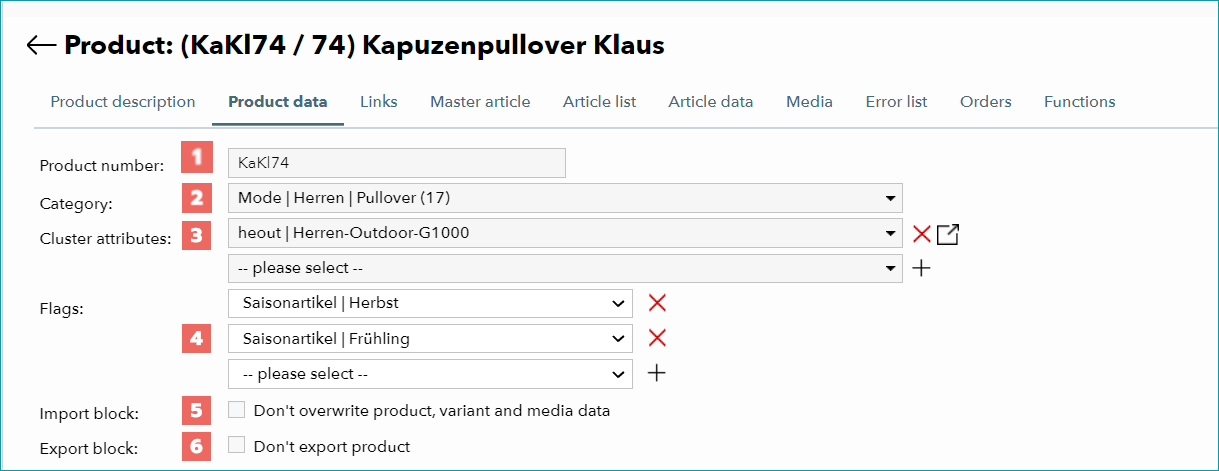
The upper and lower parts of the tab "Product data" display cross-channel information, while the channel-specific product activation and categorization is located in the middle section.
Before you can fill in the cross-channel product data, you need to work through the section "Classification" on the page "Product-related basic data".
FIELD |
PURPOSE |
|---|---|
|
The product number can be selected freely. Article numbers usually consist of the product number, appended by a string of characters which describes that variant (e.g. product number: KaKl74; article number: KaKl74-XXSblau). If you want to import products/articles at a later point in time, specifying a product number is mandatory. |
|
In this field, the internal category is selected. If you already assigned the product to an internal category during product creation, the category will be displayed here. |
|
In this field you can assign clusters. Every time you select a cluster, a field for an additional cluster will open. Avoid assigning too many clusters in order to keep the assignments transparent. With the delete icon ( |
|
If you assigned one or more flags during product creation, they will be displayed here. You can select one or more flags from the drop down menu. Once a flag is selected, an additional row will be displayed. With the delete icon ( |
|
The import lock is only relevant for master data maintenance via import. If you activate the lock, product, and variant data, as well as article media items, will not be overwritten during product data import. Pricing and inventory updates will still be processed. |
|
If you want to block the product and its variants from export to all channels, activate this checkbox. This information takes precedence over product and article activation. This allows you to quickly deactivate a product for all channels (e.g. if there are supply issues) without losing any channel assignments. The product can then easily be brought online again without reassigning channels. |


 ), you can remove cluster fields.



To enable service logos, just check the corresponding boxes in the lower section of the menu and confirm by clicking "Save".
For further information, see also:
•Manual master data creation - overview
•Comparison of internal categories and clusters