Flags can be used to add additional (e.g. internal) information to products/articles/orders, to configure attribute sets, and to filter the article list for bulk editing.
Create flag groups at "Basic data > Classification > Flags", i.e. first create a flag group and then the specific flags the group consists of. A flag group can be configured so that it (along with its flags) is only assignable at certain places.
In the example below, the flag group could be used to first identify individual products and/or articles for a promotional campaign. Subsequently, the flag could be assigned to the resulting orders, to evaluate the campaign's effectiveness.
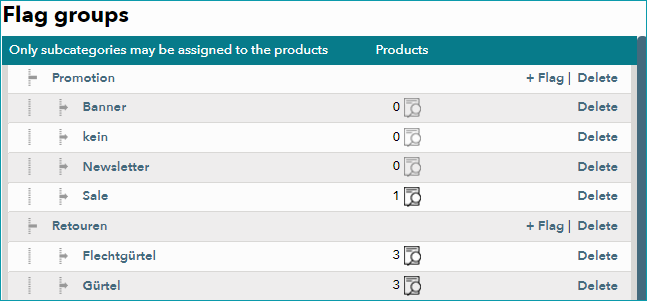
Create a new flag group by selecting the tab "Pages" in the left navigation bar and clicking on "New main group". Assign a meaningful designation that other people can easily understand to the new group.
The import key and the checkbox "Create unknown flags during import" are not relevant for you. These options allow a channel to provide flags alongside orders. Your contact at Tradebyte will inform you if inputs are required for one of your booked channels. Finally, you need to decide what flags from the newly created group can be assigned to. They may be assignable for products (product detail view - tab "Product data"), articles (article detail view - tab "Article properties"), and/or orders (order detail view - tab "order data"). Save your entries.
On the right side of a main group you will see the option "+ flag", which allows you to create individual flags within the group.
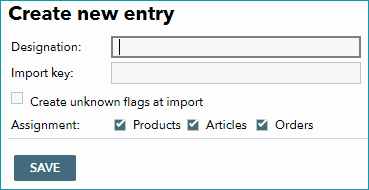
Assign each of these flags a designation and, if required, an import key. You can move flags to other groups by changing their parent node. Save your settings when you are done.
For further information, see also:
•Assigning flags to products or articles manually
•Assigning flags via internal categories
•Assigning flags via clusters