Component sets can only be created manually, and only after components have been created.
When creating products in TB.One, you should assign as many properties (i.e. components) as possible. With an extensive range of products, the assignment of components can become a tedious and time-consuming task. To facilitate manual product data maintenance, you can define components sets. Component sets group different (non-variant-forming) components, which can then all be assigned to a product simultaneously. It is possible to use preset values for these components.
New component sets can be defined at "Basic data > Templates > Component sets", once the components themselves have been created. Select "Create new component set" from the drop-down list and enter a descriptive title for the set in the line "Designation". Add all relevant components for the set in the column "Component" in the lower part of the screen. You may also define default values for components, if those values are valid for all or most of the products the set will be applied to. Components within the set are sorted alphabetically.
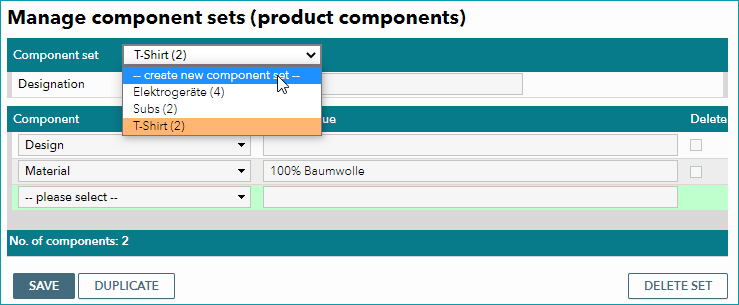
Click the "Save" button or press the "Enter" key to save the entered component and create a new line, in which the next component can be added.
To edit an existing set, select it from the drop-down list "Component set".
ATTENTION: |
By selecting the set at a product in the section "Product components" and saving, the predefined components are added in the way you have configured them. Adding component sets to a product can only be done manually and individually for each product.
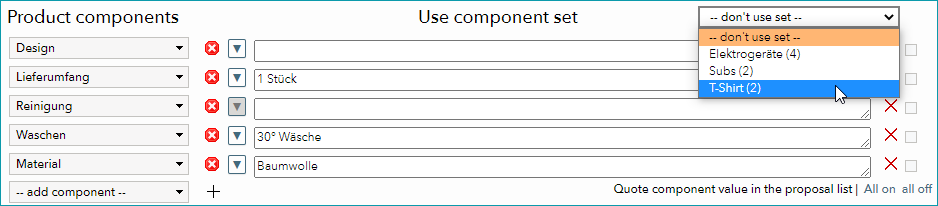
The feature pastes the components from the set to the product, which means that there is no direct link between the component set and the product. You can edit the product's components (e.g. delete them, add components, add component values) without affecting the component set itself. When assigning values you have access to any default values you may have created along with the component. The components are sorted according to the sorting values you specified at the component.
For further information, see also:
•Assigning component sets to products