TB.One > Product and Article Data > Templates > Creating Variant Templates
Creating Variant Templates
Variant templates can only be created manually, and only after components have been created.
When maintaining data manually, variant templates can be used to apply a variant structure to a product in just a few clicks, and to use that structure again and again. Especially for products with many variants (e.g. a t-shirt in 10 colours with 6 sizes each) a template can save time by creating all variants in one step via the variant wizard. The required variant dimension(s) must already exist as components before you can create a variant template. You can define more than one variant template for each property (e.g. the property "size" could have a template for women's and one for children's sizes).
To create a new template, click the button "New entry" at the bottom of the screen at "Basic data > Templates > Variant templates". Use the drop-down menu "Variant" to select one of your components (e.g. size) and assign a meaningful name to the template, so you can identify it more easily in the variant wizard.
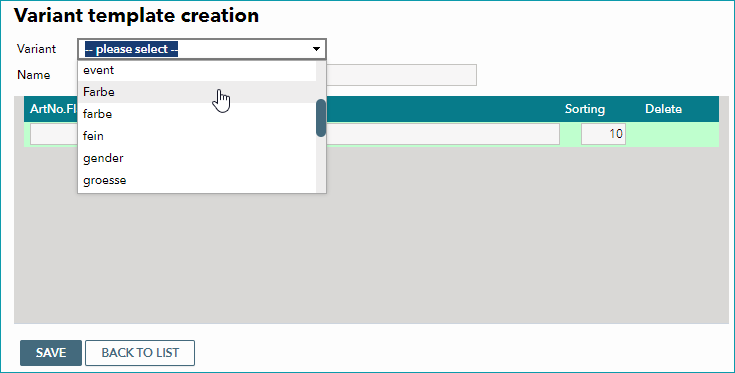
In the next step, the variant values are defined. Enter the first possible value (e.g. S) and, optionally, an indicator that will be appended to the respective article number when you use the template ("ArtNo. Flag"). It is also possible to later enter that indicator in the variant wizard. Press the "Enter" key to confirm the variant value and to create a new row.
ATTENTION: |
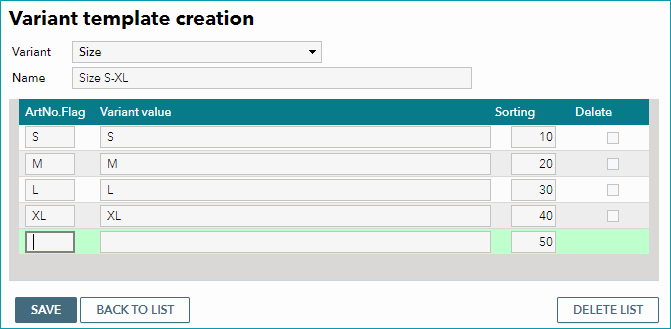
To remove a single value, check the respective box in the column "Delete" and confirm with the "Save" button. To remove the template completely, click "Delete list".
In the list of templates you have the option to "Edit" or "Duplicate" existing templates. The templates are sorted alphabetically by variant dimension. The number in parentheses indicates the number of variants contained in the respective template.
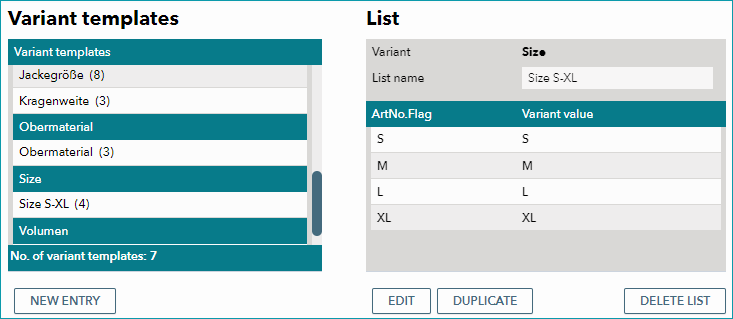
You can create as many variant templates as you need. The templates can be used in the variant wizard, which you can access by clicking "Start variant wizard" at a product when you have defined its variant forming properties, but not created any articles yet (detailed instructions can be found here).