TB.One > Prices > FAQ - Price Data & Price Lists > Price Changes (Surcharge/Discount)
Price Changes (Surcharge/Discount)
Once you have created shipping types, you can create price changes which are based on channel and shipping type. To set up a new surcharge/discount, go to "Basic data > Prices > Surcharges/discounts". Select the tab "Pages" in the left navigation bar and click on "New surcharge/discount". Select a distribution channel, shipping type, and the type of surcharge/discount (price or shipping) from the drop-down lists.
With the drop-down field in the line titled "Price change", you can either choose the channel currency to define an absolute change or select "%" to define a relative change. Enter the corresponding amount/percentage in the free text field. The rule will only apply if you fill in the fields "Weight up to" and/or "Retail price up to".
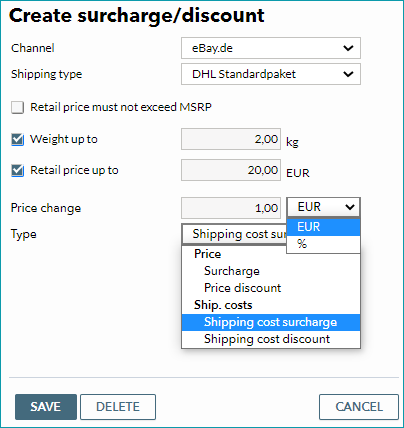
You may, for example, define a 1€ shipping cost surcharge for eBay for packages under 2kg priced under 20€ (see screenshot). Existing surcharges/discounts can be removed at any time by clicking "Delete". If the final price is lower than the minimum price defined at "Channels > [Your channel] > Settings" or exceeds the maximum price reduction, the export of the product will be suppressed and an entry in the Article Error Hub's error list will be generated.
TIP: |