TB.One > Setup, Configuration & User Accounts > FAQ - Tradebyte Invoices & Contracts > How to Set Up Email-Invoicing
How to Set Up Email-Invoicing
Users with the role "Finance (aut. Rechnungsempfang)" will receive invoices automatically via email.
To add email invoicing to an existing user account
Follow these steps to add automated invoicing to a team member who already has a user account in your TB.One:
1.Go to "Admin > User > Users".
2.Select a user from the list.
3.Under "Roles and rights", select the role "Finance (aut. Rechnungsempfang)".
4.Save your settings.
To set up a new user account for invoicing purposes:
Follow these steps to add automated invoicing to set up a new team member in your TB.One:
1.Go to "Admin > User > Users".
2.In the left side bar, select the "New user" page action.
3.Enter the email address that will receive invoices (this email address cannot be assigned to another user).
4.Choose a "Display name". That is the name shown for the user in TB.One.
5.Select the user role "Finance (aut. Rechnungsempfang)".
6.If the user also needs to work directly in TB.One, assign any other roles necessary.
7.Save your settings.
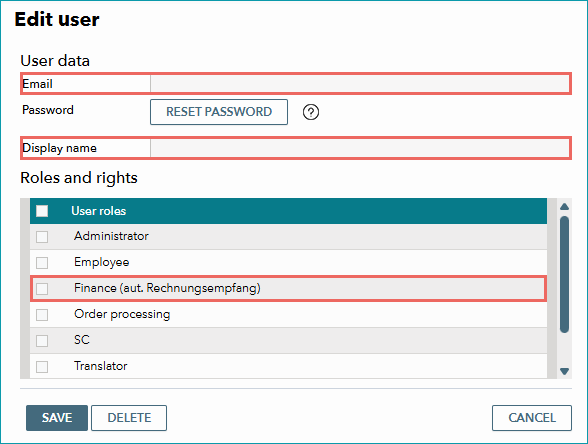
Fig. 1.: Setting up a user account with email invoicing.
For further information, see also: