TB.One > Setup, Configuration & User Accounts > Getting Started > The User Interface
The User Interface
When you log into your TB.One account, the software will take you to the menu you have defined as your home page. The image below (Fig.1) shows the "Dashboard" which is described in detail here.
THE MAIN NAVIGATION
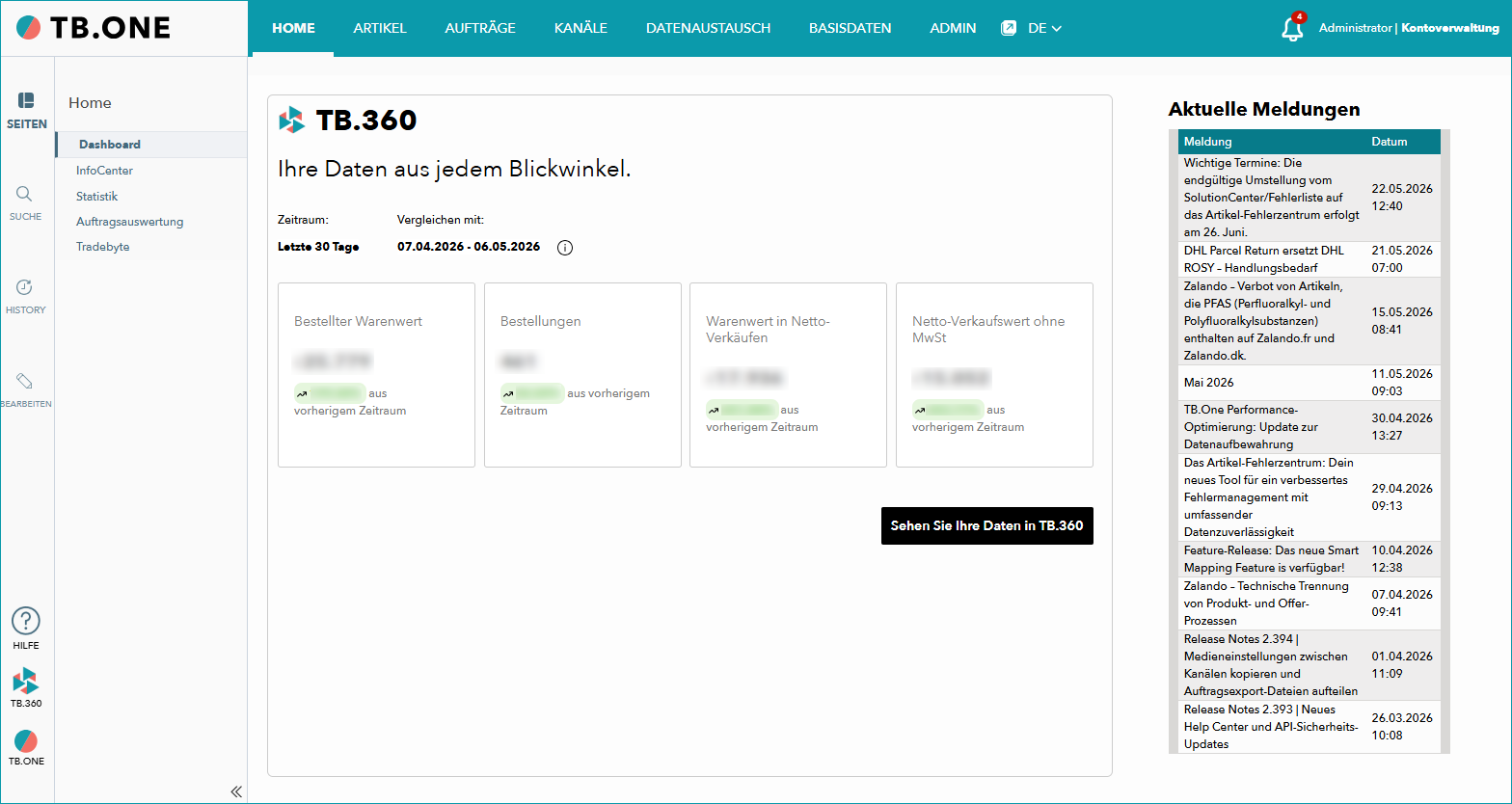
Fig.1: The dashboard
The main navigation is located at the top of the page in each of TB.One's menus. Hovering the cursor over one of the headlines will open a drop-down list which contains links to other menus. You can reach most areas of TB.One via this navigation (within the limitations of your user account's access rights).
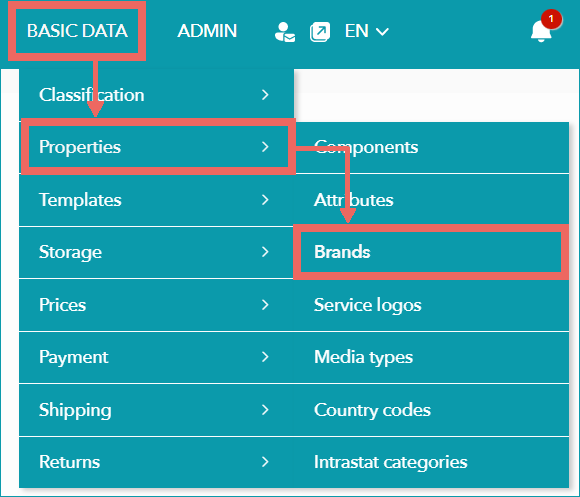
Fig.2: Menu path "Basic data > Properties > Brands"
In this Help Center, menu paths in TB.One's main navigation are indicated in the format "Basic data > Properties > Brands" (see Fig.2).
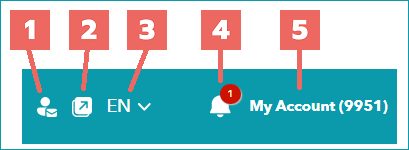
Fig.3: Quick action links
To the right of the main navigation, you can find some quick action icons and links (see Fig.3).
Number |
Content |
|---|---|
|
If your user role allows you to contact the Tradebyte support or integration team, you can do so via the "Support" link in this menu. |
|
Click here to open an additional TB.One window. |
|
Switch between the English and German GUI. |
|
Notification bell. Highlighted in red if there are new notifications. Read all notifications as they may contain critical information about your marketplace connections. |
|
A click on "My Account" will take you to your user account settings. The number in brackets - 9951 in case of our example - is the number of your company's TB.One account. |


THE LEFT NAVIGATION BAR
The left navigation bar may contain different tabs, depending on the which menu is currently open. Usually, the bar consists of the tabs "Pages", "Search" and "History".
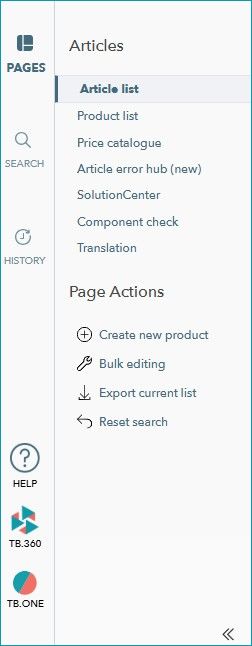
Fig.4: Sidebar/left navigation bar
This menu bar can be folded in and out by clicking on the arrow icon at the bottom  .
.
Click on the navigation bar's tabs to open them and view their contents:
Tab/Button |
Function |
|---|---|
Pages |
The tab "Pages" usually consists of two parts: The first part is named after the section of the main navigation in which the current menu is located. It contains a list of the other menus which are on the same navigational level. By clicking on the items in this list, you can quickly switch to those menus. In many menus, the "Pages" tab contains a second part titled "Page Actions". These "Page Actions" differ greatly from menu to menu. Often, you can use them to reset filters or create new data sets. |
Search |
If you need to quickly look up an article, product, or order, there is no need to navigate to the respective menu first. The tab "Search" contains input fields for several different parameters you can use to find data sets. Searching for a product or an article will display a preview window. If you search for an order, you will be taken directly to the order details. |
History |
The tab "History" contains a list of the menu items you have visited most recently. If you want to go back to one of these menus, you can do so quickly by using this tab. |
|
A click on this icon takes you to the Help Center (the website you are currently on). |
|
Click here to open TB.360, your statistics and analysis tool for TB.One. |
|
Opens a pop-up menu where you can see which version of TB.One you are using, access the settings for your user account ("Basic settings"), or log off. |