TB.One > Value Mapping > The Value Mapping Process > Value Mapping Step 2: Property Assignment
Value Mapping Step 2: Property Assignment
This page describes the middle column in the value mapping menu at "Channels > [Channel name] > Value mapping". An overview of the value mapping process can be found here.
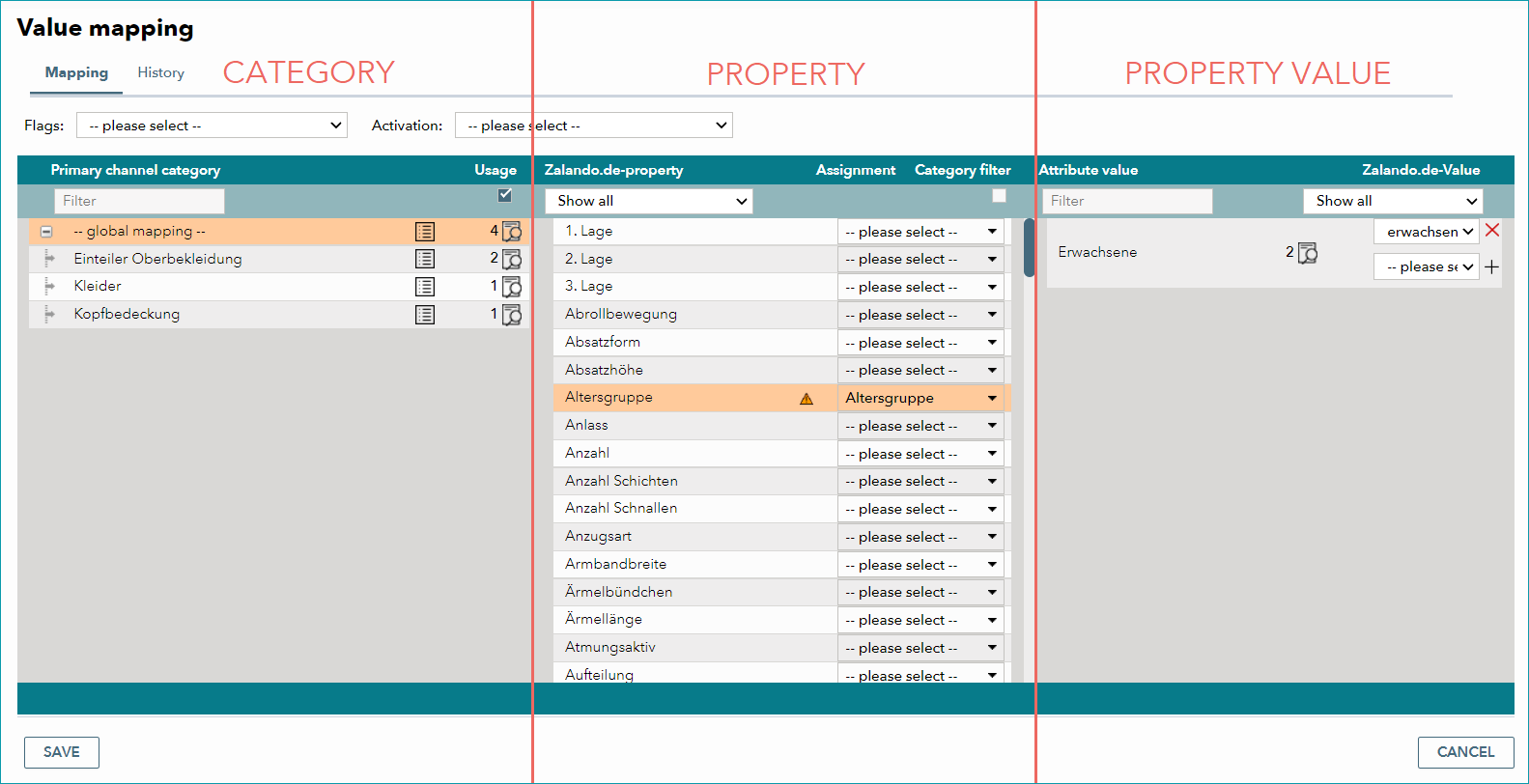
Once you have selected a category from the left column, the middle column will display the respective channel properties. The way in which these properties are used is determined solely by the channel. Some properties are displayed in the shop exactly in the way they appear in the mapping and some properties are merely processed in the background (e.g. as filters and search criteria, or to manually sort products in the navigation). You can assign one component or attribute to each property via the drop-down menu. In some cases, you also have the option to select "Twig" to pass on any information available in TB.One via the Twig Templating Language.
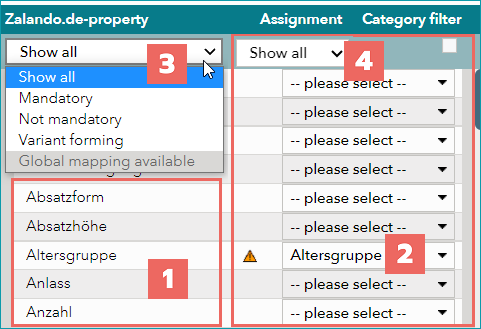
The column is separated into two main segments: channel properties are shown on the left (1). On the right (2) you can choose and assign your own properties (components/attributes).
FILTER-DROP-DOWNS
Use the filter drop-downs above the list to facilitate the mapping.
3: This drop-down filters for different criteria, such as mandatory or optional properties. For some channels, it may also be helpful to filter for variant forming properties to find out which properties form variants in the respective category.
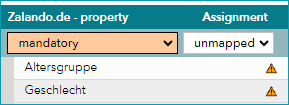
4: Use the second filter drop-down (related to "Assignment") to to view all channel properties for which you have already assigned an attribute/component (“mapped”), or all properties where action is still needed (“unmapped”).
TIP:
|
A maximum of 200 components/attributes can be shown simultaneously. If you have created more than 200 properties, you need to search more specifically (enter a search term in the drop-down menu).
The following symbols may be associated with some of the properties:
ICON |
MEANING |
|---|---|
|
Mandatory mapping (if a lighter-coloured version of this icon is displayed at the global level, it means that the property is only mandatory in some categories) |
|
Mapping these properties is highly recommended |
|
Filter attribute |
|
Variant forming property |
|
Attribute available at the global level (this symbol is only visible on the category level) |
|
Indicate the mapping's impact on the product visibility/findability (symbols only available at some channels; blue: medium impact, yellow: high impact; these mappings are recommended) |


You should work through the column from top to bottom and map (at the very least) the properties which are marked with an icon.
To facilitate the mapping, use the drop-down filter at the top of the menu (3). You can filter for mandatory or non-mandatory mappings, variant forming properties, or properties that can be mapped globally.
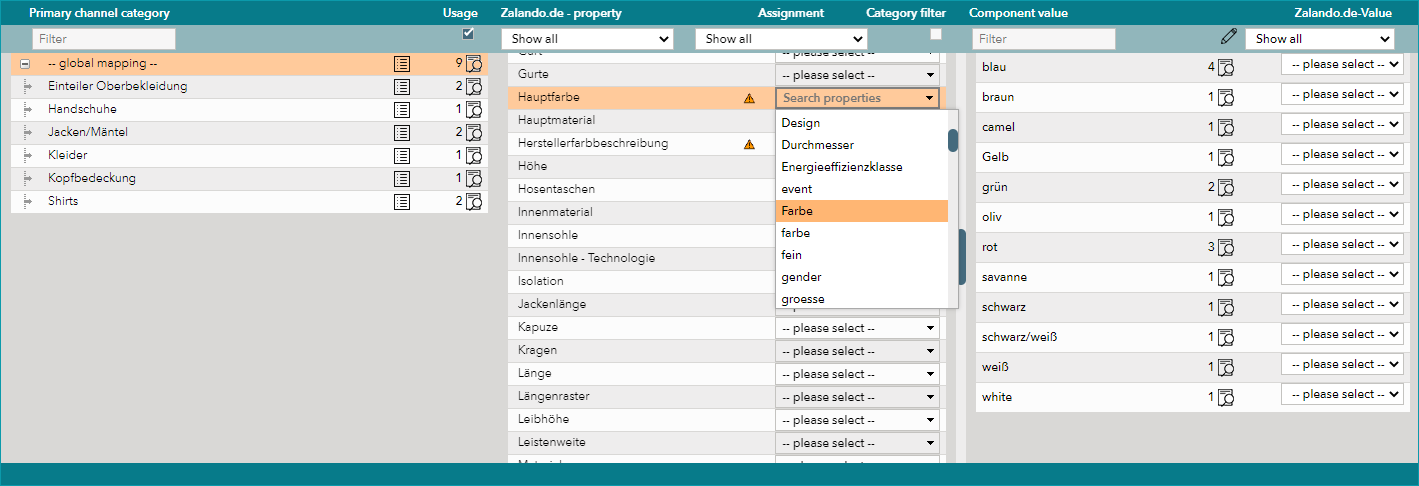
In the example below, the TB.One component "Colour" is being mapped to the Zalando property "Hauptfarbe".
ATTENTION: Do not forget to save every time you map a property. |
TIP: |
For further information, see also: