TB.One > Value Mapping > The Value Mapping Process > Value Mapping - Overview
Value Mapping - Overview
When you have provided your master data, completed the creation of product and article data, and their categorization for at least one channel, you can proceed with the assignment of values. In this step, you will determine how and in which place the values from your products will be transferred to the channel. We call this process value mapping.
Each channel has its own requirements regarding which values need to be transferred. For some channels, you need to map on the global level, for others, the mapping is category specific. For details, refer to "X-04: Value mapping" on your Channel Sheet.
The general approach to value mapping and the basic structure of the corresponding menu is identical for all channels.
1. THE PURPOSE OF VALUE MAPPING
The properties assigned to products via components and attributes were defined by you. Up to this point, there have been no restrictions or guidelines regarding the naming of the properties or their corresponding values.
TIP: |
For the export to the channels, certain restrictions and guidelines apply. Each channel defines these rules individually. Because the channels have no way of identifying which of your properties and values correspond to theirs, you have to assign your information to the channels'.
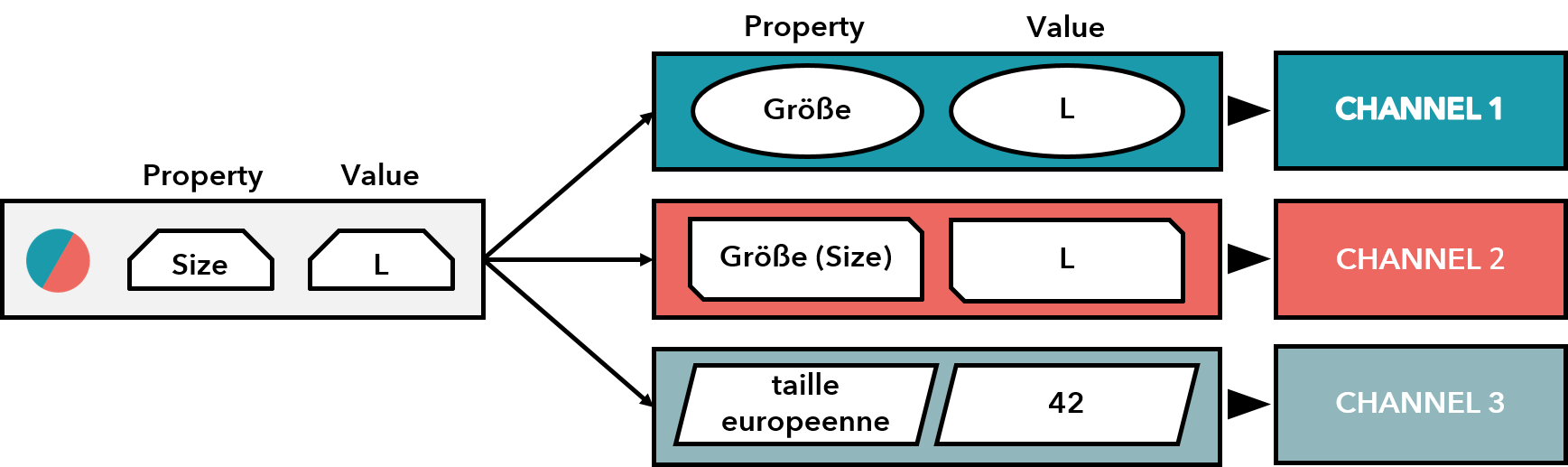
In the example below, the information "Size" and "L" would match in the case of Channel 2, but Channel 3 would not be able to handle these terms since it uses French and a different size range. Therefore, you need to match your information to that of the channels. This is done through channel-specific value assignment (also referred to as value mapping).
2. CONDITIONS AND REQUIREMENTS
Depending on the channel, the starting points for value mapping may be called primary categories, product types, silhouettes, or product categories. Ultimately, the main difference here is the wording used by the respective channel. All of these terms refer to a structure used to categorize your products in a channel's shop navigation. For sake of simplicity, we will only use the term "category" in this documentation on value mapping.
The mapping options offered by a channel may vary, based on the category. For example shoe sizes are usually not available for underwear categories and vice-versa.
You need to have assigned your products to the channel categories and activated them for the respective channel before you can start mapping values. Furthermore, the properties must be assigned to your products as components and/or attributes. Only if you meet those preconditions, your properties are displayed in the value mapping table at "Channels > [channel name] > Value mapping".
TIP:
|
 Assignment of product
ATTENTION: |
Example:
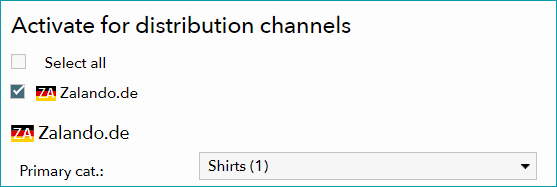
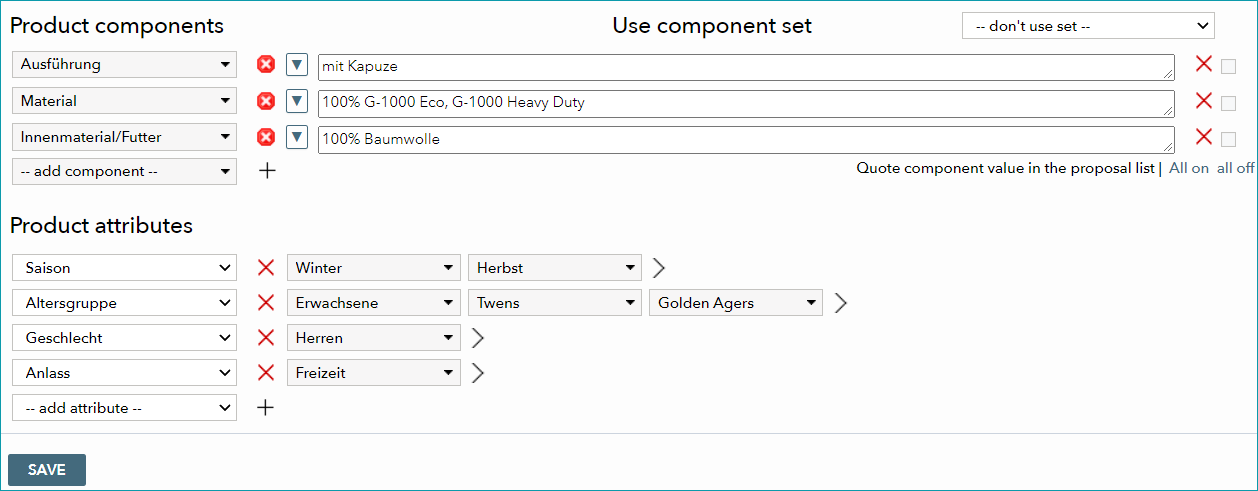
The shirt "Freestyle" was assigned components and attributes. The product was activated for the channel Zalando.de and assigned to a relevant category. It contains several components and attributes.
ATTENTION: Should you come across this warning message, please consult the Tradebyte support to find out whether any additional steps are required to implement the change. In some cases, it is necessary to inform the channel about the planned change. |
3. STRUCTURE AND FUNCTIONALITY
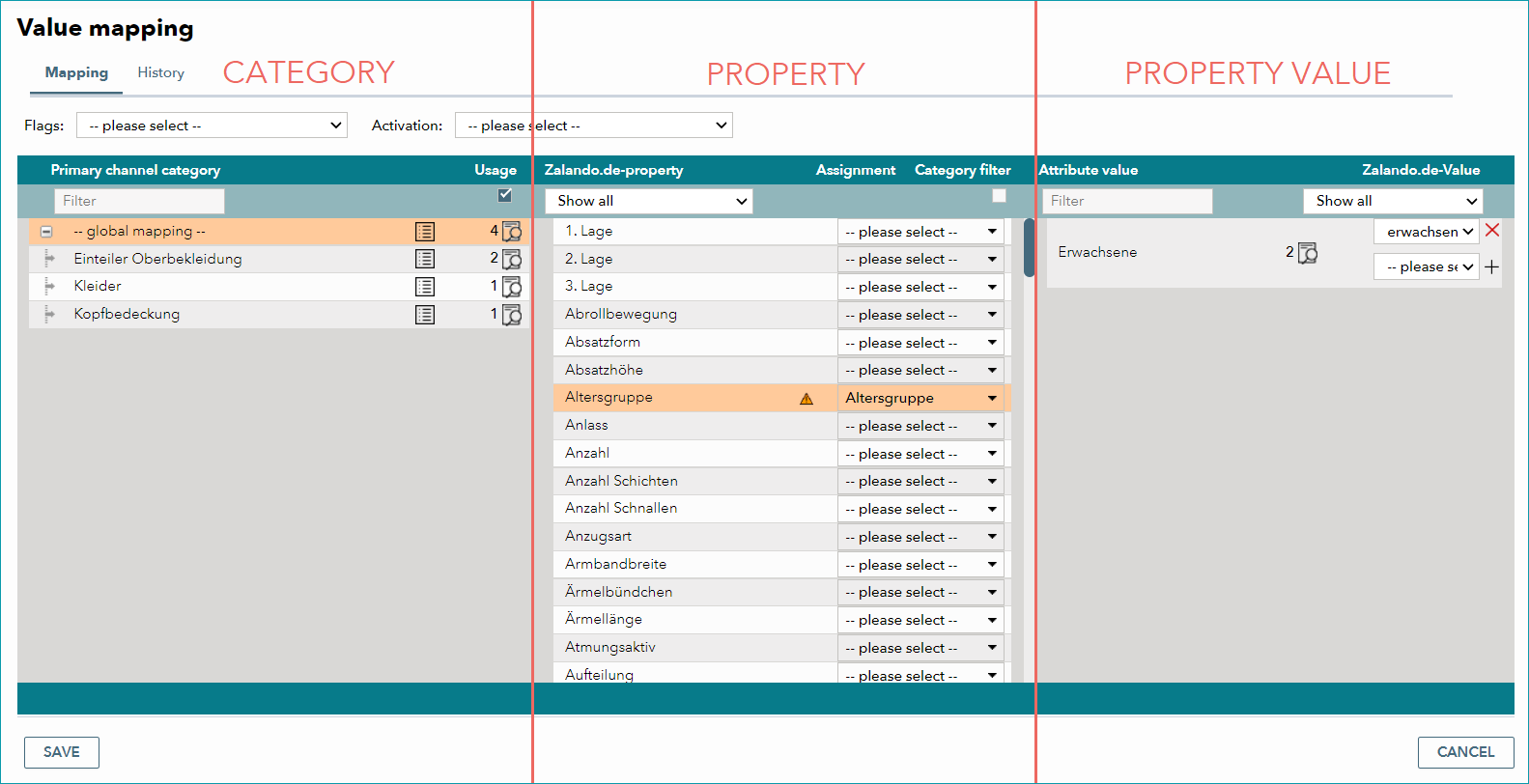
Open the mapping table located at "Channels > [Channel] > Value mapping". The value mapping menu is separated in three successive columns, because several steps are necessary to map properties and values.
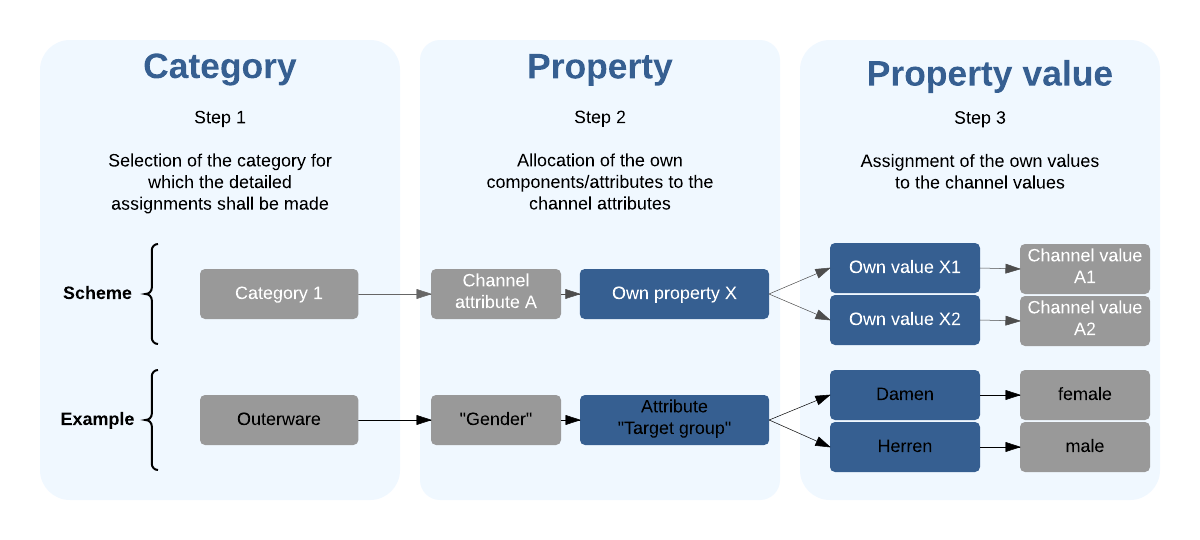
The channel categories are displayed in the left column. Once you have selected a category, the middle column will display all available channel properties available in this category (left side of the column) to which you can then assign your own properties (right side of the column).
After mapping a property, your values for that property will be displayed on the left side of the right column. Choose the appropriate channel values from the drop-down menus to the right.
Note that each column has its own scroll bars which can be used to move the list up and down.
TIP:
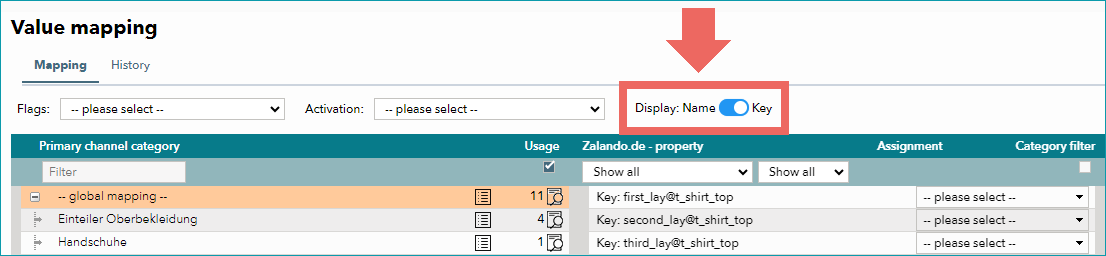
Keys help you solve value mapping issues. They are unique and independent of the language in which a channel transmits its data. Furthermore, many channels refer to keys, not names, in their feedback about mapped values. For some channels, the keys' text for global mapping may include a specific category, e.g. "upper_material_clothing@cardigan". This does not mean that the key only relates to a single category. It is only a consequence of how the global level is generated in TB.One. |
Detailed descriptions of the individual columns can be found on these pages:
If one of your booked channels works with size grids, you also need to map them in TB.One. Size grid mapping requires some additional steps.
For further information, see also: