TB.One > Value Mapping > The Value Mapping Process > Value Mapping Step 3: Value Assignment
Value Mapping Step 3: Value Assignment
This page describes the right column in the value mapping menu at "Channels > [Channel name] > Value mapping". An overview of the value mapping process can be found here.
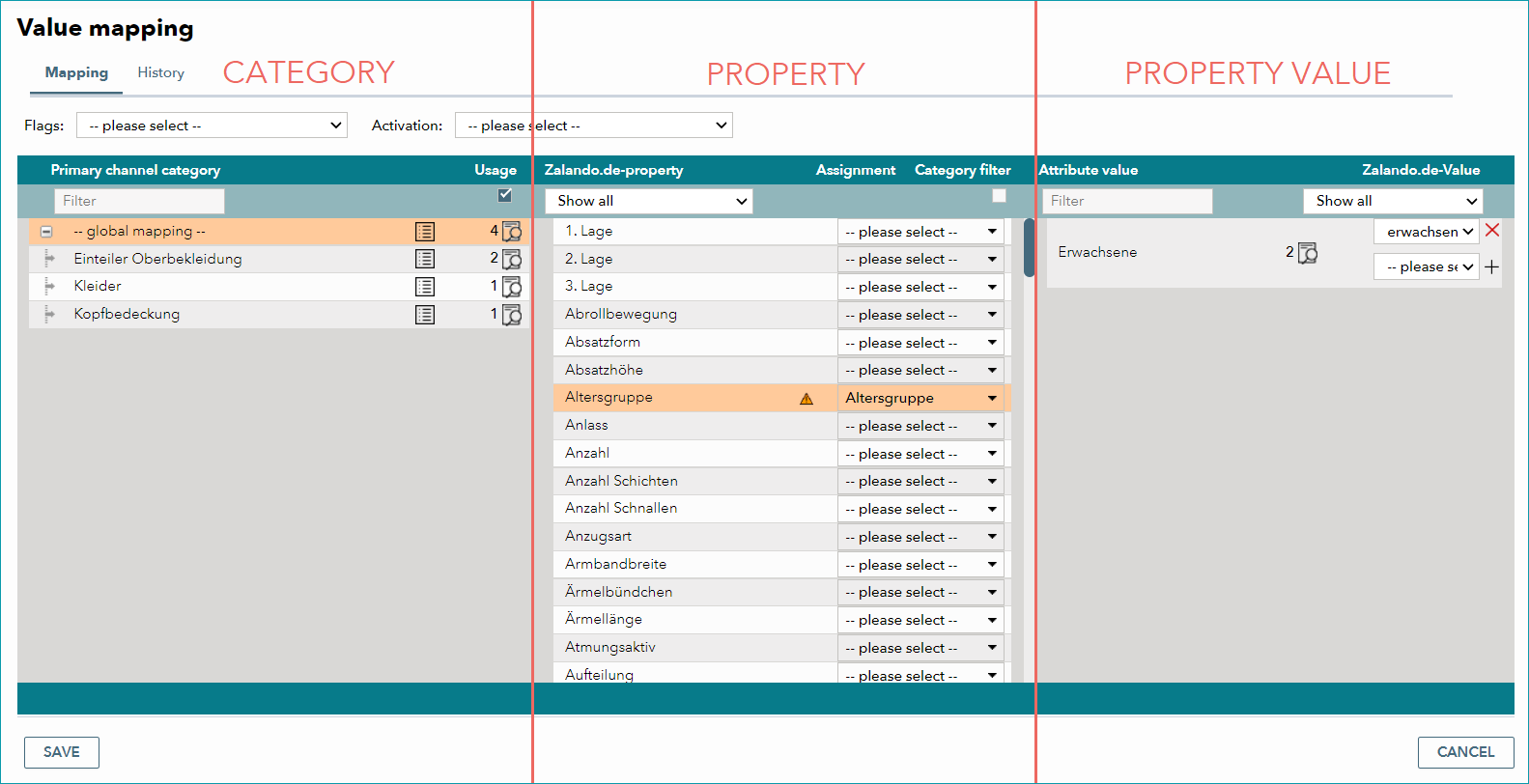
Once you have assigned one of your product properties (components and attributes) to a channel property in the middle column, the values from your component/attribute will be displayed in the right column. You then need to map the channel's values to yours using the menu options on the right.
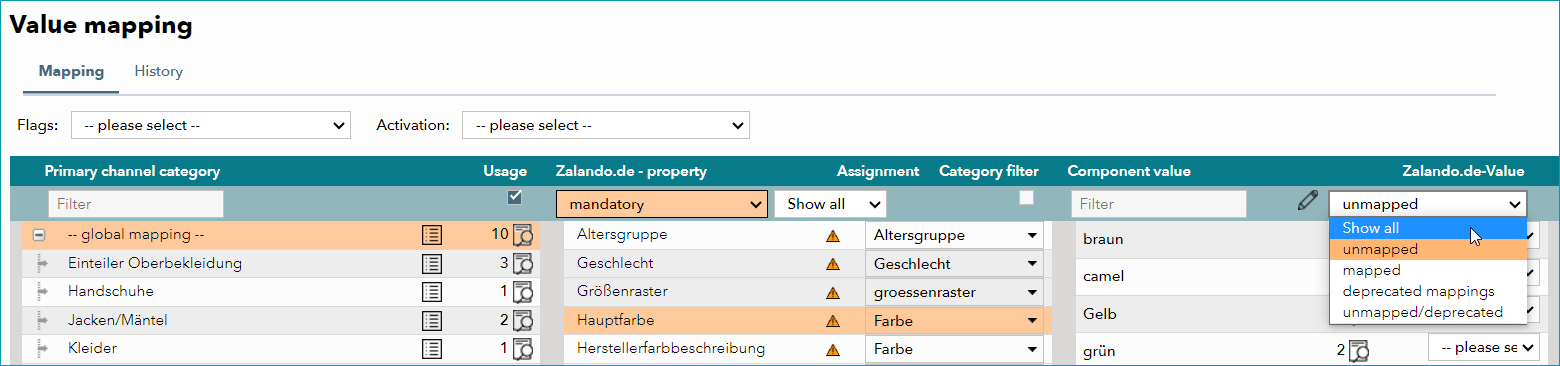
You can use the filter at the top to facilitate the mapping. By default, TB.One only displays "unmapped" values. You can change the default setting via the filter drop-down:
•"Show all" values.
•Filter for values that are already "mapped".
•If the channel has changed the value designations or changed/added property values, filter for "deprecated mappings".
•Filter the list for unassigned values and assigned values that are deprecated: "unmapped/deprecated".
Unless they are reconfigured, these filter settings will be in effect as long as the current session lasts (if you change the selection in the first or second column, the filter will not be reset).
If the number of possible values exceeds 1,000, the list will automatically be split up into pages containing 200 values each. In that case, you can switch pages by using the arrows at the bottom of the column. In case the channel changes designations or adds property values, filter for "assigned/deprecated" to identify these values. With the filter above the left side of the column, you can full-text search the attribute values.
Some channels provide descriptions explaining their properties. These are displayed above the list of property values.
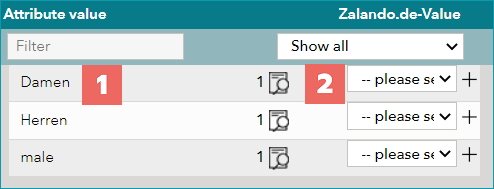
Similar to the middle column, the property-value column is also separated into two parts. On the left side you can see all values for the property that are currently assigned to one of your products (1). On the right side, you can see/select the corresponding channel values (2). The number in the middle indicates how many products the property is currently assigned to. With the magnifying glass icon you can open a list of those products.
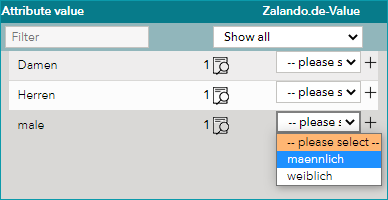
As the final step of value mapping, you need to assign one or more of the channel's values to each of your values. Depending on the channel and the value in question this may be done via drop-down fields or free text. In the example below, your value "male" would be mapped to the channel value titled "maennlich" (German for male).
Depending on the channel and property, there are different field types for the assignment of values:
TYPE |
DESCRIPTION |
|---|---|
|
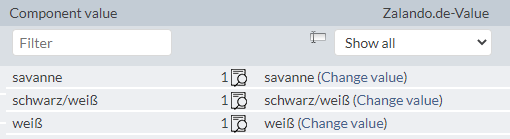
Free text field If you choose a property for which the channel does not provide a value list, TB.One will automatically transfer your values to the target column on the right. By clicking the "Change all values" icon (marked in red) you can empty all fields in order to enter different values for the channel. If you only want to adjust some individual values, click on "Change value" in the respective rows. |
|
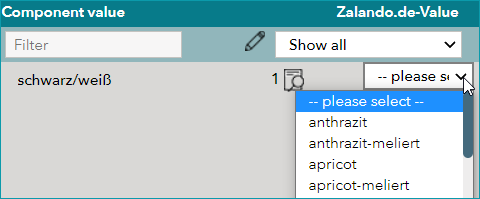
Drop-down menu In this case, the channel provides a drop-down list which contains all possible values for the respective property. Assign one of the channel's values to each of your values. To facilitate this process, you may use the option "Automatic value comparison" by clicking on the pen icon at the top. TB.One will then try to find and assign the correct values automatically. Then, you will only need to assign the values where TB.One could not find a match. Example: Your colour value is "royal blue" but the channel only knows "blue". |
|
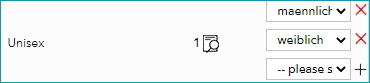
Multiple drop-down menus For some properties, channels allow you to select multiple values. Once you choose one value from the drop-down list, a new row in which you can add further values will appear below the first one. Example: 1. A sports jersey is viable for several types of sport (e.g. hockey and soccer).
|
|
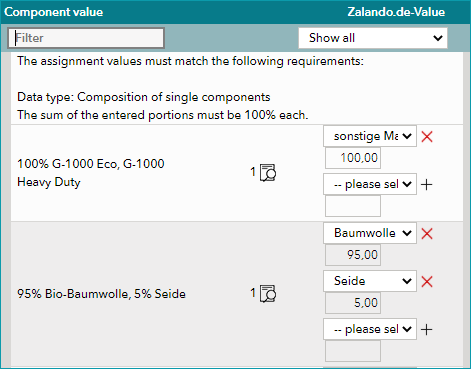
Multiple drop-down menus with percentages For some information regarding materials it is sometimes possible to record the material and corresponding percentage separately. Example: The property selected in the middle column is "material". In the value mapping you choose "95% Cotton, 5% Silk" for your component value. For the channel value you have separate rows for each type of fabric. Select the fabric from the drop-down menu and enter the corresponding percentage in the free text field. |
ATTENTION: |
TIP: |
For further information, see also: