TB.One > Order Data and Order Processing > Order Processing in TB.One > Bulk Processing in the Order List
Bulk Processing in the Order List
If you want to create order confirmations, cancellation messages, dispatch advices, or set payment statuses across all positions of one or multiple orders, you can do so by clicking the "Create messages" button at "Orders > Order list" (provided the button is enabled). Use this feature to process orders quickly and easily, either individually or in bulk.
Select the order(s) for bulk processing by marking their checkboxes in the left column of the order list. This will automatically activate the radio button "Selected orders" in the bottom section of the menu and ready the "Create messages" button. A click on the button opens the processing window, which can be used to create reports for the selected orders.
TIP: |
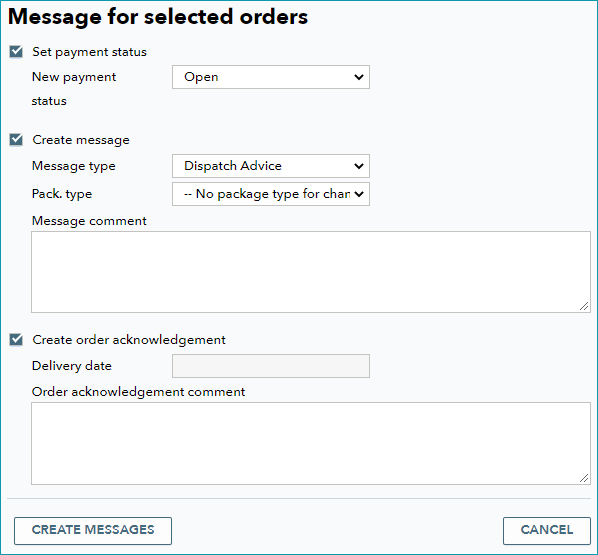
In this menu, you can set a new payment status and create messages or an order acknowledgment by checking the respective boxes. For messages, you can select "Dispatch Advice", or cancellation (either based on customer decision or on stock). If you issue dispatch advices in this menu, you have to select a package type. Optionally, you can store a message comment. Depending on the channel, you may also specify the estimated delivery date (select the date from a pop-up calendar). Click on "Create messages" in the pop-up menu to complete the process. Created messages can be viewed in the order details on the tab "Messages & Documents".
ATTENTION: |
TIP: 1. Select order(s) using the checkboxes |
For further information, see also:
•Manual order processing - overview
•Processing orders via Scan-Desktop