TIP: This Channel Sheet contains all channel-specific information for Otto. |
CHANNEL BASICS
The following channels are available for Otto:
CHANNEL |
SIGN |
ID |
CURRENCY |
|---|---|---|---|
Otto.de WHSA improved |
otde |
5 |
EUR |
Two connection models are available:
▪Otto.de WHSA improved
▪Otto.de VAL improved
The main difference between these models is defined by the shipping process.
With Otto.de VAL improved, it is possible to sell on Otto's partner platform BAUR.
Contact your Tradebyte Account Manager and OTTO if you would like to sell on this platform. The channel will then verify that your assortment is suitable for the platform. If this is the case, OTTO will adjust the settings in their system accordingly.
In TB.One, you only need to create a separate payment type for the platform. To do so, open the menu "Basic data > Payment > Payment types" and click on the page action "Create new payment type" in the left navigation bar on the tab "Pages". Fill in the fields "Designation" and "Export Key" using the values from the following table:
CHANNEL |
SIGN |
ID |
|---|---|---|
Baur.de |
BAUR |
BAUR_44 |
Notify the channel once you have configured the payment types in TB.One. The platform will then create a test order which you need to process before your products can go live.
ATTENTION: |
PRELIMINARY INFORMATION
•New to TB.One? Our webinars help you find your way around the software.
•Send your supplier/access data for the channel to your Solution Delivery Manager at Tradebyte.
•Provide your product data in German.
•Go to the menu "Basic data > Storage > Warehouse settings" and check your settings for the channel (for more information, click here).
CHANNEL-SPECIFIC SETTINGS, FEATURES, AND PROCESSES
REFERENCE NUMBER |
CHANNEL-SPECIFIC INSTRUCTIONS |
||
|---|---|---|---|
B-01: Payments |
Find your payment methods at "Basic data > Payment > Payment methods". Payments are managed by Otto. When the channel is activated or, at the latest, when the first order comes in, a payment method with the channel name is created automatically. For the export to an ERP-system, you can freely select an export key. |
||
D-01: Product designation |
The length of the product designation is limited to 94 characters. |
||
D-02: Special text |
•Otto will process information you enter in the field "Special text". •You can enter custom text using the text configurator. •Entering custom text is optional. |
||
D-03: Description |
The length of the product description is limited to max. 2,000 characters, min. 40 characters. •Bullet points: Optional. We recommend 3 to 8 bullet points. |
||
D-04: Components |
The following components are mandatory at Otto: ▪Cup sizes (for lingerie tops, can also be maintained as a variant) ▪Care instructions (for textile goods; e.g. "Machine wash") ▪Energy efficiency class (for electric appliances lamps and light fixtures) ▪Series (for additional support for cross selling) |
||
D-05: Attributes |
The following attributes are mandatory at Otto: •Number of parts (for articles with multiple parts) ▪Size type (Ausgabe Größentyp) ▪Product type ▪Hanging garments attribute |
||
E-01: Article numbers |
Provide the following article numbers: •Article number •Channel's article number •EAN
•Manufacturer's article number (optional) |
||
E-02: Shipping information |
Provide the following shipping information: •Pack sizes (height, length, width in cm) •Weight •Number of packing pieces |
||
E-03: Variant dimensions |
The following requirements apply for variant dimensions:
|
||
F-01: Media |
•Provide images in a commonly used format such as png or jpg. •Number: max. 20 article images •Size: color tiles must be 39 x 39 px •Resolution: no DPI requirement •Energy efficiency label as JPG and product data sheet as PDF •Change media only after consulting the channel •Besides the color information, which you transmit by creating a variant (dimension 1) and by defining a search color in the value mapping, you may present your color variants to the customer in the online shop even better and more clearly if you additionally provide a color tile for each color variant. These color tiles will be displayed on the page overview and emphasize at first glance that, for example, your product is available in different shades of blue. •Please provide color tiles as JPG or PNG files with a size of 39 x 39 px and assign them to the corresponding article variant in the media tab as images. We recommend selecting the media type "Farbabbildung (COLOR)". Ask your Tradebyte contact for export activation
|
||
G-01: Carrier |
•Use a carrier of your choice after agreement with Otto •You can define surcharges for your Otto shipping types at "Basic data > Prices > Surcharges/Discounts". |
||
G-02: Delivery note |
You can configure the Otto delivery notes at "Admin > System settings > Documents" and add custom text. Required information for the Otto delivery note: •Channel's article number •EAN •The Otto logo •Your shipping address •Article size •Otto order number •Supplier ID |
||
G-03: Invoice |
TB.One will print invoices that comply with the channel's requirements. Include them in your packages. Under "Basic data > Payment > Payment types > Otto.de" the following standard text for invoices needs to be entered: "Entgeltminderungen ergeben sich aus unseren aktuellen Rahmen- und Konditionsvereinbarungen; 30 Tage 4 % Skonto, 60 Tage netto" |
||
G-04: Proposed return code |
You don't have to send return codes to the channel with your dispatch advices. •Enter a return address under “Basic Data > Returns > Return Addresses.” Enable the return address for Otto.de VAL improved (formerly Otto.de Doss). •Returns are sent directly back to you. Enter a return address under “Basic Data > Returns > Return Addresses.” Enable the return address for Otto.de VAL improved (formerly Otto.de Doss). Validation of the return address (e.g., missing ZIP code, etc.) takes place on the channel side. |
||
G-05: Delivery documents in package |
Delivery note |
||
G-06: Refund deduction |
At Otto you always reimburse customers for returned articles in full. If you have complaints about the condition of a returned article, consult the channel directly.
|
||
G-07: Return causes |
To create return causes and states, go to "Basic data > Returns > Return causes" and "Basic data > Returns > Return states". You can use TB.One's return causes to export one of Otto's return states to the channel. To do that, assign the channel's accepted return states (see below) to your return causes in the field "Key" at "Basic data > Returns > Return causes".
|
||
X-01: Size grid |
Otto does not use size grids. |
||
X-02: Base prices |
Provide base prices (price per kg, price per liter, etc.) for all articles that legally require you to do so. |
||
X-03: Categories |
For a complete list of all categories, go to "Basic data > Classification > Typification". To reduce the number of categories available for selection at the product, mark categories that you do not use as "not assignable". Channels change their categories from time to time. Any major changes will be announced in TB.One. Outdated categories are highlighted with a red icon. Move all affected products to valid categories. •At Otto you can not create links between your products. |
||
X-04: Value mapping |
Map at the category level for Otto. The available channel values may differ from category to category. •The purpose of the channel property "Anzahl Teile" (number of parts) is to correctly handle multi-part articles in the return process (e.g. a tracksuit consisting of jacket and pants can only be returned correctly when the return package includes 2 parts). This is particularly important for the Integration model. •No additional value mapping is needed when activating new Otto channels. The mapping for Otto.de will be used. |
||
X-05: Pending orders |
Otto does not transmit pending orders. Orders are delivered every morning at 6:00 a.m. and must be processed on the same day. The shipping documents to be included with the package are provided as external files with each order. If an order contains multiple identical items, they are still delivered as separate line items. The channel expects immediate shipment of the goods on the day the order is received. If delivery does not occur within 72 hours of order receipt, you will not receive payment from the channel, and the order will be canceled in the Otto system. |
||
X-06: Partial deliveries |
Partial cancellations and partial deliveries on article level. |
||
X-07: Commission group |
Otto uses commission groups to calculate their fees. Your articles' channel purchase prices ("Chanel PP") are automatically calculated from the RP and the commission group. To configure commission groups: 1.Go to "Channels > Otto.de Wholesale improved > Commission group" to set up the commission groups you agreed upon in your contract with the channel. 2.Assign commission groups to your articles. You have tree options: a.Click on an article number in the article list ("Articles > Article list"). On the tab "Article data" you'll find drop-down menus for the commission groups. b.If the commission group is identical for all of a product's articles, you can assign it to the corresponding "Master article" instead. c.If a single commission group is valid for all of a channel's articles, assign it globally at "Admin > Default values". When articles are registered with a commission group for the distribution channel, these values may not be changed without consulting Otto. However, the Channel PP may be changed. |
||
X-08: Service logos |
Otto will not display service logos you transfer in the shop. |
||
X-09: Error and status messages |
Find the channel's error and status messages at "Channels > Otto.de Wholesale improved > Article status". |
||
X-10: Templates |
At Otto you cannot use templates. |
||
X-11: Text configurator |
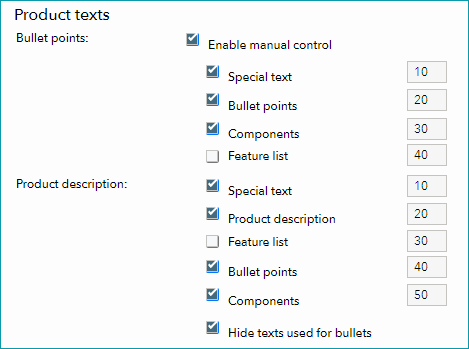
You can use the text configurator to customize the product descriptions shown at the channel (you can add information like components and bullet points, and configure the order in which these elements are displayed). •Go to "Channels > Otto.de Wholesale improved > Settings" and switch to the tab "Product texts". •Select the checkbox "Enable manual control". •You can now choose, which elements to include in the bullet points and in the product description. •To define an order in which the elements are displayed, assign a number to each element (the element with the lowest number is displayed first; number the elements in increments of 10, i.e. 10, 20, 30, etc.).
Text Configurator |
||
X-12: Product text profile |
Product text profiles cannot be used for Otto. |
||
X-13: Title profile |
You can use title profiles to configure the product titles shown in the channel's shop. For more information on title profiles, click here. |
||
X-14: Cross prices |
Otto does not display cross prices. |
SPECIAL REQUIREMENTS
PRICE DATA
Prices must be set per channel. Thus set the drop-down above the price table to Otto.
Enter the price values in the following columns:
•"RP" ( Retail Price), gross
•The RP is always mandatory information in TB.One for technical reasons. Therefore, provide the RP for each article.
•For Otto, the RP is used to calculate the channel purchase price if needed (for more information, see bullet point "Channel PP").
•"MSRP" (manufacturer's suggested retail price), gross
•At Otto, the MSRP is mandatory and must be indicated for each article.
•If no MSRP is available, the affected articles will not be exported, which will cause an error message.
•"Channel PP", net
•At Otto, the channel purchase price is also mandatory information.
•If you can not provide the Channel PP, TB.One will fix it automatically via the calculation aid using the RP, the VAT, and the commission:
TIP: Channel PP (net) = RP (gross) − VAT − Commission |
RESTRICTION FOR CHANGES IN PRODUCT DATA
▪Articles that were already exported to Otto must not be shifted to another product or reestablished with the same EAN, even if the article has been deleted beforehand. Affected articles will be deactivated by the channel. In this case TB.One will display an error message.
▪Don't modify any media, commission groups or brand designations without consulting the channel.
▪Don't change size assignments after the first export.
▪Don't use any Otto cluster attributes in a foreign language, i.e. not German (these are keywords for the classification in the shop's navigation, which you can define yourself, not to be confused with TB.One clusters). Detailed settings will be made in consultation with your Tradebyte Solution Delivery Manager.
SELLING POINTS
The bullet points can be used as the Selling Points, which are required by Otto. In the tab "Product texts" in the channel settings you can select the TB.One fields which should be used for composing the Selling Points. Please note that an Otto Selling Point must not contain more than 60 characters. Avoid any general information such as colour or size. Don't include any bullet sign (e.g. hyphen), the separate points are automatically displayed as a bulleted list in the online shop.
EXPORT SETTINGS
In agreement with your Otto Key Account Manager you can easily publish your content on the Otto platforms Otto.nl, Otto.ch and Otto.at as well. For each of these platforms, another channel will be activated. The settings in the respective channel menu are valid for the channel on which they are entered/activated. Normally, the settings of Otto.de are taken over for foreign-language channels. Therefore, the channel menus of the foreign-language channels offer only settings for deviating information. Only the translated texts and differing VAT rates are controlled by the country channels. After the agreement with the channel, you have to provide Dutch product texts for Otto.nl.
In the section "Export" you may determine a standard and an alternate language for the export to Otto.de. This option allows you, for example, to adjust your product texts to the jargon of the channel and provide them as a "translation".
SELLING LARGE ITEMS
The channel defines whether you are allowed to sell large items. If you have permission from Otto, Tradebyte will set this accordingly. Otherwise, you will receive a warning in the error list for articles with package dimensions exceeding the dimensions predefined by Otto. The fields after the drop-down menu define the minimum measurements goods must have to be automatically flagged as large items during export.
For the cluster attributes required by Otto you may set the separator that is used for the export here. To remain flexible it is recommended to use the separator which is also being used for the TB.One clusters.
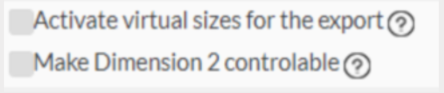
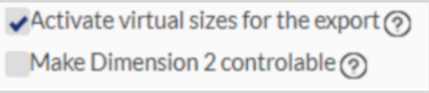
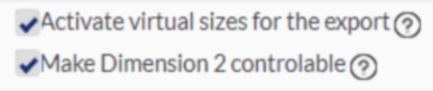
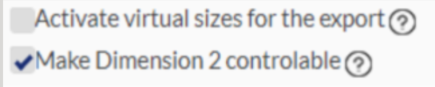
The lower check-boxes allow the activation of the Virtual Sizes and the control of the Dimension 2. With activation of the "VirtualSize" by Tradebyte you may add your articles to further search filters by means of the value mapping. New article information is not required. The options interact:
CONTROL SIZE EXPORT |
EFFECT |
|---|---|
|
If both options are deactivated, your value mapping for the channel property "Ausgabegröße" (output size) is exported. As "Dimension 2", the value that you maintained in the master data is used. <Dimension2>XXL</Dimension2> |
|
If you activate the virtual sizes for the export, the article is additionally added to the search filters you map there. As size, the mapping of "Ausgabegröße" (output size)" is used, the value you maintained in your master data is used as "Dimension 2". <Dimension2>XXL</Dimension2> |
|
Similar to the option before only that "Dimension 2" is exported as a combination of the mapping of "Ausgabewert" and "Virtual Size". <Dimension2>38,5 (5,5/6)</Dimension2> |
|
Here, the size mapping and the "Dimension 2" are exported but no "Virtual Size". The "Dimension 2" contains the value maintained at the article and the article contains the mapped size. <Dimension2>XXL</Dimension2> |
DATA EXCHANGE TIMES
DATA |
TIME/FREQUENCY |
|---|---|
Catalogue (Full) |
once a week (Monday or Tuesday; over night) |
Catalogue (Delta) |
once a day from Monday to Friday (in the evening) except on full load days |
Stocks (Full) |
once a day (in the morning) |
Stocks (Delta) |
hourly |
Prices |
with catalogue |
Media |
three times a day |
Send files |
approx. 1 minute after files are created |
Retrieve and import orders |
every 30 minutes |
Error/Status messages |
every 30 minutes |