TB.One > Product and Article Data > Translations and Multilinguality > EXPORT AND IMPORT OF TEXT MODULES
EXPORT AND IMPORT OF TEXT MODULES
You can export selected text modules for translation and later re-import the translated texts. To do this, open the menu "Articles > Translation > Imports/Exports", and select the respective option from the tab "Pages" in the left navigation bar. It is recommended to retrieve the source texts shortly before exporting. In the export settings under "Admin > Export > List exports" you can choose an output format for the translation exports.
1. EXPORT TRANSLATIONS
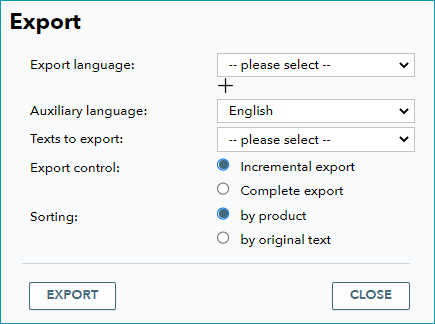
At "Articles > Translation > Imports/Exports", click "Export translations" on the tab "Pages" in the left navigation bar.
FIELD |
DESCRIPTION |
|---|---|
Export language |
Define the language(s) to be exported. Only languages which were assigned an import key at "Articles > Translation > Languages" are shown for selection. |
Auxiliary language |
Currently, the languages German and English are available as auxiliary languages. The auxiliary language is used for the explanatory spreadsheet contained in the exported file. |
Texts to export |
You can restrict the export to certain text modules. Choose between the options "all text modules", "all released, not translated text modules" and "all released text modules". |
Export control |
Export all text modules or only those that have changed since the last export. |
Sorting |
Define whether the text modules in the export file should be pre-sorted by the product or in alphabetical order. |
Exported text modules that have not yet been re-imported are marked in the list of text modules.
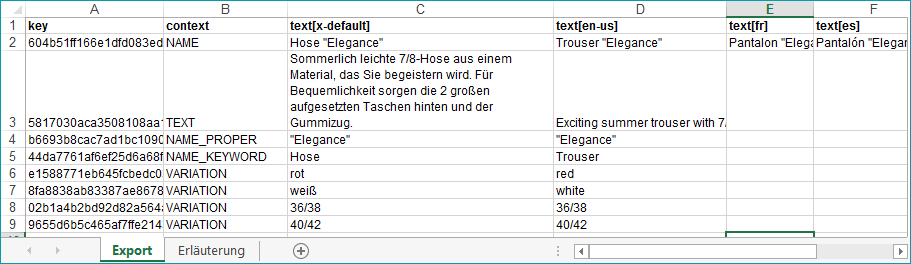
Click on "Export" to choose a location where the exported file should be saved and to download it. The resulting Excel file includes the text modules and an explanatory sheet, which describes the file's contents and the import process.
If you start importing text modules before you have re-imported the last exported file, a notification will be displayed.
2. IMPORT TRANSLATIONS
Once you have translated the text modules, you need to import the file into TB.One. The order of the text modules is irrelevant. However, the combination of "key" and "text[x-default]" must match. You can import files in the XLS or CSV format.
Select the page action "Import translations" in the left navigation bar.
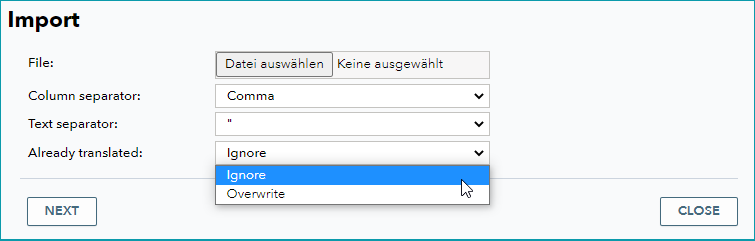
Configure the necessary settings and click "Next". The import's results will then be shown in a new window. Any problematic text modules will be marked with a warning triangle icon and an error description. The results can be filtered for non-assignable, updated or newly translated text-modules. If the file contains multiple languages, it can also be filtered by language.
ATTENTION: |
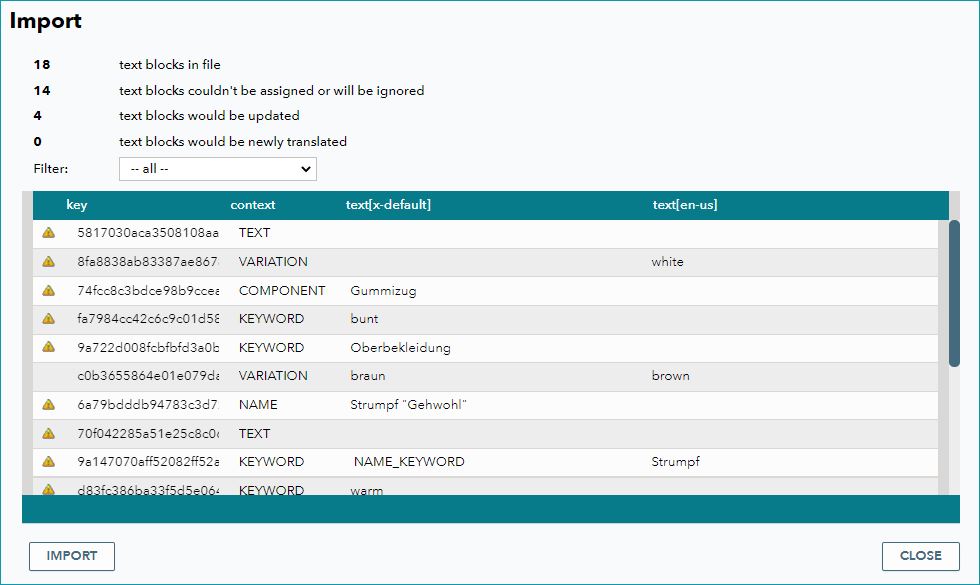
Once you have verified the results, start the import by clicking the "Import" button. The corresponding text modules will be imported.
3. MANAGE EXPORTS AND IMPORTS
Exports and imports are managed in the menu "Articles > Translation > Imports/Exports". The menu displays a summary of your imports and exports. The list can be filtered by language and you can download files that have been processed previously. Optimally, each exported file is followed by an imported file. The icon at the beginning of each row indicates whether the file was imported ( ) or exported (
 ).
).

For further information, see also:
•Overview: Translations in TB.One