TB.One > Product and Article Data > Translations and Multilinguality > STRUCTURE OF THE TRANSLATION TOOL
STRUCTURE OF THE TRANSLATION TOOL
The translation tool can be found at "Articles > Translation". The filter section is located in the upper part of the main window and the list of text modules in the lower. At the very bottom, there is a section for bulk processing. Some further options can be found on the tab "Pages" in the left navigation bar.
Below, the individual parts of the menu are described in detail.
1. RETRIEVING SOURCE TEXTS AND USING THE FILTER
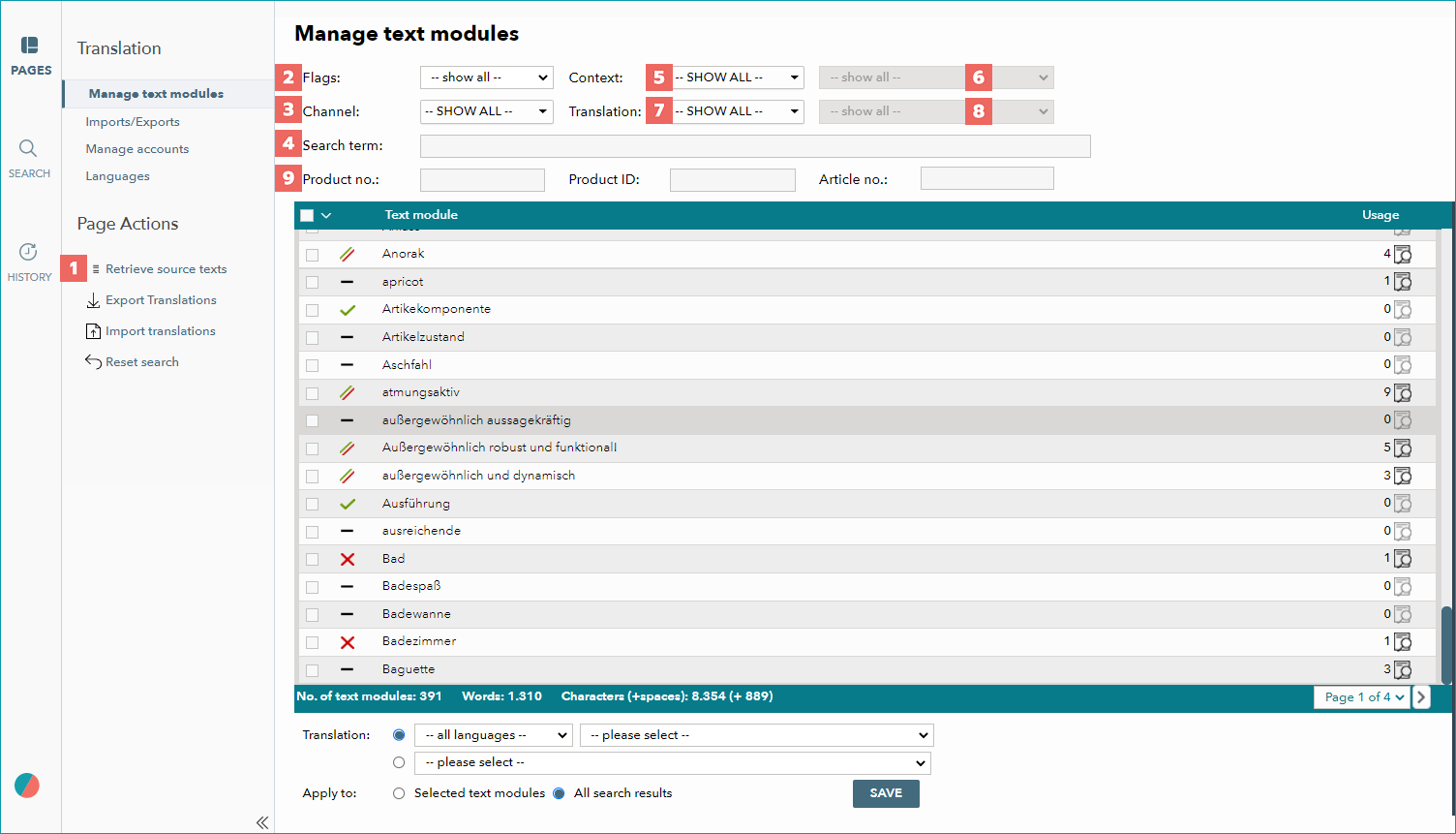
The upper part of the screen acts as a filter for the text modules below.
NUMBER |
DESCRIPTION |
|---|---|
|
Before you can begin translating, you first need to retrieve the existing text modules. Clicking on this option will import all text modules you have stored in TB.One into the translation tool. You can also use this option to update the list at any time. Retrieve the text modules when you create a new product or change any existing texts. Only the text modules of activated articles will be imported! |
|
If you have assigned flags during the creation of products/articles, you can use them as filters here. |
|
By using the filter "channel", you can limit the list to text modules for products/articles that are enabled for the specified channel. It is possible to select multiple channels simultaneously. Products must be active with at least one article on at least one of the selected channels for the corresponding text modules to be included in the list. |
|
Use this field to search for a specific term. |
|
With the "context filter, you can restrict the list to a specific field. The following options are available (multiple selections possible): •"--show all--": Filter off •"TEXT": Product description •"NAME": Product designation •"BULLETPOINT": Bullet points •"PREFIX": Prefix for the product name •"SUPPLEMENT": Special text •"COMPONENT": Component values •"VARIATION": Variant values •"KEYWORD": Search terms •"NAME_KEYWORD": Common noun •"NAME_PROPER": Proper name |
|
Can be used to further refine the component or variant filter specified in (5) to only show values for a specific component or variant dimension. |
|
This filter allows you to display text modules by language and shows the translation status for that language via the bulb-icon at the beginning of each row. The meanings of these icons are detailed below under "The text module section". |
|
This field allows you to filter for text modules marked as "enabled for translation", "not released", "not translated", "inquiry available", "translation ready", or "not translated and not released". |
|
Here, you can filter directly for a certain product number, product ID or article number. |


ATTENTION: |
2. THE TEXT MODULE SECTION
In the central section of the text module management menu, the text modules which exist in your system are listed corresponding to the filter you have configured (assuming you have already clicked on "Retrieve source texts" on the tab "Pages" in the left navigation bar).
NUMBER |
DESCRIPTION |
|---|---|
|
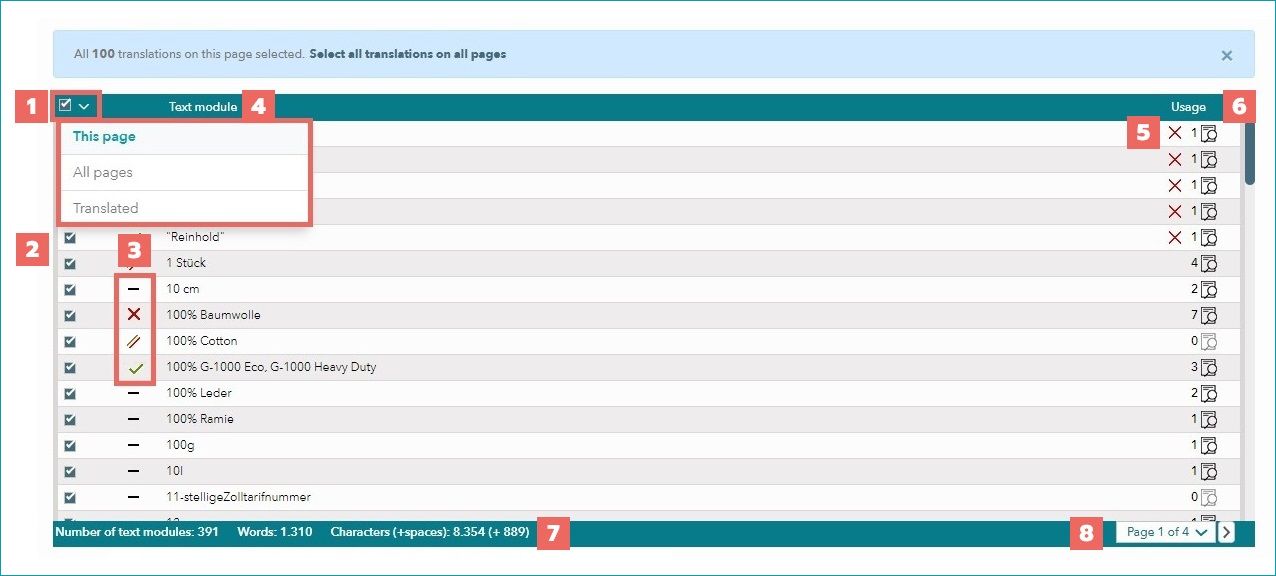
Activate the checkbox in the table header and opt for one of the following settings in the drop-down to make more specific adjustments to your bulk editing or export: ▪“This page”- Selects the text modules on the current page. Switch between the individual pages and activate the checkbox to expand your selection. A pop-up above the current table displays the number of selected text modules. If necessary, you can switch to “Select all translations on all pages”. ▪“All pages”- Selects the text modules on all pages at once. ▪“Translated”- Selects all text modules with an existing translation. |
|
The checkbox at the beginning of each row can be used to activate the corresponding text module for bulk editing via the menu below the "Text module" section. |
|
The colored icons show the current status of the text module (depending on the selected filter):
|
|
In this column, you can see the contents of the text module. Click on a module to open the editing window on the right side, where you can edit the translations of the individual components (see TB.One-internal translation of text modules). |
|
The |
|
The number indicates the number of active records (products/articles) for which this text module is used. |
|
In the bar below the list, you can see the number of text modules, words and characters in the current (filtered) list. |
|
If your list contains more text modules than TB.One can display on one page, you can switch between pages here. |


3. BULK PROCESSING OF TEXT MODULES
Below the list of text modules, the options for bulk processing are displayed. Use the checkboxes in front of the text modules to select a group of modules for bulk processing.

NUMBER |
DESCRIPTION |
|---|---|
|
Decide whether the selected action should affect all languages or only one specific language. |
|
Choose your action:
|
|
Alternatively, you can carry out one of the following actions:
|
|
Here you can choose whether you want the action to affect only the selected modules or all modules in the current filtered list (including all pages). |
 Enable for translation: releases the selected text modules for translation.
Click "Save" to confirm your selection.
For further information, see also:
•Overview: Translations in TB.One