TB.One > Product and Article Data > Translations and Multilinguality > TRANSLATIONS ON THE PRODUCT LEVEL
TRANSLATIONS ON THE PRODUCT LEVEL
Translations on the product level can either be entered directly in TB.One or by using the standardized import options. In both cases, the entries are shown on the tab "Translations" in the product preview (click on the icon  at "Articles > Product list").
In the product detail view, you can switch to the product preview and the translation tab by clicking on the corresponding options (" Product preview", " Translation") on the tab "Pages" in the left navigation bar.
1. INTERNAL TRANSLATION AT THE PRODUCT
This tab displays all text blocks that pertain to this product. You can translate them directly in this menu.
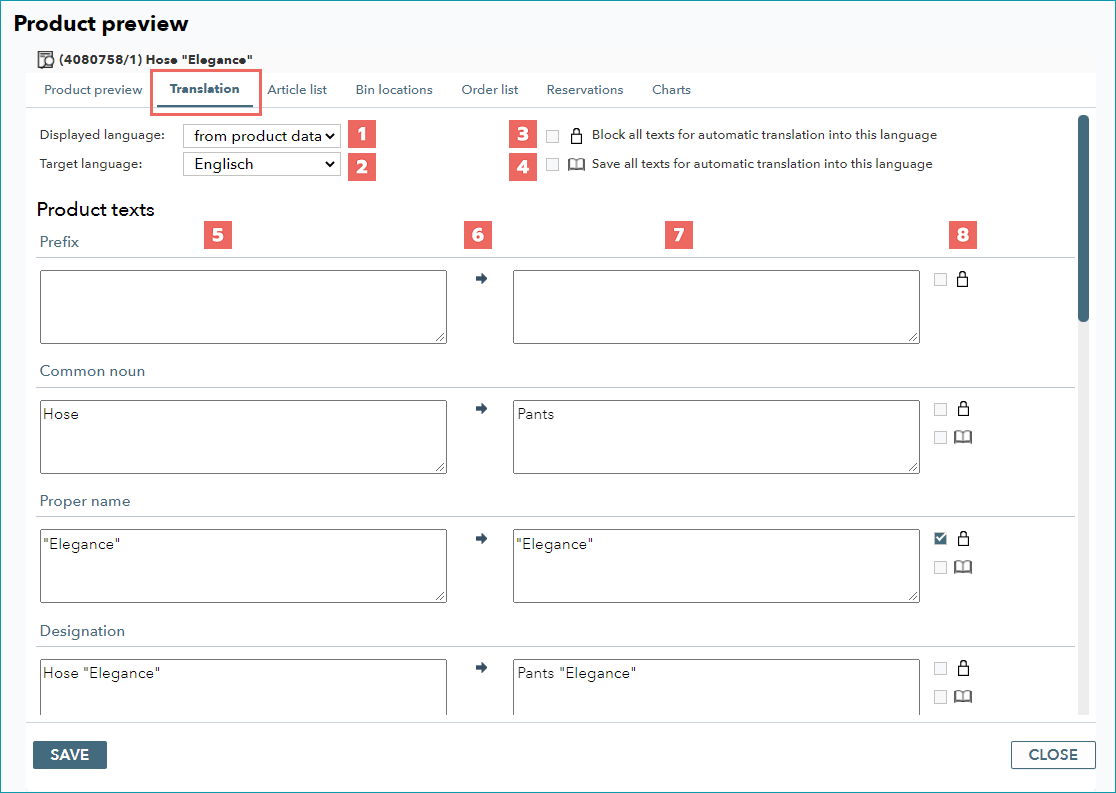
NUMBER |
DESCRIPTION |
|---|---|
|
Select which language should be displayed in the left column. |
|
Select for which language's translations/settings should be displayed in the right column. |
|
If you check this box, all |
|
If you check this box, all If you would like the translations to be valid for all products with those text blocks, i.e. the translations should be valid globally, activate this checkbox. Any preexisting translations of the same text block at other products will be overwritten, unless they have been locked as outlined under (3). |
|
Here, the text blocks for the product are displayed along with the content that exists in the language selected under (1). |
|
By clicking the arrow button, you can copy the contents of the left column into the right column. This feature is relevant if a text block does not require a translation (e.g. sizes). |
|
Enter your translations for the language selected under (2) in these fields. |
|
With these two checkboxes, you can select individual text blocks as the source for automatic translation ( If you translate a text block in column (7), TB.One will automatically lock it for translation. If you remove the checkmark from the box before saving, your translation for the product will be discarded if a global translation for the text block is provided. If you only activate the book checkmark, the translation will be saved and used for the entire text block. Any future translations via the internal translation tool or an import would then be visible at the product because of the missing lock. |


 checkboxes next to the individual text blocks will be activated. The corresponding text blocks are then locked for automatic translation into the specified language. This means, that the translation of a text block is only valid for that specific product. If the same text block occurs outside the product and contains a different translation, it will not be taken over for that product.


2. EXTERNAL TRANSLATION PER PRODUCT VIA CSV OR XML
If you do not want to enter your translations manually via the user interface, you can use the regular product data import for translations. Data can be imported to TB.One via CSV or XML (TB.Cat). The linked pages index all relevant information for the respective import style, including the requirements for file names, column/node denominators and import settings. Store the complete import file in TB.One's "in" directory, from where the next scheduled import job will retrieve it and import the data.
When you create translations via import, the translation lock described above will be applied automatically. Global translations cannot be effected this way unless the global validity is configured manually (see above). You can, however, effect global translations via the text module import.
For further information, see also:
•Overview: Translations in TB.One