TB.One > Prices > Prices and Price Lists > Creating and Editing Price Lists
Creating and Editing Price Lists
CREATING A NEW PRICE LIST
Open the menu "Articles > Price catalogue". Open the tab "Pages" in the left sidebar and click on "Create new price list". The menu section for editing the new price list will open on the right. Enter the information for your new price list on the tab "Settings".
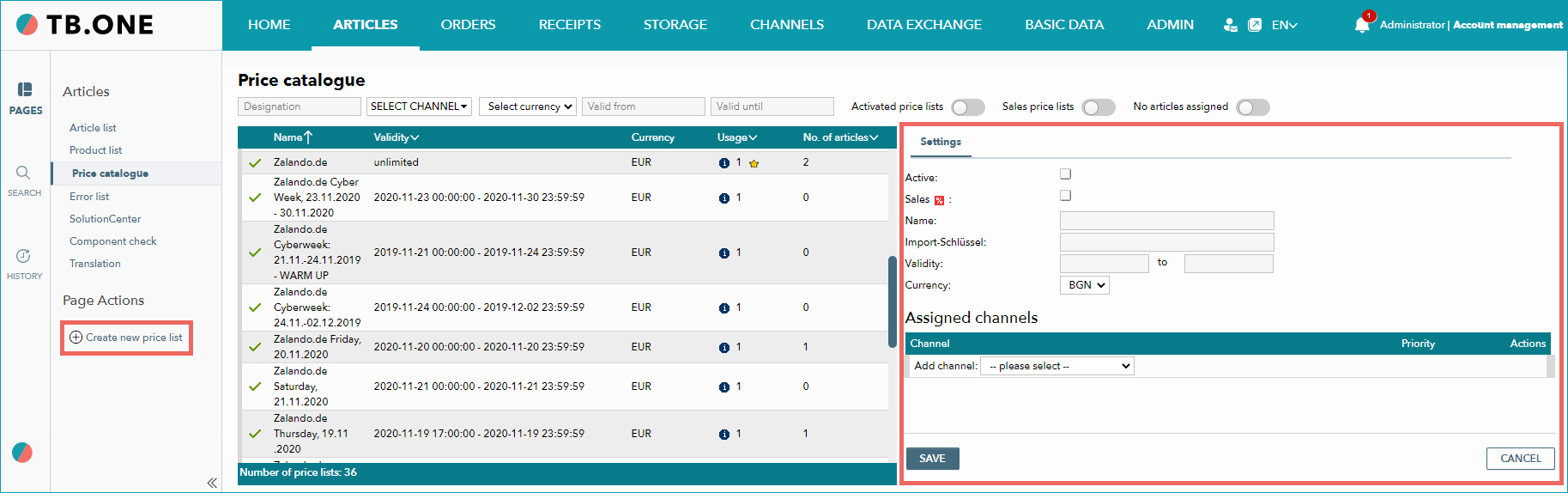
Define the necessary settings for the new price list:
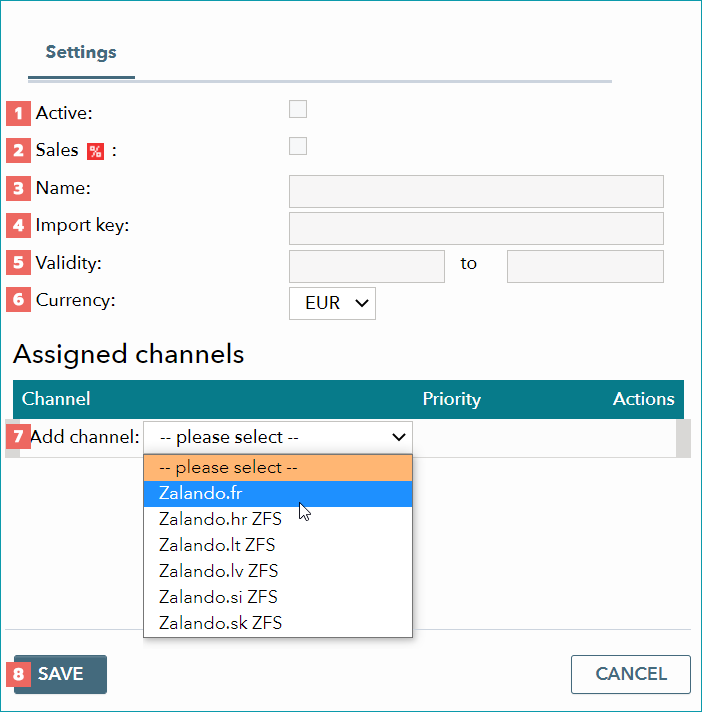
NUMBER |
DESCRIPTION |
|
|---|---|---|
|
Mark the checkbox "Active" if you want to activate this price list. |
|
|
Activate the checkbox "Sales" if the list is used as a "sales price list".
|
|
|
Enter a meaningful name for the new price list. |
|
|
The field for the price list's import key used to import prices into the list via TB.Cat or CSV. You can define this key yourself. |
|
|
Indicate the price list's period of validity (from/to). |
|
|
Select a currency from the drop-down menu.
|
|
|
Assign the price list to one or more channels by selecting them from the drop-down. You can remove assigned channels with the "delete" icon ( |
|
|
Save your settings. |


 ).
).
EDITING AN EXISTING PRICE LIST
When you access an existing price list via the price catalogue ("Articles > Price catalogue"), the editing menu opens to the right. You can edit existing price lists at any time on the tab "Settings" (described above).
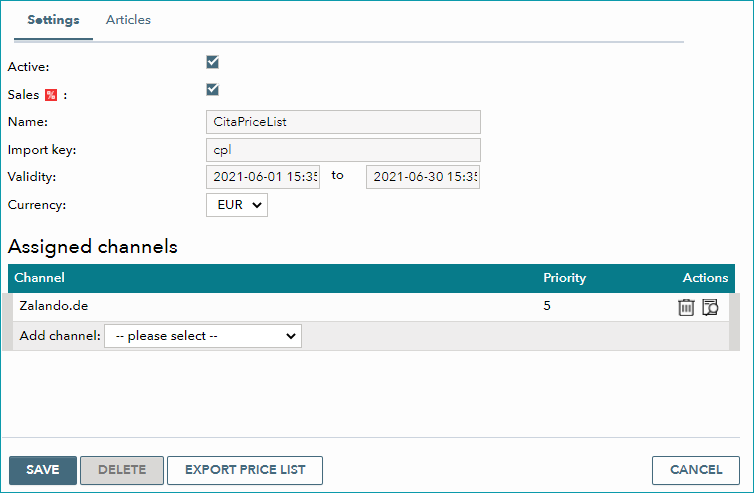
Additionally, the editing section contains the tab "Articles", where you can check which articles and prices are assigned to the price list. Use it to ensure you have entered all required price information correctly in the article data.
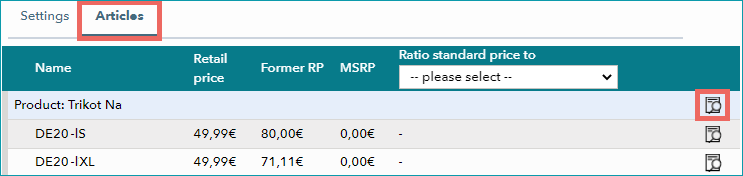
With a click on the magnifying glass icon ( ), you can switch to the article data editing menu for the respective article and change prices there, if necessary.
BULK EDITING
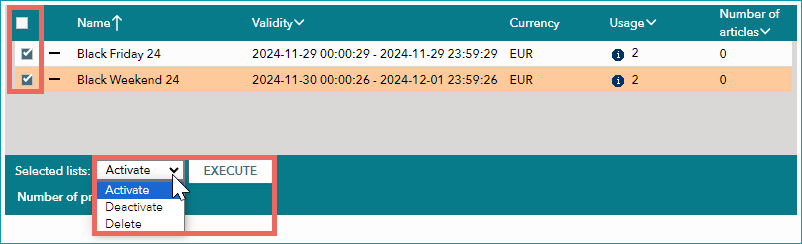
To activate, deactivate, or delete multiple price lists at once, proceed as follows:
1.In the left column, select all price lists you wish to edit.
2.Go to the drop-down menu "Selected lists" and choose whether you want to activate, deactivate, or delete the price lists.
3.Click on "Execute". TB.One will perform the chosen action for all selected lists.
TIP: •Active price lists •Price lists that are defined as a channel's "Default price list" •Price lists that are assigned to articles |
COMPARE PRICES
TIP: |
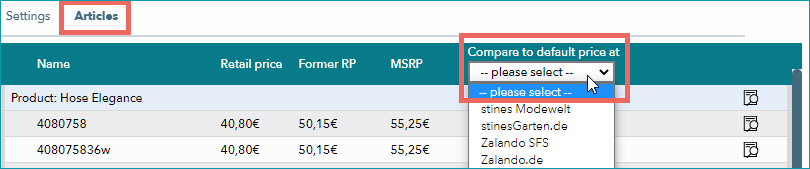
How to compare the retail prices of two price lists:
1.Access a price list in the price catalogue ("Articles > Price catalogue").
2.Switch to the tab "Articles". The table contains all assigned products with articles and their prices (Retail price / Former RP / MSRP).
3.In the table's header, open the drop-down menu "Compare to default price at".
4.From this drop-down, select a second price list.
5.Then, the table's right column displays the retail prices of the second price list. The values are set in brackets and the percentage indicates the ratio to the first price list's retail prices.
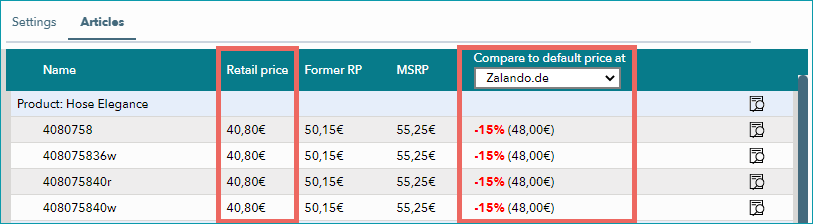
TIP: E. g. compare the discount prices of a sales price list with the channel's default price list to check the reduction. |
For further information, see also:
•Price catalogue and price lists - overview