TB.One > Product and Article Data > Manual Master Data Creation > Creating Articles > Article Data
Article Data
On the tab "Article data" in the product details, you can maintain prices, article numbers and stock data for all variants of a product (i.e. its articles). Switch between the sub-tabs to view the individual menus for these pieces of information.
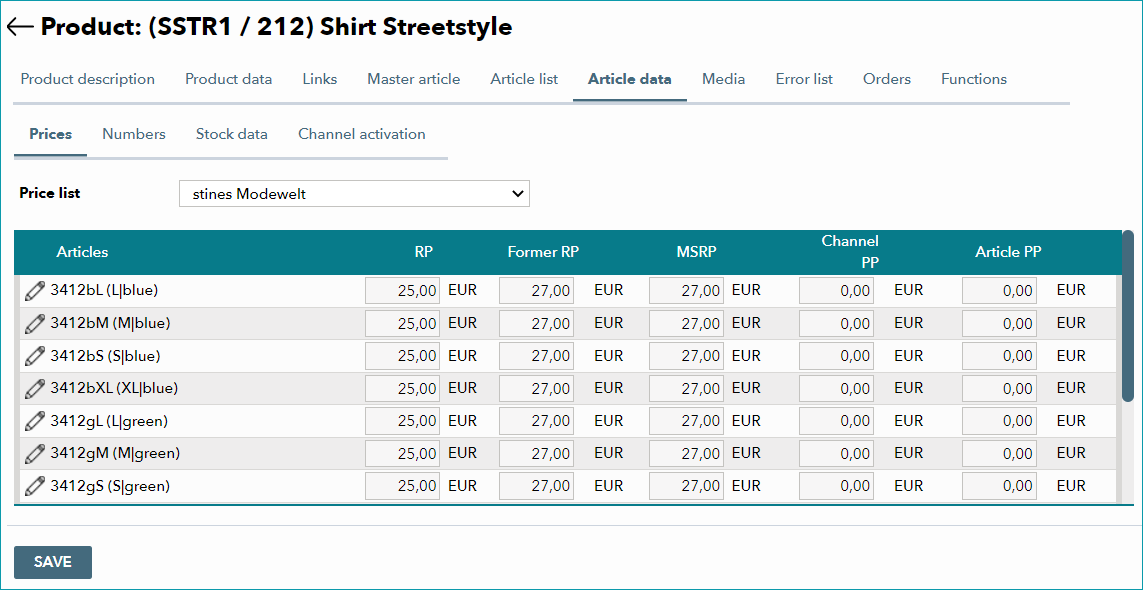
Prices and other details that apply to all of a product's articles can be added simultaneously for the entire product and all channels via the so-called master article.
1. PRICES
With TB.One, you can store channel-specific retail prices for your articles. This allows you to account for channel fees, etc. when calculating your retail prices.
On the "Prices" tab, choose a channel from the drop-down menu. You can now fill in the columns for the retail price ("RP"), cross price ("former RP"), "MSRP" and the channel purchase price ("Ch. pur. pr.") for each article.
The article purchase price is internal information and is valid across all channels. It has no bearing on the channel pricing and will, therefore, never be exported. If you change the channel in the drop-down menu, the article purchase price will remain the same.
If you are being integrated on multiple channels, or if you would like an overview of all entered prices, open the tab "Master article" instead. Here, you can define a price per channel for all articles and choose which VAT rate to use via the radio buttons. It is also possible to simultaneously define one price across all channels and articles.
ATTENTION: |
By clicking the "edit" icon ( ) you can switch to the article detail view.
2. NUMBERS
On this tab you can specify an EAN for each article. Additionally you can add the manufacturer article number ("Manufacturer art.no.") and a secondary article number ("Article No2"). These numbers can also be entered individually in each article's detail view (accessed by clicking the "edit" icon ).
ATTENTION: Since some channels use the EAN to check whether your articles are listed by another seller, you should always provide the official EAN. Valid EANs are mandatory for many channels. |
As with all data in TB.One, your aim should be to provide as much information as possible. Therefore, you should provide the manufacturer's article number in addition to the EAN if possible. For some channels, this information is mandatory.
3. STOCK DATA
Submit your inventory information on this tab. Enter the respective stock for each warehouse. Additionally, you can enter a warning stock, a storage area, and a stock comment. You can either submit this information separately for each variant row, or by filling in the grey row titled "Use master data" and marking the corresponding checkbox. If you choose the second option, the entered data will be pasted to all articles once you click "Save". Another possibility is to enter the data for each article in the article detail view (click the icon ).
4. CHANNEL ACTIVATION
Use the drop-down menu to select the channel on which you want to publish some (or all) of the product's articles. Either activate all checkboxes at once and then exclude some articles by un-checking boxes where necessary, or only activate the articles you want to publish and then save your selection.
Alternatively, you may configure the channel-specific article activation via the article detail view.
ATTENTION: |
For further information, see also:
•Manual master data creation - overview