Marketplaces > Marketplaces N-S > OTTO Market > CHANNEL SHEET: OTTO MARKET
CHANNEL SHEET: OTTO MARKET
TIP: This Channel Sheet contains all channel-specific information for OTTO Market. |
CHANNEL BASICS
The following channels are available for OTTO Market:
CHANNEL |
SIGN |
ID |
CURRENCY |
|---|---|---|---|
OTTO Market |
otdm |
255 |
EUR |
PRELIMINARY INFORMATION
•New to TB.One? Our webinars help you find your way around the software.
•Familiarise yourself with the channel back-end, the so-called OPC (OTTO Partner Connect). It is also "connected" with your TB.One. You will receive the access data by the channel after the successful registration as a partner. If you have any questions about the OPC (OTTO Partner Connect), please reach out to your marketplace contact directly.
•Install the OAuth2-app and verify your access, so that TB.One receives the required permissions for the data exchange with OTTO Market. Complete the installation of the OAuth2-app and authentication in TB.One consecutively! The installation and authentication of the OAuth2-app only needs to be carried out once by an admin with the required permissions and is then available to all users of the account.
ATTENTION: •Do not change your API credentials without consulting Tradebyte. Otherwise, the exchange of data between Tradebyte and OTTO Market will not be possible. •Do NOT remove the app "TB.One" from your installed apps in your OTTO Partner Connect (OPC) portal without a consultation with Tradebyte! |
•Set up Shipping Profiles in Otto Partner Connect
•Provide your product data in German.
•Go to the menu "Basic data > Storage > Warehouse settings" and check your settings for the channel (for more information, click here).
CHANNEL-SPECIFIC SETTINGS, FEATURES, AND PROCESSES
REFERENCE NUMBER |
CHANNEL-SPECIFIC INSTRUCTIONS |
|
|---|---|---|
B-01: Payments |
Find your payment methods at "Basic data > Payment > Payment methods". Payments are managed by OTTO Market. When the channel is activated or, at the latest, when the first order comes in, a payment method with the channel name is created automatically. For the export to an ERP-system, you can freely select an export key. |
|
D-01: Product designation |
The length of the product designation is limited to max. 50 characters. |
|
D-02: Special text |
OTTO Market will process information you enter in the field "Special text". The special text is optional and can be adde to the description via the text configurator. |
|
D-03: Description |
The length of the product description is limited to 2,000 characters. •HTML is supported. Bullet points are permitted (provide them as „translation“ because other channels do not accept them). If you are using a product text profile, longer text are automatically shortened to 2,000 characters during export. •At OTTO Market, 1-5 bullet points are mandatory (a maximum of 5 can be exported): |
|
D-04: Components |
•Use the recommended components listed under "Product Properties - Components" in the article "Product Description". •OTTO Market provides a list of channel-specific categories and product attributes here, to which you should assign your product attributes during the value mapping process. Please note that the terminology used there differs from Tradebyte terminology. For example, the term “attribute” has a different meaning in channel terminology than in TB.One. |
|
D-05: Attributes |
The following attributes are mandatory at OTTO Market: •Energy efficiency class. •OTTO Market provides a list of channel-specific categories and product attributes here, to which you should assign your product attributes during the value mapping process. Please note that the terminology used there differs from Tradebyte terminology. For example, the term “attribute” has a different meaning in channel terminology than in TB.One. |
|
E-01: Article numbers |
Provide the following article numbers: •Article number •EAN •MOIN |
|
E-02: Shipping information |
Provide the following shipping information: •Pack sizes (height, length, width in cm) •Weight •Number of packing pieces |
|
E-03: Variant dimensions |
The following requirements apply for variant dimensions: •For OTTO Market, the attributes used to create variants depend on the category. Variants are typically created based on color and size. If in doubt, you can contact the channel to inquire about the guidelines for creating variants. •Once categorization is complete, the attributes used to create variants are highlighted in the value mapping (“Channels > OTTO Market > Value Mapping”). |
|
F-01: Media |
•Provide images in a commonly used format such as png or jpg. •Number: min. 1 product/article image, max. 10 images •Size: min 500 x 1000 px, max. length 4,500 px •Resolution: no DPI requirement •Format: Landscape or portrait, recommended aspect ratio is 4:3 •Color space: RGB •Do not use special characters, “ß,” or umlauts in your file names •Submit a cropped image that can also be used as the main image (cropped image on a white background without shadows or borders) •You must provide a cropped image as the first detail image for the channel’s clothing assortments that do not use it as the main image
|
|
G-01: Carrier |
Carrier: •for shipping according to the list in the OPC Helpdesk •for returns DHL, GLS, or Hermes •free choice for freight forwarding goods •You can define surcharges for your OTTO Market shipping types at "Basic data > Prices > Surcharges/Discounts". |
|
G-02: Delivery note |
You can configure the OTTO Market delivery notes at "Admin > System settings > Documents" and add custom text.
|
|
G-03: Invoice |
You don't need to print invoices for OTTO Market. The channel sends the invoices to the customers. Print invoices for your own records only. |
|
G-04: Proposed return code |
Dispatch advices you forward to the channel must include a proposed return code for the return shipment label. To that end, do one of the following: a)configure a number range in TB.One. b)if you manage orders outside TB.One, configure your system so that it forwards the return code to TB.One (CSV/XML: "IDCODE_RETURN_PROPOSAL"). c)manually enter return codes during order processing. •Ship code and proposed return code are mandatory information (exception: optional for transport goods) |
|
G-05: Delivery documents in package |
Delivery note, return note (optional) |
|
G-06: Refund deduction |
At OTTO Market you can deduct a percentage from the reimbursed amount, if an article is returned in bad condition. In that case, specify the precentage you want to deduct on corresponding order's "Returns" tab. |
|
G-07: Return causes |
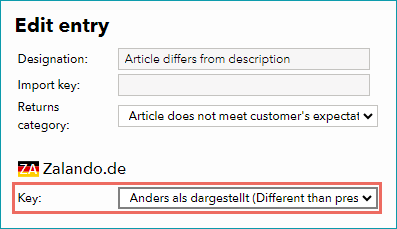
To create return causes and states, go to "Basic data > Returns > Return causes" and "Basic data > Returns > Return states" . OTTO Market processes the return causes and states you transmit. Map them to the return causes and states used by the channel by assigning a key. Mapping a return cause Mapping return states is optional. However, the information "return state" will only be exported to OTTO Market if a mapping exists. |
|
X-01: Size grid |
OTTO Market does not use size grids. |
|
X-02: Base prices |
Provide base prices (price per kg, price per liter, etc.) for all articles that legally require you to do so. |
|
X-03: Categories |
For a complete list of all categories, go to "Basic data > Classification > Typification". To reduce the number of categories available for selection at the product, mark categories that you do not use as "not assignable". Channels change their categories from time to time. Any major changes will be announced in TB.One. Outdated categories are highlighted with a red icon. Move all affected products to valid categories. •At OTTO Market you can not create links between your products. |
|
X-04: Value mapping |
Map at the category level for OTTO Market. The available channel values may differ from category to category. |
|
X-05: Pending orders |
OTTO Market transmits pending orders.
DISCOUNTED ARTICLE PRICES •discount: price reduction, e.g. 5 EUR •original_price: price without reduction, e.g. 50 EUR These fields won’t be visible in TB.One if no discount has been applied. |
|
X-06: Partial deliveries |
Partial cancellations and partial deliveries on item level. |
|
X-07: Commission group |
OTTO Market does not use commission groups. |
|
X-08: Service logos |
OTTO Market will not display service logos you transfer in the shop. |
|
X-09: Error and status messages |
OTTO Market does not provide error and status messages. |
|
X-10: Templates |
At OTTO Market you cannot use templates. |
|
X-11: Text configurator |
The text configurator cannot be used for OTTO Market. |
|
X-12: Product text profile |
Product text profiles cannot be used for OTTO Market. |
|
X-13: Title profile |
You can use title profiles to configure the product titles shown in the channel's shop. For more information on title profiles, click here. |
|
X-14: Cross prices |
You can indicate cross prices for OTTO Market by filling in the field Former RP. |
SPECIAL REQUIREMENTS
GPSR REQUIREMENTS
The General Product Safety Regulation (GPSR) requires you to provide up-to-date contact details for the Manufacturer and/or the EU Responsible Person (Distributor) for your products:
1. Set up the Address in Basic Data
1.Go to “Basic data > Addresses”.
2.Create a new address (see Fig. 1) or select an existing one.
3.Use the checkboxes under "Address type" to assign a role to your GPSR address. These roles help you organize and filter your addresses internally:
•Manufacturer
•Responsible person
•Economic Operator
•Generic Address
•Distributor
•Food Operator: For food products under the categories “Lebensmittel” and “Nahrungsergänzungsmittel” (see the full list of parent and sub-categories here)
•Feed Operator: For feed products under the categories “Tiernahrung”, “Lebendköder”, and “Naturköder” (see the full list of parent and sub-categories here)
4.Fill in all the required fields (Name, Street, ZIP, City, Country, Email, …).
5.Click “Save” (see Fig. 1).
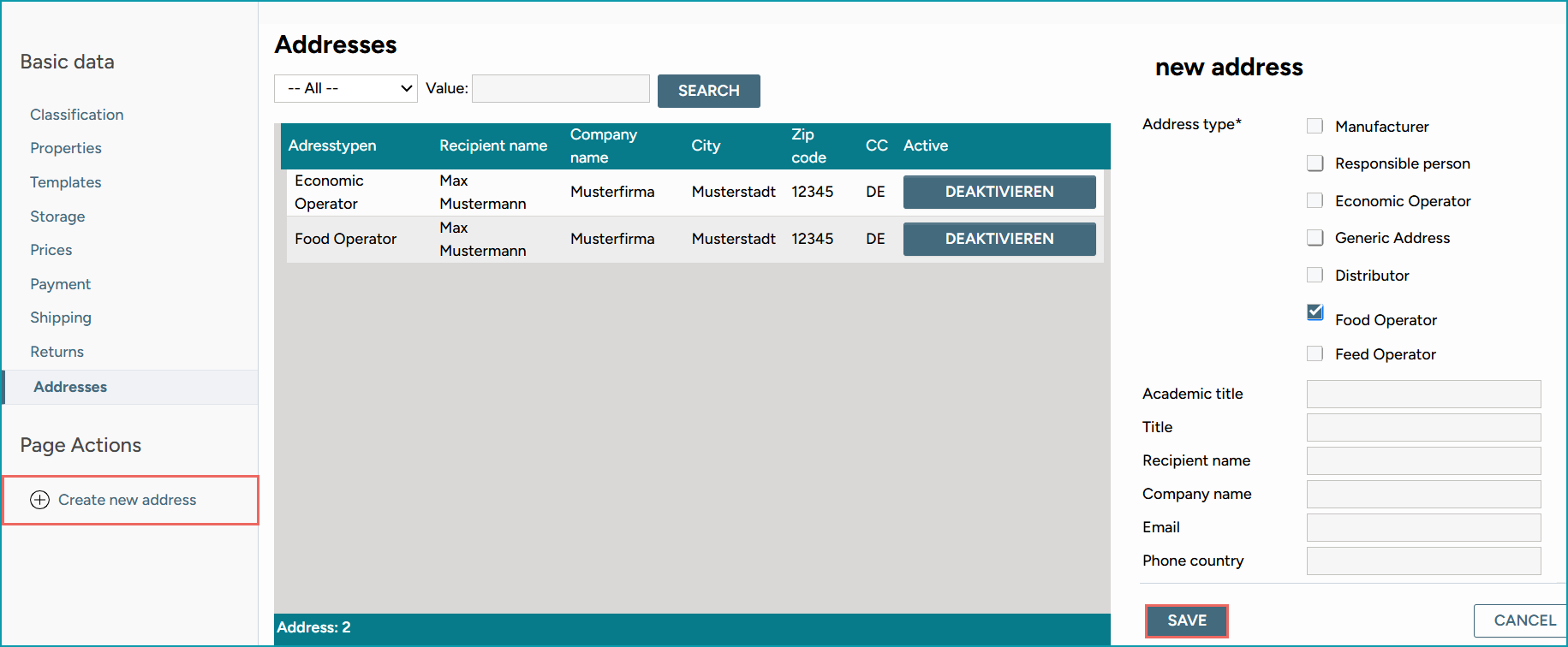
Fig. 1: Managing address roles in TB.One
2. Activate Channel-Specific Addresses for OTTO Market
1.Go to “Channels > OTTO Market > Settings”.
2.Open the “Address assignment” tab (see Fig. 2).
3.Check the box of each address you want to activate for OTTO Market.
4.Click “Save” (see Fig. 2).
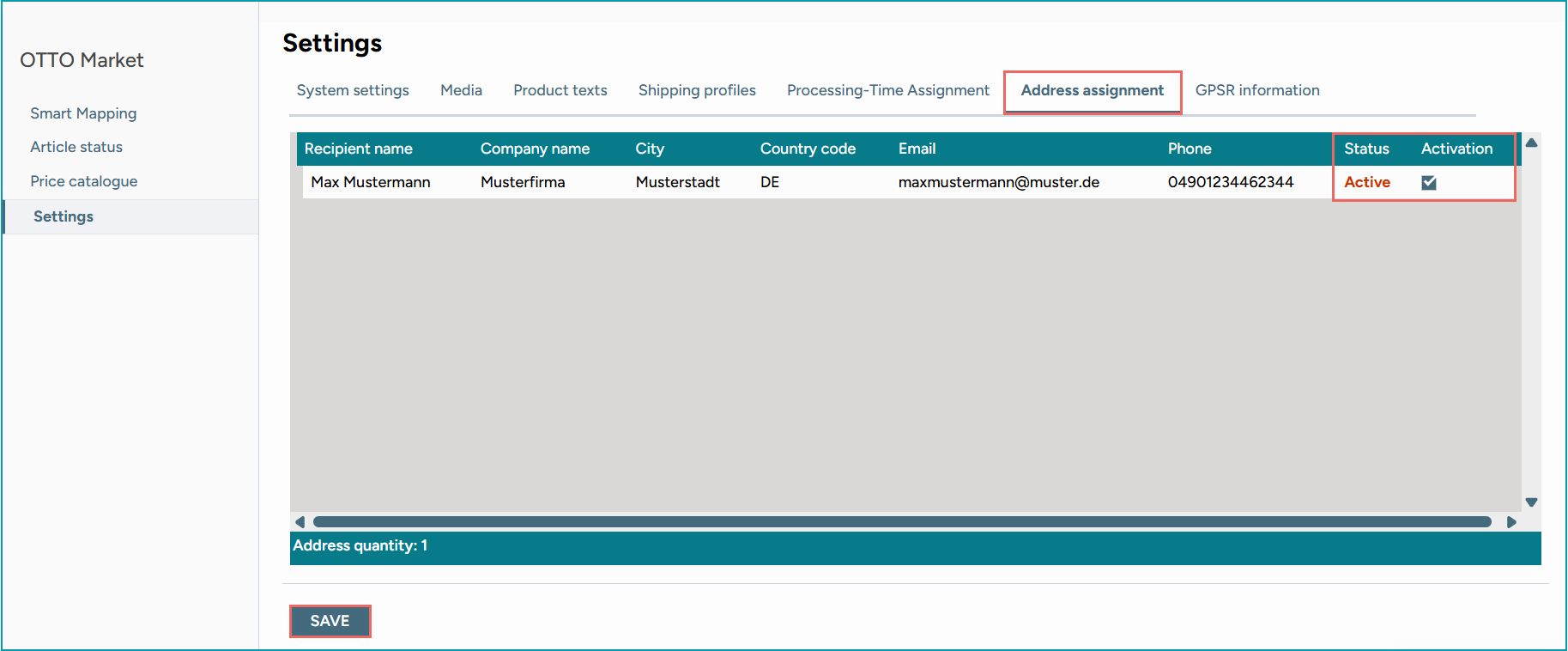
Fig. 2: Assigning an address for OTTO Market in TB.One
3. Assign A Role to Your Channel-Specific Addresses for OTTO Market
1.Open to the “GPSR information” tab (see Fig. 3).
2.Use the “Default value” drop-down menus to assign your GPSR addresses.
3.Click “Save”.
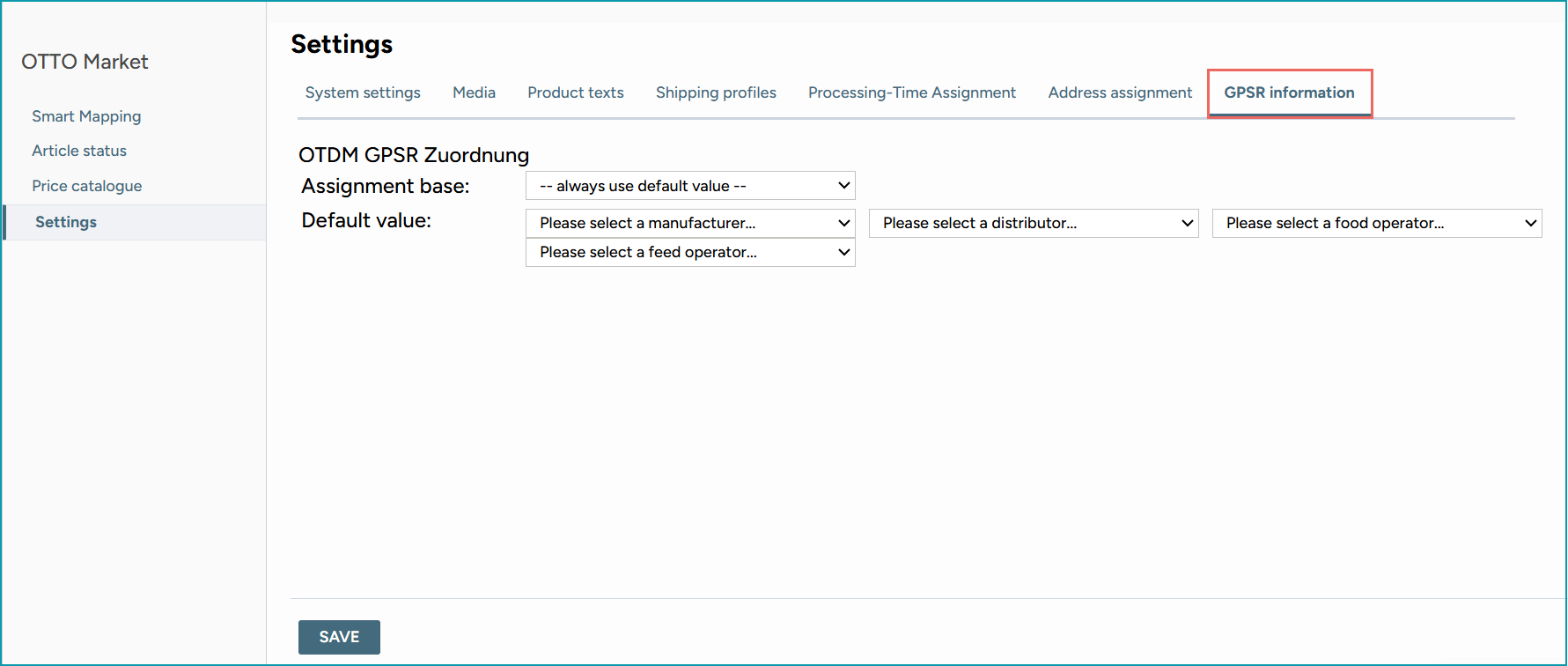
Fig. 3: Assigning a role to a GPSR address for OTTO Market in TB.One
ATTENTION: |
TIP: |
MATCHING OF PRODUCT VARIANTS VIA MOIN
Via the Otto MOIN (“My Otto Identification Number”), OTTO Market merges identical product variants sold by different sales partners into one offer on Otto.de. This process enables customer-friendly competition on the articles in the shop. The MOIN is used as an identifier for product creation and updates.
ATTENTION: |
TIP: |
TB.One may adopt MOINs ("My Otto Identification Number") automatically. This is an additional feature activated for your TB.One account on request. Once activated, you no longer need to match identical product variants manually.
ATTENTION: |
•Navigate to “Channels > OTTO Market > Error/status messages” and set the filter “Feed type” to “Marketplace status”.
•Focus on the reports "MARKETPLACE_STATUS_ERROR_timestamp" marked with a red X (for reports labelled with a green checkmark, the MOINs were created/matched automatically). Click on these reports to select them.
•The table "Processing result" lists the individual messages contained in the report.
•Click on the link in the column "MOIN" to open the article in the channel's shop. Review the content (images, texts, attributes, components) of the variants offered by other sellers on Otto.de and decide whether you want to sell identical articles.
•If you choose to sell, mark the respective messages' checkboxes and click on the button "Adopt MOINs" (below the "Processing result" table).
•After this confirmation, your product variant is merged with the existing offer and will be displayed along with it on the Otto.de article detail page.
TIP: |
ATTENTION: |
RETURN LOGISTICS TO DIFFERENT WAREHOUSES
With this optional feature, you can use multiple return warehouses, carriers, and returns shipping to other European countries.
1. Configuration in the OTTO Partner Connect dashboard (OPC)
In the OTTO Partner Connect dashboard, set up different warehouses with the corresponding carriers.
•Create Warehouses and Carriers: Create the various return addresses. Each of these warehouses will be assigned a unique “return_address_carrier_id” (UUID).
•Assign Carriers: Assign one or more carriers (e.g., DHL, Hermes, GLS) to each warehouse.
2. Data maintenance in your system
The warehouse and carrier UUIDs created in the OPC dashboard must be transmitted to and maintained in your system.
•Prepare for Data Exchange: For every item shipped, the corresponding return_address_carrier_id of the return warehouse and the associated otdm_return_carrier must be provided in the DESADV import.
•Order processing via XML import: Within the XML file for the DESADV import (MESSAGES.xml), use the <MESSAGE_CHANNEL_DATA> object as follows:
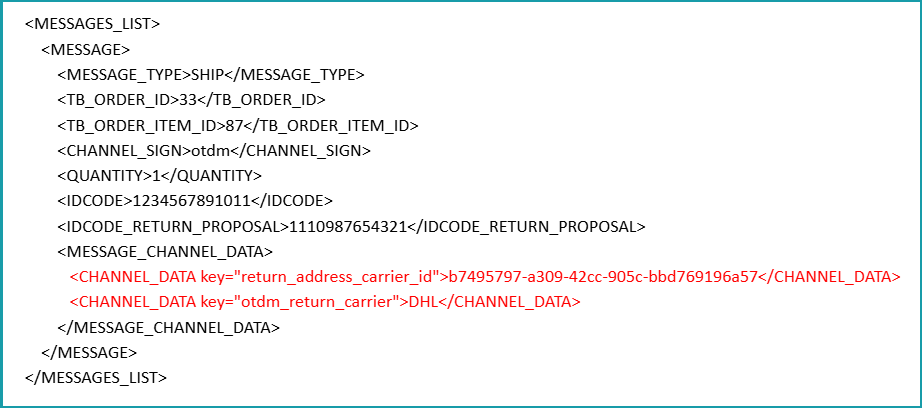
•Order processing via CSV import: To use the CSV import, add the following columns to your import files:
– MESSAGE_CHANNEL_DATA[return_address_carrier_id]
– MESSAGE_CHANNEL_DATA[otdm_return_carrier]
•The value for the carriers must correspond to one of the carriers assigned to the respective warehouse in the OPC dashboard.
TIP: |
DATA EXCHANGE TIMES
DATA |
TIME/FREQUENCY |
|---|---|
Catalogue (Delta) |
Daily at noon and 6 p.m. |
Stock (Full) |
Daily at 7 a.m. and 7 p.m. |
Stock (Delta) |
Hourly at minute 10 and 40 (except at 7:10 a.m. and 7:10 p.m. because of full load) |
Prices (Full) |
Sundays, 4 p.m. |
Prices (Delta) |
Daily at 12 midnight, 6 a.m., 10 a.m., 12 noon, 2 p.m., 4 p.m., 8 p.m. |
Media |
With catalogue |
Retrieve and import orders |
Hourly at minute 20 and 50 |
Order messages (Shipments) |
Daily at 11 p.m. (channel's requirement) |
Order messages (Returns/Cancellations) |
Hourly at minute 21 and 51 |