Marketplaces > Marketplace Integration > Product Description (Marketplace Integration)
Product Description (Marketplace Integration)
Each product has a set of information that applies to all of the articles in the product. The requirements for product description and product data are channel-specific. Find these requirements on the respective Channel Sheet.
To enter product information in the graphical user interface
1.open the menu “Articles > Product list” and select a product from the list by clicking on its number or designation.
2.fill in the fields on the “Product description” tab (detailed on this page).
3.fill in the fields on the “Product data” tab.
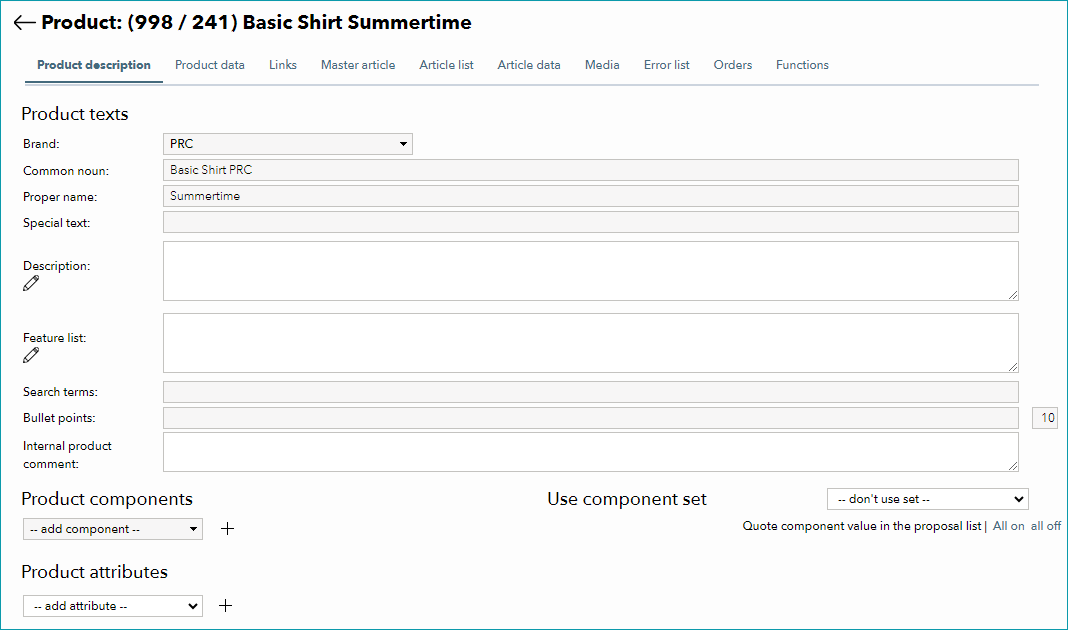
Fig.1: Tab "Product Description"
Brand
ATTENTION: ▪Every channel requires brand information. TB.One will not export products without brand information to the channel. ▪Do not enter the brand name in any of the fields that make up the product name (“Common noun”, “Proper name”, “Designation”). |
In the menu section “Product texts”, select a brand from the “Brand” drop-down menu. If a brand is missing from the list, create it at “Basic data > Properties > Brands”. For more information, see this page.
Go to “Admin > Export > Channels” to check whether the option “brand control” is active for your channel.
The channel is selected? Then you need to assign channel-specific brand designations:
1.Open the menu “Basic data > Properties > Brands”.
2.Select a brand from the list and enter channel-specific designations in the menu section “Edit brand” on the right (see Fig.2).
a.Scenario 1: The channel-specific designation field takes free text. Enter whatever brand designation you want to transfer to the channel.
b.Scenario 2: The channel-specific designation field is a drop-down list. Select the appropriate brand from the list. If a brand is missing, contact the channel to have it added.
c.Scenario 3: Some channels additionally require a key.
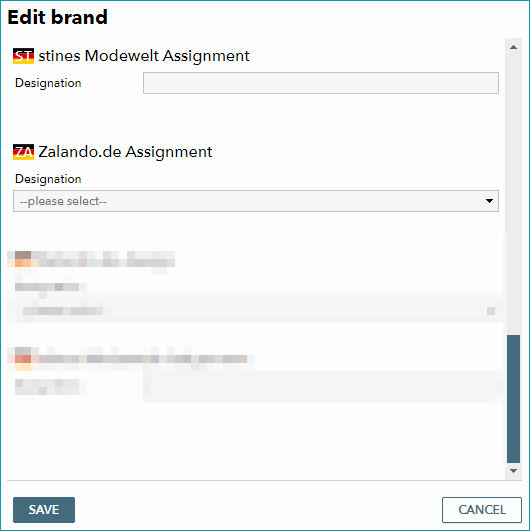
Fig.2: Edit brand
TIP: |
Product Designation
ATTENTION: |
Add a designation for your product. Generally, this is the name under which your product will be listed.
▪Provide the product designation split into common noun and proper name.
▪If you cannot see the fields “Common noun” and “Proper name” in the user interface, go to “Admin > System settings > User interface” and select the checkbox “Enter ‘Common noun’ and ‘Proper name’ of product separately”.
Title Profile
Row “X-13: Title profile” on the Channel Sheet shows whether your channel offers title profiles.
Title profiles allow you to add additional information to your product names beyond the common noun and proper name. Find them under “Basic data > Templates > Title profiles”. For more information on title profiles, click here.
Special Text
Most channels do not use/process the contents of the field “Special text”. Check row “D-02: Special Text” on the Channel Sheet to find out if and how your channel uses special text.
Description
Provide a description text for your product.
•Some marketplaces limit the length of the product description. Check "D-03: Description" on your Channel Sheet.
•Don't advertise anything other than the product itself (e.g. your own online shop).
•Do not use bullet points or formatting.
•Mention any product features that are not visible in your product images.
TIP: •“X-10: Template” •“X-11: Text configurator” •“X-12: Product text profile” |
Search Terms
Search terms can help customers find your articles. Channels may use them directly in the shop’s search function or for search engine optimisation (SEO).
Provide search terms for your products:
•About 5 search terms for each product.
•Max. 50 characters per search term.
•Separate search terms with commas.
•Search terms are not channel-specific. They will be exported to all channels that use them.
Bullet Points
Bullet points give your customers a quick overview of your product's features.
Provide bullet points for your product:
•Highlight three to eight product features in a bulleted list.
•Describe product features and characteristics that you haven’t stored as a product component (see below).
•Recommendation: Keep bullet points short (5 words or less).
Product Properties - Components
Components are pieces of information that are either directly published in the channel’s shop or modified through value mapping.
ATTENTION: |
Add components to your product.
1.Check whether there is any additional information on components listed on your Channel Sheet (see row “D-04: Components).
2.Select a component from the drop-down menu (e.g. “Heel type”).
3.If you are missing a component in the list, create it at “Basic data > Properties > Components” (find more information here).
4.Enter the component’s value (e.g. “Platform heels”) or select it from a list of proposed values by clicking on to the left of the free text field.
5.Use meaningful and self-explanatory terms for the components’ designations and values, as this information may be displayed directly in the channel shops.
We recommend the following components (if applicable to your assortment):
•Color, if it does not form variants (i.e. if the product exists in only one color).
•Size, if it does not form variants (i.e. if the product exists in only one size).
•Other non-variant forming size information such as fit, length, etc.
•Material (EU Textile Labeling Regulation); can be split into outer fabric, inner fabric, etc.; always start with outer fabric; include percentages (e.g. 100% cotton).
•Heel height, heel type, etc.

Fig.3: Product components
TIP: •...as part of the product description via a template (see Channel Sheet row “X-10: Template”). •...as part of the product description via the product text configurator (see Channel Sheet row “X-11: Text configurator”). •...as part of the product title via the title profile (see Channel Sheet row “X-13: Title profile”). |
Product Properties - Attributes
Attributes are usually not directly visible to end customers and are mainly used for mapping, as part of a title profile, or to transfer metadata to a channel.
1.Check whether there are any specific requirements listed on your Channel Sheet (see row “D-05: Attributes”).
2.Select an attribute from the drop-down list “--add attribute--".
3.If you are missing an attribute in the list, create it at “Basic data > Properties > Attributes” (find more information here).
4.Select an attribute value from the drop-down list “--please select--".
5.You can add multiple values to an attribute by clicking on to the right of the value drop-down.
6.Check whether your channel uses size grids (see Channel Sheet row “X-01: Size grids”). If so, you must add a size grid attribute to your products (for more information, click here).

Fig.4: Product attributes
We recommend the following attributes (if applicable to your assortment):
•Season
•Target group (age/gender; for example boys, girls, men, women)
•Age group (for example adult, child, baby)
•Gender (male, female, unisex)
•Occasion (e.g. business, leisure)
Service Logos
Service logos are small icons that are displayed for your products in the channel's web shop. This icon could, for example, show a product's warranty period, show that it's water resistant, etc.
To find out whether your channel will display your service logos, check "X-08: Service Logos" on the Channel Sheet.
For more information on how to create service logos, click here.