TB.One > Import & Export > TB.One Interfaces > TB.One Interfaces - Overview
TB.One Interfaces - Overview
The data exchange between you (the merchant) and TB.One takes place via standard interfaces and can use the following protocols to transmit data:
•SFTP (FTP via SSH)
•REST
Contact your integration consultant to discuss which protocol is most suitable for your needs.
While you may transfer CSV and XML files via SFTP, REST can only be used to transfer XML content. Tradebyte provides a standard for both file formats.
1. SFTP
SFTP CREDENTIALS
To access the SFTP interface, you need access credentials. These credentials are usually created once during the setup of TB.One and made available to employees through one of your organization's systems (e.g. a password manager).
As an administrator, you can view and manage your organisation's credentials under "Admin > System settings > SFTP access credentials".
TIP: |
Create access credentials
If no access data has been created yet, you will only see the "Create" button in this menu. Click on it.
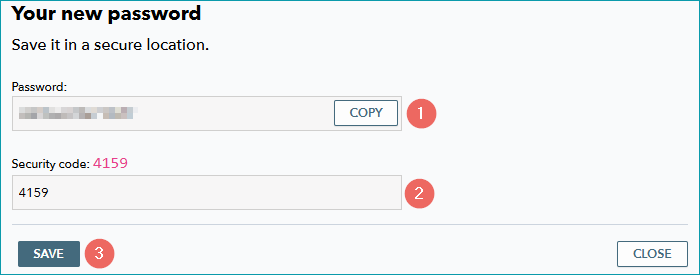
a.TB.One suggests a secure password in a pop-up window. You can customise this password or use it directly ( ).
).
b.Copy the password and store it according to your organisation's security policies.
c.Enter the security code ( ) to confirm and click "Save" (
 ).
).
d.The username and server address are now also displayed in the menu. You have all the access credentials you need to connect to the SFTP interface.
Reset password
If you have forgotten the password or need to change it, click on "Reset password".
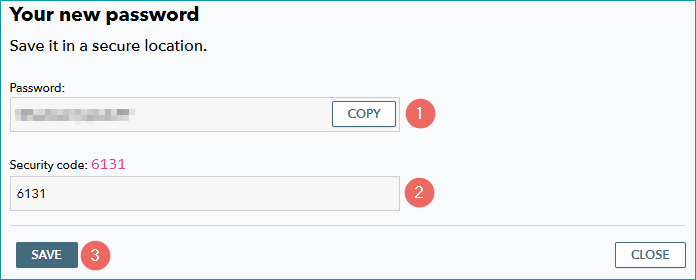
a.TB.One suggests a secure password in a pop-up window. You can customise this password or use it directly ().
b.Copy the password and store it according to your organisation's security policies.
c.Enter the security code () to confirm and click "Save" ().
ATTENTION: |
FOLDER STRUCTURE AND NAMING CONVENTIONS
After logging in you will see the following folder structure:
FOLDER |
DESCRIPTION |
|---|---|
/in |
In this folder, save the data which should be imported (such as product data, media or messages). Attention: Content in this directory will be archived after 30 days. |
/out |
This folder stores outgoing files (such as orders). Once you have successfully exported orders to your system, you need to move them from the "out" to the "archive" directory and rename them (e.g. to "ORDERS_exported_[YourTimestamp]"). The "out" folder is emptied automatically on a regular basis. If you use TB.One's user interface (menu "Data exchange > Directories", you can select the files and move them to the archive by clicking "Move (archive)". In this case, the prefix "_done_[date]_[time]_" will be added automatically. Attention: Content in this directory will be deleted after 14 days after their creation. |
/error |
If errors occur during the import process, this folder will contain a file with the respective error messages. You can subscribe to error files via e-mail at "Admin > User > Mailing lists". Error files will have the prefix "_done_with_errrors". Attention: Content in this directory will be archived after 30 days. |
/archiv |
TB.One marks imported data with the prefix "done_[timestamp]_" and moves them to the archive. Attention: Files are automatically deleted after approximately four weeks. |
When storing files in the "in" directory, always comply with the naming conventions defined for the interfaces you are using.
Upload message files (e.g. shipping/return messages) to the "in" directory. From there, they will be processed and moved to the archive. The file's name will then look like this:
_done_[TimestampProcessingTime]_MESSAGES_[YourTimestamp].xml |
|---|
Should errors occur during import, the faulty import files will receive the prefix "_done_with_errors":
_done_with_errors_[TimestampProcessingTime]_MESSAGES_[YourTimestamp].xml |
|---|
You will find detailed error messages for the respective files in TB.One's menu "Data exchange > Directories > Error files".
More details on import errors can be found here.
ATTENTION: |
ATTENTION: |
2. REST
With the REST interface you can upload XML files that comply with TB.Order (for order data exchange), TB.Cat (for master data) or TB.Stock (for stock updates) directly to TB.One. In some cases, you will receive an XML file for further processing as a result.
Note that the REST interface requires authentication with a user name and password. Users with API rights can be created at "Admin > User > Users".
TIP: |
If you would like to use the REST interface for data exchange, contact your integration manager to receive the necessary information.
A detailed description of the REST interface for order processing (calls, etc.) can be found here.
TIP: |
3. MENU "DATA EXCHANGE > DIRECTORIES"
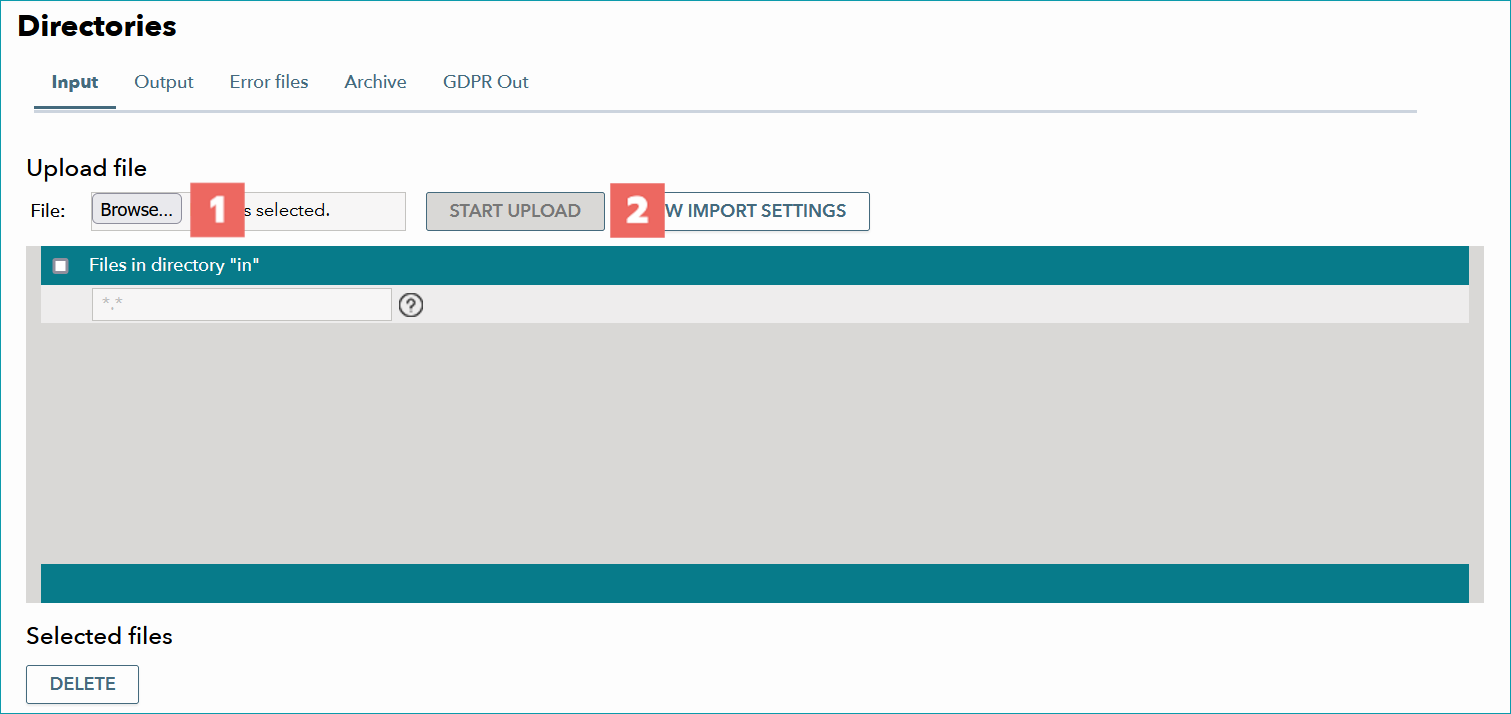
On the first tab ("Input directory"), you can upload CSV or XML files to the input directory. Processed files will be moved to the folder "Archive" and in case of errors, an error file will be created in the error directory (tab "Error files").
For further information, see also:
•Naming conventions: order data (CSV, XML), master data (CSV, XML)
•Master data maintenance via CSV or XML (TB.Cat)