TB.One > Media > Providing Media via the Graphical User Interface > Article/Product Media and Editing Options
Article/Product Media and Editing Options
Go to "Articles > Product list", open the product for which you want to edit/configure media and click on the "Media" tab.
FIELD |
PURPOSE |
|---|---|
|
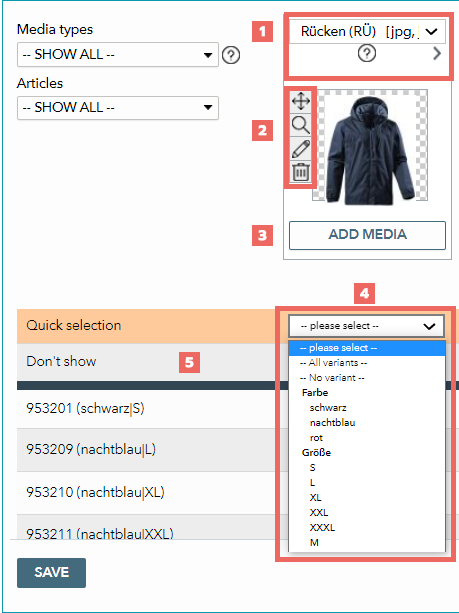
With this drop-down menu, the media group's media type can be changed. Hovering the cursor over the |
|
For each piece of media there are four shortcut options to choose from: • • • • |
|
With the button "Add media", you can add images to the group. |
|
Per default, the system stores media groups as product media. If the images in a group are article media, either mark the checkboxes in the list of articles displayed below the media group, or use the "Quick selection" menu to choose the corresponding variant dimensions. In the screenshot above, the image in the group applies to all sizes of the color "white". Therefore, it is considered article media. Most channels put an emphasis on article rather than product media. You should (at minimum) provide one product image for each product and one article image per article. Images are exported in the order they are shown in TB.One. This is especially relevant if a channel restricts the number of pictures! |
|
If you activate the checkbox "Don't show", the media in the corresponding group will be blocked form export to all channels. The group will then be highlighted in red. |

 icon shows which


 Move: to assign a piece of media to another group, click on the icon and "drag and drop" the piece of media to the target group.
 Edit: Select a part of the image in the editing window (click and drag). If you choose the radio button "Replace image with selection", the original image will be replaced by the selected area. Alternatively, you can add the selected area to the current group as a new image, or save it in a new group (select a media type).


Do not forget to save your settings!
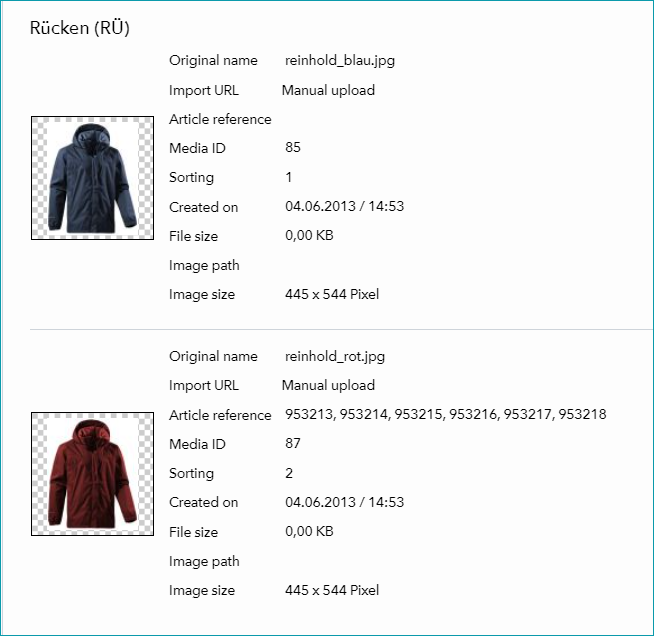
Open the tab "Pages" in the left navigation bar and click on "Media information" to view details such as the media ID, the creation date and format of all stored media (sorted by media type).
With the option "Delete several media" (also on the tab "Pages" in the left navigation bar), you can remove images from a product in bulk (either delete all media from the product or delete all media that belongs to a specific media type).
For further information, see also:
•Manual master data creation - overview