Go to "Articles > Product list" and open the product for which you want to provide media. Open the tab "Media" and click on the "Add media" button to open the editing window.
STEP |
|
|---|---|
|
Choose the appropriate media type from the drop-down menu. The list contains all default media types and any media types you may have created. The default setting is "IMAGE". |
|
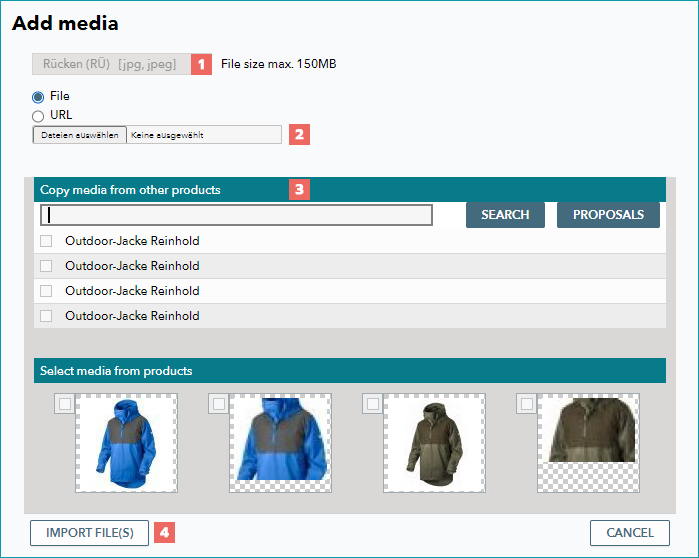
There are three options for adding media manually: uploading the file, specifying the URL, or copying media from other products (see step 3). To upload a file, click "Browse" and select a file from your system.You can mark one or more images and upload them simultaneously. Clicking on "URL" will open an input field for the image's URL. Once you have specified one or multiple images this way, a new row in which you can add further pieces of media will open. The green checkmark indicates, that the file was uploaded successfully. A click on the "delete" icon ( |
|
To copy existing images from other products, you can either use the text box to search or display some suggestions by clicking on "Proposals". Choose the correct product by marking its checkbox and/or select from the section "Select media from products". Which pieces of media are displayed depends on the media type set in step 1. |
|
Confirm by clicking "Import file(s)". |


 ) will remove the corresponding row.

ATTENTION: TB.One does not limit the amount of media which can be stored per product, but you should always consider the channels' requirements and restrictions. An alternative to uploading the media manually via the user interface is the upload via SFTP. In this case, the media have to be zip-compressed and need to be uploaded to the input folder "/in" (name: media_*.zip). The media are then assigned to a product or article by indicating "sync/media/[file name]" (e.g. "sync/media/example.jpg") in the respective import file. If you have already saved your images on a server, it is sufficient to indicate their URLs in the import file. In this case, uploading the files to TB.One would not be necessary. If you do upload your images, do so only once (do not include them in every upload). |
ATTENTION: |
TIP: Most channels put an emphasis on article rather than product media. You should (at minimum) provide one product image for each product and one article image per article. Images are exported in the order they are shown in TB.One. This is especially relevant if a channel restricts the number of pictures! Regardless which channels you booked, we recommend uploading the following basic images (1 each if applicable/available): •Crop out •Frontal view •Rear view •Color tile for each color variant •Close-up of special features •For fashion: image with a model •Furniture/decoration: article in an environment (ambient) •Shoes: side views rotated about 30° to the left and right |
For further information, see also:
•Manual master data creation - overview