Marketplaces > Marketplaces A-F > Breuninger > Breuninger Backfill Process
Breuninger Backfill Process
In this article, you'll learn how the Breuninger Backfill Process works.
What's the Backfill Process?
The backfill process allows you to provide matching articles to a marketplace without a full product and article data catalog (see Fig. 1).
It allows you to sell on the marketplace quickly and easily, using a reduced catalog.
You can use this process when your assortment contains articles that are already being sold in the wholesale business of the web-shop. This is the case when the EANs or SKUs of the listed articles match each other exactly.
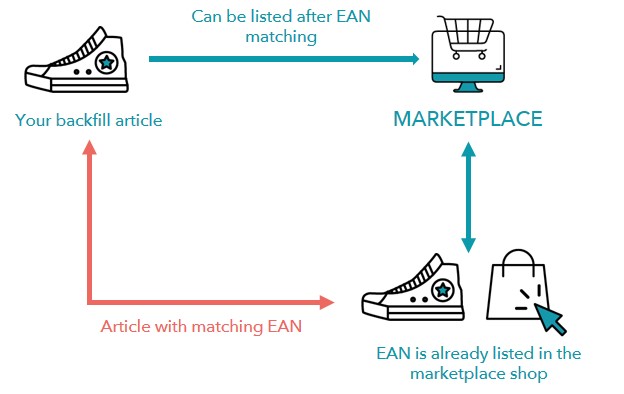
Fig. 1: Overview of the backfill process
TIP: You can provide articles to the marketplace's shop via both backfill and longtail sales. Please refer to the channel-specific requirements and the guidelines for basic configuration and master data, as this article only describes the mandatory requirements and structure for master data intended for the backfill data export. |
What are the requirements of the Backfill Process?
ATTENTION: Articles can only be stocked via the backfill process if the provided EANs match! |
To sell article via backfill, you only need to provide minimal information because the marketplace already has the complete product and article data.
Your backfill articles are matched to the existing assortment based on their EANs.
The table below summarizes the minimum and optional data requirements for your articles:
MANDATORY DATA |
OPTIONAL DATA |
|---|---|
•Article activation •Article number - May match the EAN •EAN - Consists of 13 characters •Product name - required for a product to be successfully created •Price information for the marketplace's respective (sub)-channels - Retail price (RP) and VAT are mandatory, some channels may also require a former RP and/or the MSRP •Stock |
•Product number - Only required if a product contains variants •Article component for variant creation - Required if a product with more than one article is offered |
Actions to avoid and restrictions of the backfill process
When selling via the backfill process, consider the following points:
•Do not assign channel-specific categories for the respective channel for backfill articles (neither individually nor via cluster).
•The value mapping is not required.
•Do not set the channel activation for the respective channel if you intend to only provide articles to the marketplace via backfill - Without the channel activation, the reduced export of your master data for backfill is enabled. If activated, the next regular longtail data export will transmit the article to the channel, which can lead to errors due to incomplete/missing mandatory data.
TIP: Faulty articles are listed in the Article Error Hub's error list, but still exported as backfill! Faulty articles are still exported as backfill if: •The backfill process has been enabled by Tradebyte, •The master data meets the minimum requirements described above, •The EAN match was successful and the article(s) are already being sold at the marketplace. |
Data maintenance in TB.One for articles sold via the backfill process
There are three ways to create and maintain your master data in TB.One:
•Manually via the graphical user interface,
•Via CSV file import,
•Via XML file import.
Manual master data maintenance
To create and maintain your master data manually in TB.One:
•First steps - Refer to this article which contains a complete step-by-step guide on how to provide your master data.
•Requirements - Create your master data using the guide above, and make sure your backfill articles meet the requirements listed above.
•Article data - Go to "Articles > Product list", then click on a product and open the "Article data" tab from the product detail view to enter your data:
oArticle number
oEAN
oPrice information - Retail price, former retail price, VAT rate and MSRP
oStock
•Product variants - To create several product variants, assign a product number
•Activate your articles and save your information
ATTENTION: If you intend to only provide articles to the marketplace by backfill, do not set the channel activation for the respective channel. |
You can transfer your backfill data via CSV file:
•Columns - The file must contain the required columns (see example below).
•Format - PANDA recommended
•Import - Manually via the user interface in the menu "Data exchange > Directories > Input" or directly via your SFTP access
•Product variants - To provide variants (e.g. multiple articles of a product), include the product number (p_nr)
ATTENTION: If you provide articles that are only intended for the backfill process, do not include the channel activation column(s) ("p_active[channel]" or "a_active[channel]"). |
In the table below, you'll find an example of a CSV file import for backfill articles:
p_nr |
p_name |
a_nr |
a_ean |
a_comp[key] |
a_activate |
a_stock |
a_vk[channel/price list] |
|---|---|---|---|---|---|---|---|
123 |
Prod1 |
123-a |
1234567890123 |
36 |
1 |
5 |
19.99 |
123 |
Prod1 |
123-b |
1234567890124 |
37 |
1 |
3 |
19.99 |
124 |
Prod2 |
124-a |
1234567890234 |
41 |
1 |
2 |
17.99 |
124 |
Prod2 |
124-b |
234567890235 |
42 |
1 |
4 |
17.99 |
TIP: To learn more about file and naming conventions for CSV imports, check this article. |
To transfer your backfill data via XML file:
•Format - TB.Cat 1.4 recommended
•Import - Manually via the user interface in the menu "Data exchange > Directories > Input" or directly via your SFTP access
ATTENTION: If you provide articles that are only intended for the backfill process, do not include the channel activation nodes (<P_ACTIVEDATA> or <A_ACTIVEDATA>). |
EXAMPLE: Simplified master data catalogue (valid for TB.Cat 1.4)
|
TIP: To learn more about master data exchange via XML using TB.Can, check this article. This can be useful if you'd like to sell additional items on the marketplace, as you may have to provide more data with your article and product data. While doing so, don't forget to consider the channel's individual requirements. |