Marketplaces > Marketplaces A-F > eBay > FAQ > eBay Energy Efficiency Information
eBay Energy Efficiency Information
For some products, it is mandatory to transmit energy efficiency information to eBay. Whether you need to transmit this information depends on the product category.
This guide shows how to transmit the required information and documents via TB.One.
1. Value Mapping Requirements
eBay provides two channel properties to which you must map your Energy Efficiency Class information (see Fig.1) in all relevant product categories:
•EEK Spektrum (EEC spectrum)
•Energieeffizienzklasse (Energy Efficiency Class)
TIP: |
ATTENTION: |
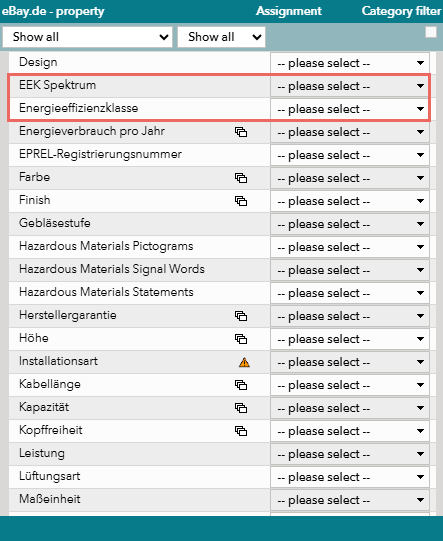
Fig.1: Map "EEK Spektrum" and "Energieeffizienzklasse"
2. EEC Label and Product Data Sheet
You must provide Energy Efficiency Class Labels and Product Data Sheets to eBay for all products that require energy efficiency information.
There are two ways in which you can do this.
Option A: Provide EPREL Registration Numbers
If you provide EPREL (European Product Registry for Energy Labelling) Registration Numbers, eBay automatically retrieves the EEC Labels and Product Data Sheets. This means that you only need to transmit the number to eBay, not the documents themselves.
Where to Find the EPREL Number?
To find the EPREL Registration Number for a product, scan the QR code (see Fig.2) on its EEC Label, or search the EPREL database using the product's GTIN. 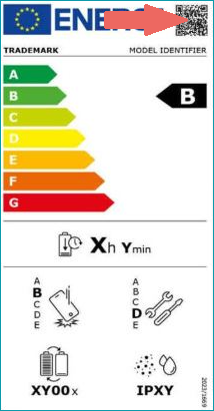 Fig.2: Where to find the EPREL number on an EEC Label |
How to Assign and Map the EPREL Number?
1.Assign the EPREL numbers to your products using a component. 2.Map the component you used for the EPREL numbers to the channel property "EPREL-Registrierungsnummer" (see Fig.3) in the value mapping menu ("Channels > [Your eBay channel] > Value mapping"). 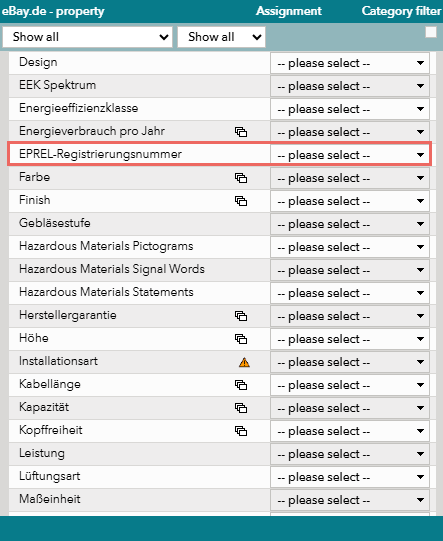 Fig.3: "EPREL Registrierungsnummer" |
Option B: Provide the Energy Efficiency Labels and Product Data Sheets in TB.One
If you cannot provide EPREL numbers, you have to provide the following instead:
•EEC Label (image)
•Product Data Sheet (image)
•Verbal summary of EEC Label content (as a component or attribute)
ATTENTION: •The EEC Label and Product Data Sheet must be provided as images, not PDFs. •If you provide EPREL numbers AND an EEC Label + Product Data Sheet + Verbal Summary, the combination of EEC Label/PDS/Verbal Summary overrides the EPREL numbers. |
Providing EEC Label & Product Data Sheet
1.Create a new media type with the master media type "ENERGY". 2.Sorting: Ensure that the EEC Label is the first ENERGY-type image and the the Product Data Sheet is the second ENERGY-type image. a.If you upload media to products manually via the graphical user interface, you can change the order of images with the b.If you provide media via CSV, adjust the sorting value in the media columns' headers. The sorting value is the value in {curly braces}, the value in [square brackets] in square brackets is the media type's import key (as defined by you): for example, "p_media[energy]{1}"; "p_media[energy]{2}". c.If you provide media via XML, use the "sort" XML attribute (the media type's import key uses the XML attribute "type"): "<P_MEDIA type="energy" sort="1">"; "<P_MEDIA type="energy" sort="2">" 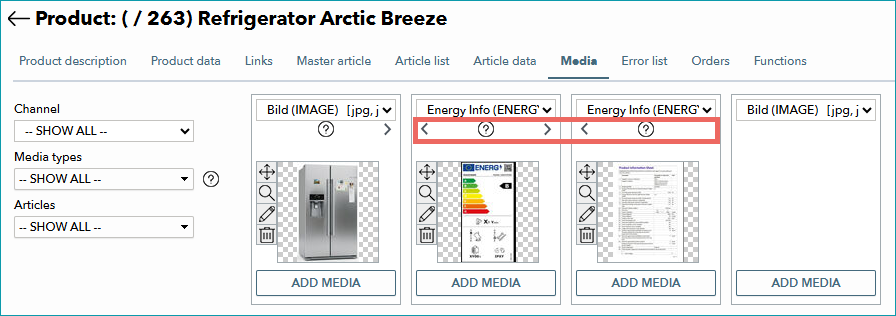 Fig.4: Changing the media sorting in the graphical user interface |

 icons in the media boxes (see Fig.4).
Providing a Verbal Summary of the EEC Label
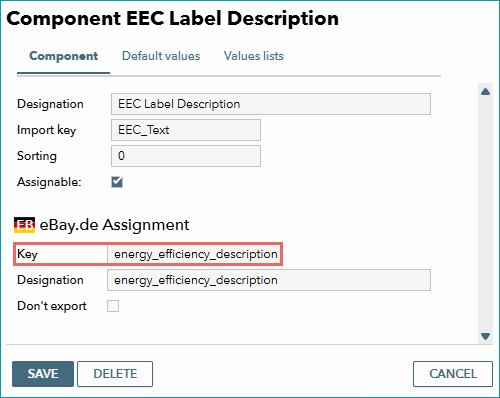
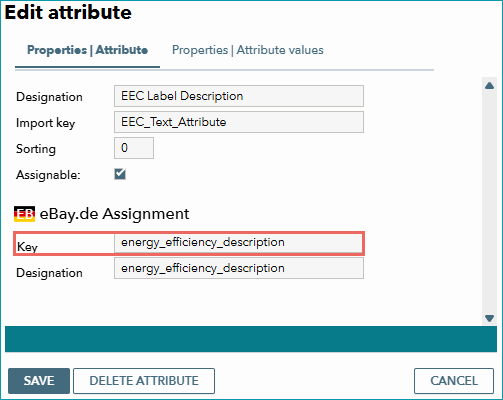
1.Create a component or an attribute for the verbal summary. 2.How you name the component/attribute is unimportant, but you must assign the export key "energy_efficiency_description" for your eBay channels (see Fig.5 & Fig.6). 3.Assign the newly created component/attribute to all products (not articles) that require energy efficiency information. 4.Provide a descriptive summary of the product's EEC Label as the component's/attribute's value. a.The summary describes the EEC Label in a few words (for example, "On a scale of A to G the rating is E". b.The maximum length for the summary text is 280 characters. 5.You are done. No additional mapping is necessary for this component/attribute.
|