Marketplaces > Marketplace Integration > Product Data (Marketplace Integration)
Product Data (Marketplace Integration)
Each product has a set of information that applies to all of the articles in the product. The requirements for product description and product data are channel-specific. Find these requirements on the respective Channel Sheet.
To enter product information manually...
1....open the menu “Articles > Product list” and select a product from the list by clicking on its number or designation.
2....fill in the fields on the “Product description” tab.
3....fill in the fields on the “Product data” tab (detailed on this page).
The “Product Data” tab mainly contains technical information about the product and controls where it is displayed in the channels’ shops.
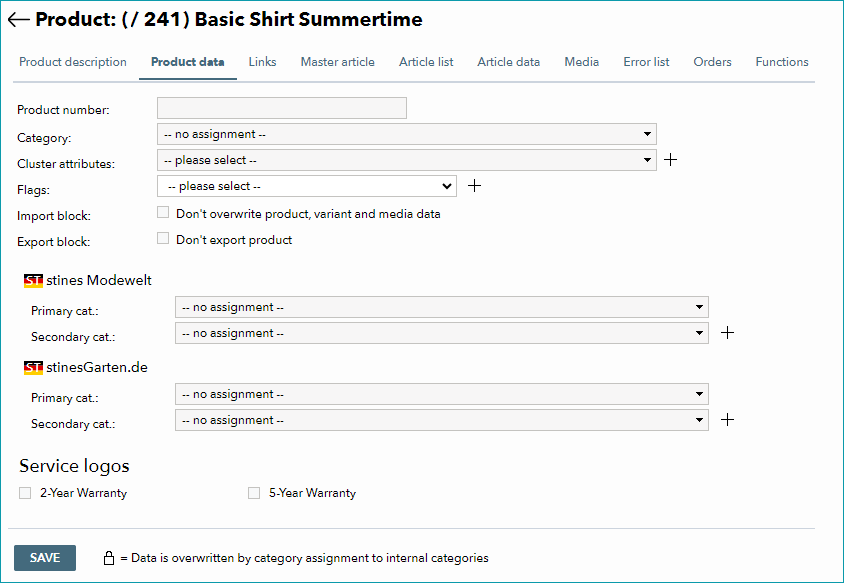
Fig.1: Product Data
TIP: For more information on the global settings featured in this menu, click here. For more information on product categorization, click here. |
Product Number
We recommend that you enter a product number for each product. If you plan on importing product- or article-related data at any point, product numbers are mandatory. You can choose any product number, as long as it is unique.
Categorization
You must assign a channel category for each channel you want to sell your product on.
For each of your booked channels, the “Product data” tab contains one or more drop-down lists. These category lists have been defined by the channels and may have different names (e.g. “Classification”, “Product type”, or “Primary/Secondary category”). They all perform the same basic function: To sort your product in the channel's shop navigation.
Categorize your products one by one by selecting categories from the drop-down lists, or use one of the bulk categorization options listed below. Do not combine the two bulk categorization options!
TIP: If there is an inactive channel that is missing from this menu, it may be hidden. Administrators can unhide inactive channels at “Admin > System settings > User interface”. |
Bulk Categorization with Clusters
Clusters allow you to add channel categories to your products in bulk. If you choose this method of categorizing products, do not assign the categories directly to your products.
Instead:
1.Go to “Basic data > Classification > Cluster”.
2.Create a Cluster for a specific product group (e.g. women’s scarves) and add the channel-specific categories for all booked channels to that cluster.
3.Open your product, go to the tab “Product data” and assign your cluster in the field “Cluster attributes”.
This allows you to assign categories to a product for all channels simultaneously.
TIP: •For more information about clusters, click here. •If you are importing your master data, you can configure in which cases TB.One will assign categories via clusters during the import process. Go to “Admin > Import > Settings”, look for the section “Categories”, and select an option from the drop-down menu “Category assignment”. |
Bulk Categorization with Internal Categories
Internal categories allow you to create your own category structure for your products (“Basic data > Classification > Internal categories”). You can then assign channel categories to your internal categories.
When you assign an internal category to your product, all channel categories associated with that internal category will be inherited by the product.
TIP: You can configure in which cases TB.One will assign channel categories via the internal category. Go to “Admin > Default values”, look for the section “Data maintenance via internal categories”, and select an option from the drop-down menu “Category assignment”. |
Channel Category List
Depending on your settings, some channel categories may be hidden. If categories are missing from this menu, there is an option to view the full list of a channel's categories in TB.One and configure which categories are selectable for products.
Check row “X-03: Categories” on the Channel Sheet for more information.