TB.One > Product and Article Data > Clusters and Internal Categories > Internal Categories > Creating Attribute Sets
Creating Attribute Sets
Attribute sets can only be created manually, after components and attributes have been created.
Attribute sets are directly related to internal categories, to which they can be added. They define mandatory and optional fields for an internal category (components, attributes, variants) and facilitate manual data maintenance.
Whenever a product is assigned to an internal category during its creation, the data fields from the corresponding attribute set will be created. This way, all employees will know which information can (or must) be assigned to a product of this category during manual data maintenance. You may also define mandatory fields. If a mandatory field is not filled, an error message will be displayed. Consistently configuring attribute sets can significantly streamline your product data catalog for import and reduce the amount of errors.
The validity of an attribute set for the products of an internal category can be defined in relation to a brand and/or flag. This way, you may assign several attribute sets to one internal category to distinguish between different sets of data within that category (see the page on internal categories for a guide).
ATTENTION: |
Attribute sets can be created and configured at "Basic data > Templates > Attribute sets". When you create a set, the required components and attributes must already exist. Select the tab "Pages" in the left navigation bar and choose the option "New attribute set".
Assign a name for the attribute set in the field "Designation". Use the checkboxes below the designation field, to define whether only the properties/variant fields defined in the attribute set may be assigned, or if other elements are permitted. Configure the attribute set regarding components, variant dimensions and attributes, so that the affected products will automatically receive these fields when the respective internal category is assigned. You cannot assign specific values here, but you may preselect one of your previously defined values lists.
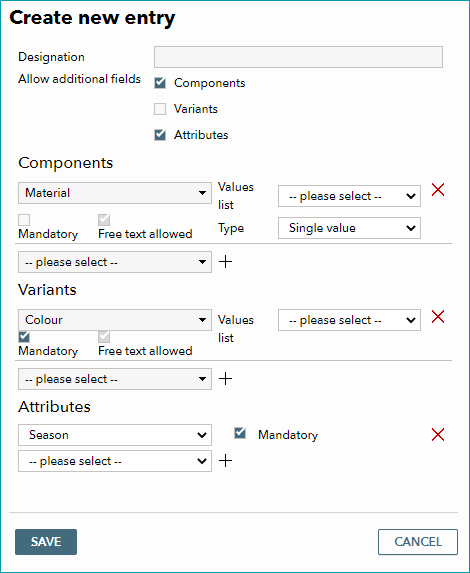
For each property, you need define whether maintenance of the value is mandatory or not. Mandatory fields are highlighted at the product. Values created by an import, which are not permitted according to the attribute set, will be marked in red. Saving with an empty value will cause a warning to appear at the top of the window.
EXAMPLE: |
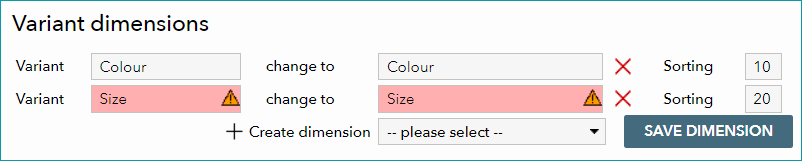
Components defined in the section "Variants" have to be marked as "mandatory" if they are to be created as variant fields. Note that this tool is no variant wizard. It will merely create the variant dimensions, not all possible variants.
The checkbox "free text allowed" relates to the values list setting on the right. If no values list is selected, the checkbox cannot be deactivated. If you indicate a values list, "free text allowed" decides if only values from the specified list may be entered at the product, or if other values can be entered. The designation (name) of a value from the values list can not be changed at the product.
For attributes, there is no choice between values lists and free text because they are - by definition - based on values lists.
Once you have saved the attribute set, you can assign it to any internal category.