TB.One > Setup, Configuration & User Accounts > Dynamic Storage Management > LIST OF ARTICLES IN STOCK AND BATCH PROCESSING FOR DYNAMIC STORAGE MANAGEMENT
LIST OF ARTICLES IN STOCK AND BATCH PROCESSING FOR DYNAMIC STORAGE MANAGEMENT
A list of all stock movements in dynamic warehouses and several features for changing the storage status, printing pick lists, or exporting Excel files are located at "Storage > Articles in stock". Here, you can find the two tabs "Article list" and "Batch processing". The middle section of each tab contains a list, which can be filtered by using the editing section at the top. The lower section is used to execute actions.
1. FILTERING OPTIONS

NUMBER |
DESCRIPTION |
|---|---|
|
Reduce the list to one storage facility. This allows you to analyze the specified facility individually (e.g. "Stuttgart" or "München"). |
|
If you limit the list to a certain bin location, the history of that bin location will be displayed. |
|
This drop-down menu allows you to select one of the following status: •Transferred to stock: The article is currently at the bin location and is not reserved. •Reserved: The article is at the bin location and is reserved for a specific order. •Transferred to stock & reserved: Displays all articles which are currently at the bin location, whether or not they have been reserved. •Removed from stock: The article was removed from the bin location and is no longer available. •Relocated: The article was transferred to a different bin location. |
|
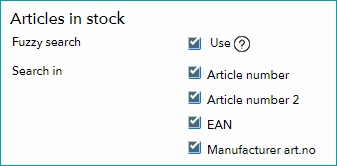
Search for an article number or an EAN. You can configure the search at "Admin > System settings > User interface" in the section "Articles in stock". In this menu, it is possible to limit the search to the article number, the article number 2, the EAN, the manufacturer article number, or any combination of the aforementioned numbers.
By enabling the checkbox labeled "Fuzzy search", the search will display results that only approximate your query (in addition to exact matches). |
|
This field allows you to limit the list to a product designation. You can also search for fragments of a designation. |
|
Filter for an order ID to find all stock movements which were caused by that order. |
|
Once you have configured the filter, click on the "Search" button to apply it. |




2. DESCRIPTION OF THE LISTINGS
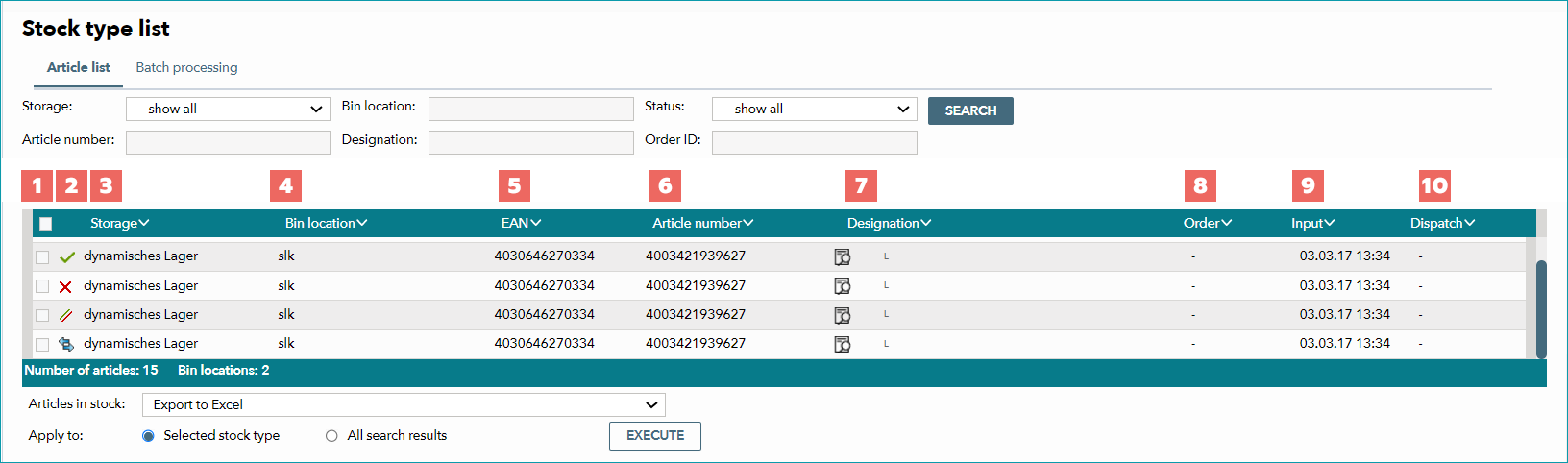
The main window shows the stock records based on the configuration of the filter (see above).
NUMBER |
DESCRIPTION |
|---|---|
|
Each row has a checkbox on its left. This box can be used to select the respective article for the bulk editing options in the lower section (see below). |
|
The bulb icon shows the current state of the article:
|
|
The storage facility/warehouse to which the article is allocated |
|
The article's current bin location |
|
The article's EAN |
|
The article number |
|
The name of the product the article belongs to including the variant information (size, colour, etc.) |
|
If the article is associated with an order, this column shows the order ID and the flag of the channel through which the order was received. A click on the magnifying glass icon next to the channel flag opens the order preview. A click on the order ID opens the order itself. |
|
Date on which the article was booked into the bin location / date on which this stock record was created. |
|
Date on which the article was removed from the bin location (e.g. due to relocation, shipping or annual stocktaking). |


3. BULK EDITING OF ARTICLES IN THE STOCK TYPE LIST
The section below the list of articles allows you to bulk edit sets of data. By activating the check boxes in front of articles, you can select them for bulk editing. By choosing one of the radio buttons "Selected stock type" or "All search results", you define if an action should be executed for all listed search results or only for the selected entries.
ATTENTION: |
The following editing options are available:
ACTION |
DESCRIPTION |
|---|---|
Create pick list |
By executing the option "Print pick list and set reservation indicator", the current status of the stock is overwritten, and the articles are set to "reserved". The article will have to be set to "booked out" manually, when the order is being processed. Neither of these two options creates a direct link between the article and the order. Both options cause a pick list to be printed. |
Change status of stock type |
Each of the options in this section will change the status of a stock record: •Remove reservation/removed from stock indicator: The stock type is set to "booked in". The article becomes available, and, therefore, the stock number is increased. •Set removed flag: The article status is set to "booked out". •Set loss flag: The article status is set to "booked out". •Relocated: The article status is set to "relocated". After selecting this option, choose the new bin location from the drop-down menu which appears below. |
Delete stock type |
The selected records are deleted. This action cannot be undone. |
If it becomes necessary to re-label articles, e.g. returned articles or newly delivered articles, you can print the labels via this function. Ensure that TB.Print works properly and that the label printer is connected and available. |
|
Export |
Here, you can choose the option "Export to Excel" to export the selected records in an excel file for evaluation purposes. |
Once you have selected all sets of data that should be edited and have chosen an action, trigger it by clicking on "Execute".
ATTENTION: |
4. STRUCTURE AND FUNCTIONS OF "BATCH PROCESSING"
Generally speaking, the tab "batch processing" at "Storage > Articles in stock" offers you the same option as the tab "Article list". The main difference lies in the filter section at the top.
Here, you can add stock types individually by using the filters for storage facility, article number and status. Click on the button "Add", to add the filter's results to your individual list of stock articles. Once you have completely configured the list, you can use the same actions as described above to process the articles in the stock type list.
For further information, see also: