TIP: This Channel Sheet contains all channel-specific information for Galaxus. |
TABLE OF CONTENTS
•Channel-specific settings, features, and processes
oRequirements for the Galaxus EU Hub
oHow to create and transmit export invoices for the Galaxus EU Hub
oMandatory pricing information for Galaxus
oHow to add a carrier to your Galaxus package types
oHow to find the correct order number to create delivery notes manually for Galaxus
The following channels are available for Galaxus, decide in advance which one of the two channels meets your needs:
CHANNEL |
SIGN |
ID |
CURRENCY |
|---|---|---|---|
Galaxus.ch (CHF) |
dgch |
192 |
CHF |
Galaxus.ch (EU-Hub) |
dgde |
234 |
EUR (gross) |
Galaxus.de |
gxde |
466 |
EUR |
The table below outlines the differences between these channels to help you choose which one suits your needs:
Galaxus.ch (CHF) |
Galaxus.ch (EU Hub) |
Galaxus.de |
|---|---|---|
•For all retailers from Switzerland •Retailers based in the EU who can handle customs clearance themselves •Retailers with headquarters in the EU who ship via the EU Hub and have a fiscal representation in Switzerland |
Retailers with headquarters in the EU who do not have a fiscal representation in Switzerland and ship via the EU Hub (see this section for more information) |
Shipping within Germany |
Discuss with your Galaxus manager as well to understand which channel may suit you best.
PRELIMINARY INFORMATION
•New to TB.One? Our webinars help you find your way around the software.
•Send your supplier/access data for the channel to your Solution Delivery Manager at Tradebyte.
•Provide your product data in German (Swiss). Optionally, you have the option to display your items in English, French and Italian..
•Go to the menu "Basic data > Storage > Warehouse settings" and check your settings for the channel (for more information, click here).
•Consider the standards for shipment to Switzerland (mandatory fields, customs tariff number and weight).
CHANNEL-SPECIFIC SETTINGS, FEATURES, AND PROCESSES
REFERENCE NUMBER |
CHANNEL-SPECIFIC INSTRUCTIONS |
||
|---|---|---|---|
B-01: Payments |
Find your payment methods at "Basic data > Payment > Payment methods". Payments are managed by Galaxus. When the channel is activated or, at the latest, when the first order comes in, a payment method with the channel name is created automatically. For the export to an ERP-system, you can freely select an export key. |
||
D-01: Product designation |
•The product designation is mandatory for Galaxus. •The length of the product designation is limited to 100 characters. All characters beyond are cut off in the export. •Common noun/proper name possible via the title profile. •The title profile cannot contain categories, brands or other properties. Only the adjusted product name is allowed. |
||
D-02: Special text |
The field "Special text" is optional for Galaxus. It is used to highlight special characteristics on a item and is limited to 100 characters. |
||
D-03: Description |
Requirements for product descriptions: •The product description is mandatory for Galaxus. •The length of the product description is limited to 4000 characters. When writing product descriptions, always respect Galaxus' style guidelines: •In all your descriptions, use the formal "you" as the customer salutation. Avoid 1st person plural such as "we" or "us". •Do not use obvious advertising texts. •When describing your products, avoid the use of superlatives. •Wordings that allude to the novelty of a product, such as "new" and other synonyms, may not be used in the description. •Use factual descriptions such as "successor model of [product]" to keep your description up-to-date. •Bullet points: Optional. We recommend 3 to 8 bullet points per default.
|
||
D-04: Components |
The following components are mandatory at Galaxus: •Product type - You have to use the lowest level of the Galaxus category as value of the component, (for instance, if you assign the value "Armbänder" for the component if the category "Bekleidung & Accessoires > Schmuck > Armbänder" is assigned for the product) •Introduction text (serves to highlight a special property (e.g. fit) in the form of a short explanation (max. 100 characters) Introduction texts can be provided: •As special text •As bullet points mapped via TWIG •As components The BAO properties (BasicAndAdvanced) are communicated in advance by the channel. Property values are limited to 80 characters (incl. spaces).
|
||
D-05: Attributes |
The following requirements apply to attributes for Galaxus: •For attributes, always comply with the channel's requirements •Include the 8-digit customs tariff number Attributes are only transmitted to the channel if they contain a DG Key and if a value is maintained. |
||
E-01: Article numbers |
Provide the following article numbers: •Article number •GTIN/EAN (13-digit)
|
||
E-02: Shipping information |
Provide the following shipping information: •Package type •Shipping type •Delivery time (in days) •Pack sizes (height, length, width in cm) The number of packing pieces is optional. For Galaxus.ch (EU-Hub), the following requirements are mandatory: •Weight (in kg) - Packaging weight: product weight plus original packaging •Country of origin of the delivered article •Intrastat category - Stock code (TARIC) for the EU area •Commercial invoice For Galaxus.ch (CHF), the following requirements are optional: •Weight (in kg) •Country of origin and Intrastat category |
||
E-03: Variant dimensions |
The following requirements apply for variant dimensions: •Variant creation via color, size, sales unit, etc, as well as the uniform product title for the product variant (see also title profile) Galaxus does not limit the number or type of variant dimensions. |
||
F-01: Media |
•Provide images in a commonly used format such as png or jpg. •Number: Max. 10 pictures (at least one cut in frontal view) •Size: At least 600 px, max. file size 8 MB •Resolution: No DPI requirement •For shoes, the first detailed picture should be a mirrored view of the cut
|
||
G-01: Carrier |
•Use a carrier of your choice. •Shipping surcharges are not permitted.
|
||
G-02: Delivery note |
You can configure the Galaxus delivery notes at "Admin > System settings > Documents" and add custom text.
|
||
G-03: Invoice |
You don't need to print invoices for Galaxus. The channel sends the invoices to the customers. Print invoices for your own records only.
|
||
G-04: Proposed return code |
Dispatch advices you forward to the channel must include a proposed return code for the return shipment label. To that end, do one of the following: a)configure a number range in TB.One. b)if you manage orders outside TB.One, configure your system so that it forwards the return code to TB.One (CSV/XML: "IDCODE_RETURN_PROPOSAL"). c)manually enter return codes during order processing. |
||
G-05: Delivery documents in package |
Delivery note (optional) |
||
G-06: Refund deduction |
At Galaxus you always reimburse customers for returned articles in full. If you have complaints about the condition of a returned article, consult the channel directly. |
||
G-07: Return causes |
Galaxus does not process return causes and states. |
||
X-01: Size grid |
Galaxus does not use size grids. |
||
X-02: Base prices |
Provide base prices (price per kg, price per liter, etc.) for all articles that legally require you to do so. |
||
X-03: Categories |
For a complete list of all categories, go to "Basic data > Classification > Typification". To reduce the number of categories available for selection at the product, mark categories that you do not use as "not assignable". Channels change their categories from time to time. Any major changes will be announced in TB.One. Outdated categories are highlighted with a red icon. Move all affected products to valid categories. •At Galaxus you can create links between your products. These links will be shown in the shop (for example as an upselling option). Click here to learn how to create and configure links between products. |
||
X-04: Value mapping |
General guidelines The value mapping is not required for Galaxus. Your product properties are mapped by the channel, excepted for values required to comply with the General Product Safety Regulation (GPSR) (see the list below). Value mapping requirements for the General Product Safety Regulation To comply with these requirements, you must provide your manufacturer information via the value mapping at the category level: •GPSR Name and Address: Manufacturer's name and address (comma separated). •GPSR Email or URL: Manufacturer’s email address or URL |
||
X-05: Pending orders |
Galaxus does not transmit pending orders. |
||
X-06: Partial deliveries |
Partial cancellations on item level.
|
||
X-07: Commission group |
Galaxus does not use commission groups. |
||
X-08: Service logos |
Galaxus will not display service logos you transfer in the shop. |
||
X-09: Error and status messages |
Galaxus does not provide error and status messages. |
||
X-10: Templates |
At Galaxus you cannot use templates. |
||
X-11: Text configurator |
The text configurator cannot be used for Galaxus. |
||
X-12: Product text profile |
Product text profiles cannot be used for Galaxus. |
||
X-13: Title profile |
You can use title profiles to configure the product titles shown in the channel's shop. For more information on title profiles, click here. |
||
X-14: Cross prices |
You can indicate cross prices for Galaxus by filling in the field Former MSRP. |
If you do not ship directly to Switzerland, Galaxus provides a custom clearance and fullfillment solution named the EU Hub.
Via the EU Hub, Galaxus processes the customs clearance and rules the further shipping to the end customer.
With the EU Hub, your orders are shipped to Weil am Rhein (see Fig. 1). Depending on the country from where you ship, the package will be sent as:
•From Germany: National shipment
•Other countries: International shipment
Galaxus will then take over the customs clearance processes and organize the distribution of your orders to the end customers.
This process also applies to returns.
If this solution interests you, please get in touch with your Galaxus point of contact in advance.
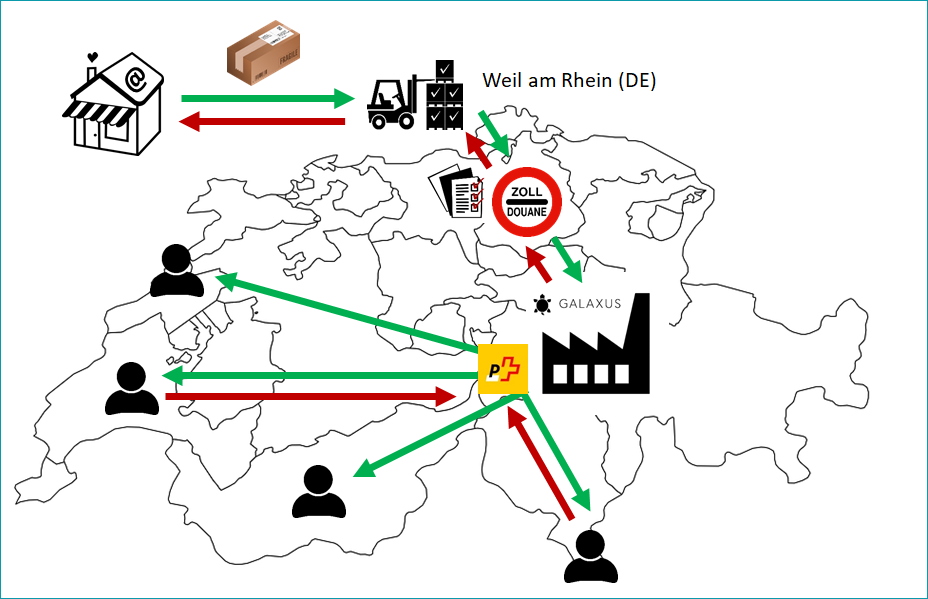
Fig. 1: Illustration of the shipping process via the Galaxus EU Hub
Requirements for the Galaxus EU Hub
To ship orders with the EU Hub, you're required to provide the following information and adhere to the requirements listed below:
INFORMATION |
REQUIREMENTS |
|
|---|---|---|
Package weight |
Provide the weight of your packages in kilogram (kg). Any article that does not contain this information will be excluded from the exports. Make sure that your data is correct. Incorrect information may lead to significant additional expenses and delays.
|
|
Package size |
The maximum package size is 100 x 60 x 60 cm. |
|
Country of origin |
The country of origin of your articles must be provided (mandatory for custom clearance). Articles that do not contain this information are excluded from the export. Additionally, ensure that your data is correct. Incorrect information may lead to significant additional expenses and delays. |
|
Customs tariff number |
Custom tariff numbers are used for customs clearances and return handling. If that number's incorrect, your articles will still be transmitted. However, indicating this information is still expected to ensure your package are processed smoothly and without delays. |
|
Export invoices |
To ship via the EU Hub, you're required to create an export invoice and send it digitally your Galaxus manager. In return, they'll provide you with two templates for your export invoices. |
How to create and transmit export invoices for the Galaxus EU Hub
To ship via the EU Hub, you're required to create an export invoice and send it digitally your Galaxus manager. In return, they'll provide you with two templates for your export invoices.
The following information must be included in export invoices:
•Name and address of invoicing party
•Invoice address of the customer
•Order number - Transmitted sales order number
•Delivery terms - Incoterms, should be DPA
•Invoice amount
•Indicate that the invoice belongs to a tax-free delivery (tax-free export delivery to § 4, Nr. 1a, i.V.m. § 6 UstG)
ATTENTION: Never specify a return address on your export invoices! |
Once created, it is mandatory to transmit a digital commercial invoice electronically to the end customer (see Fig. 2). Galaxus offers two options to transmit it:
1.Invoice per order address of the customer (see Fig. 3)
2.Invoice per delivery/package (see Fig. 4)
Commercial invoice are transmitted in a PDF file format to a password protected FTP directly provided by Galaxus. You can find your FTP access data and file structure in the Galaxus provider data sheet.
The most recently uploaded PDF document corresponds to the most recent dispatch notification that's been sent.
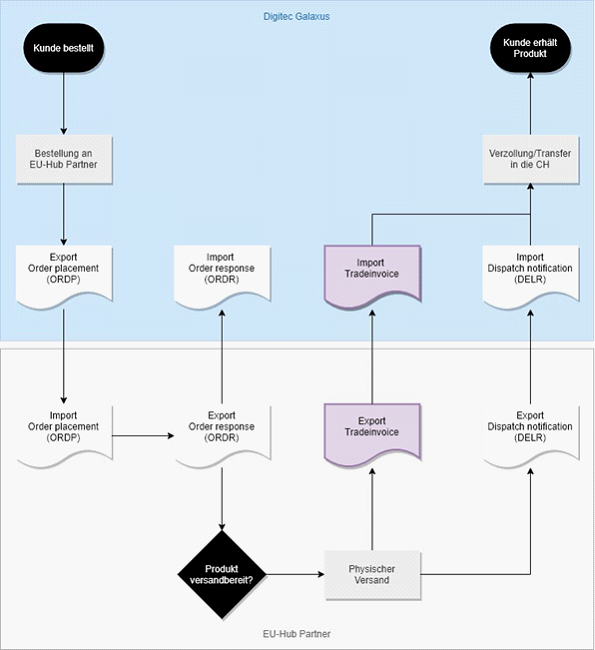
Fig. 2: Flowchart of the digital commercial invoice transmission process
INFORMATION |
INVOICE PER ORDER |
INVOICE PER DELIVERY/PACKAGE |
|---|---|---|
DESCRIPTION |
The partner generates a complete invoice for the order, which is independent from the number of deliveries/packages. |
The partner writes a single invoice for each of the deliveries/packages of a unique order. |
DATA NOMENCLATURE & NAMING CONVENTIONS |
<OrderID>_<InvoiceNoProvider>.pdf <OrderID> = Purchase order-ID Galaxus = Shipment-ID Tradebyte <InvoiceNoProvider> = Invoice number from your ERP |
<OrderID>_<InvoiceNoProvider>_<TrackingNo>.pdf <OrderID> = Order-ID Galaxus - Shipment-ID Tradebyte <InvoiceNoProvider> = Invoice number generated from your ERP <TrackingNo> - Tracking number, which must correspond to the tracking number and has to match the number on the package as well as on the delivery notice to Tradebyte |
EXAMPLE |
1.A partner processes a Galaxus order as usual and creates a digital commercial invoice as a PDF file. This file corresponds to the total account of all order items independently of the number of deliveries/packages. 2.The partner uploads the file(s) to the FTP directory (/OrderData/provider2dg/) and ensures that the upload will be executed at the latest with the transmission of the dispatch message to Tradebyte. 3.Galaxus imports the commercial invoice and links it to the corresponding order. Galaxus will then use the document for custom clearance. |
1.A partner processes a Galaxus order and creates a digital commercial invoice in PDF format before/with physical delivery. This corresponds to a single invoice per delivery. 2.The partner uploads the file(s) to the FTP directory (/OrderData/provider2dg/) an ensures that the upload will be executed at the latest with the transmission of the dispatch message to Tradebyte. 3.Galaxus imports the commercial invoice, links it to the corresponding order and uses the document for custom clearance. |
ATTENTION: Once you have chosen a variant concerning data nomenclature, it is considered as mandatory |
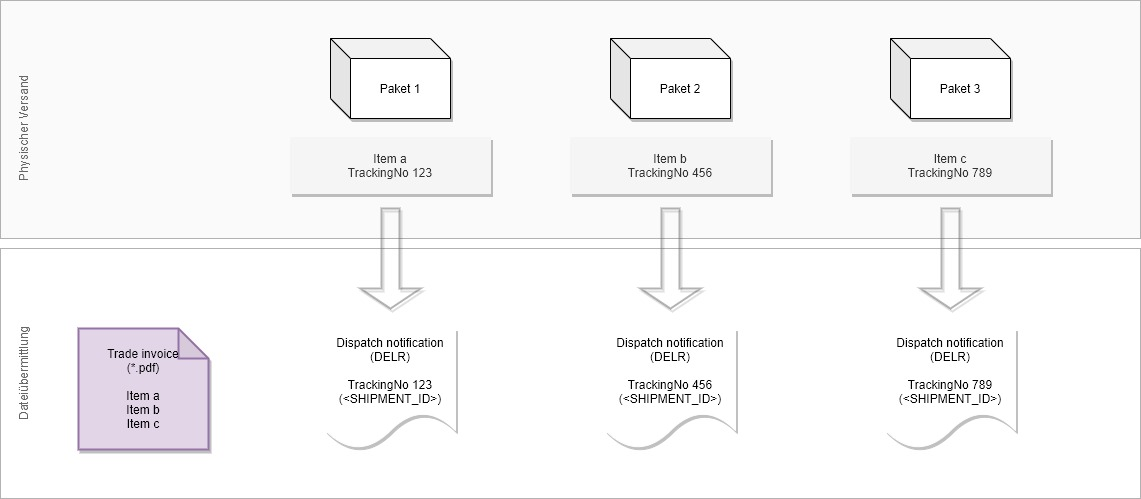
Fig. 3: Flowchart for the invoice per order tranmission process
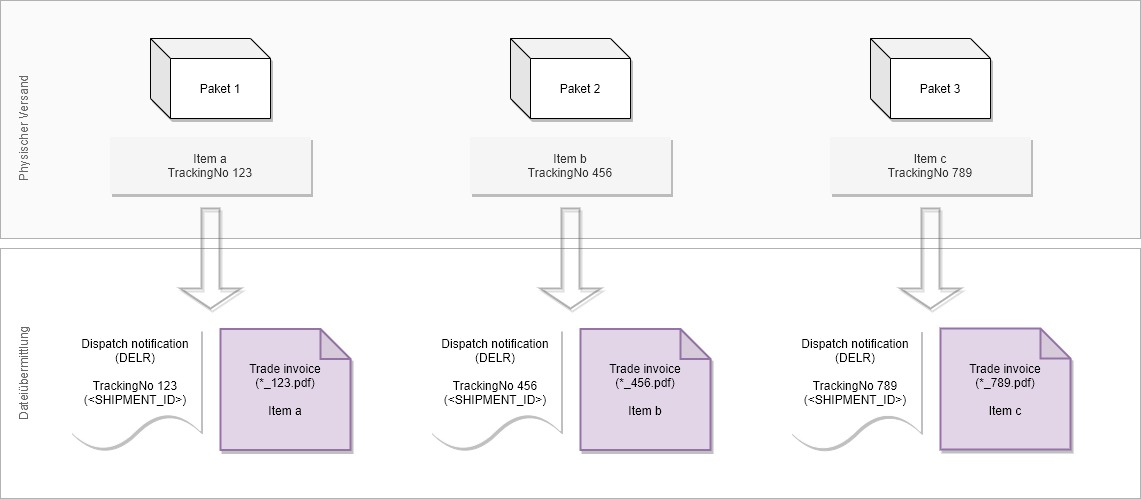
Fig. 4: Flowchart for the invoice per delivery/package transmission process
Mandatory pricing information for Galaxus
PRICING INFORMATION |
REQUIREMENTS |
|---|---|
Retail prices |
In the channel's currency: •Galaxus.ch (EU-Hub): Gross in € •Galaxus.ch (CHF): Gross in Swiss Francs •Galaxus.de: Gross in € |
Retail package |
Indicate the selling price of retail packages excl. VAT |
VAT rates |
Check VAT rates and adjust where necessary |
How to add a carrier to your Galaxus package types
For each of the package types you use for Galaxus, you must indicate a carrier (see Fig. 5):
1.Go to "Basic data > Shipping > Package types" and select the relevant package types from the list.
2.In the right-hand menu, select a carrier for each of your Galaxus channels.
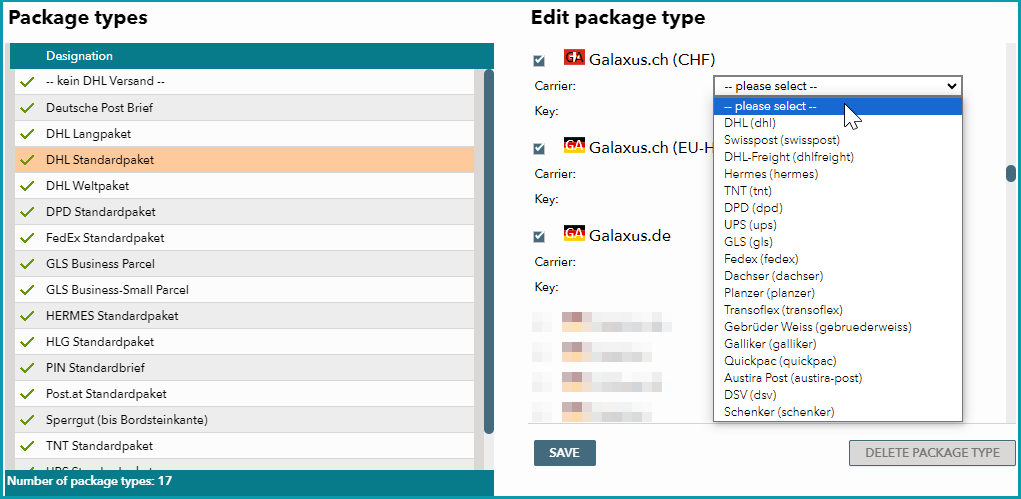
Fig. 5: Adding a carrier to a package type in TB.One
How to find the correct order number to create delivery notes manually for Galaxus
To create the delivery note manually, you must use the correct order number. To do this:
1.Navigate to your order data via "Orders > Order list" and select the relevant order by clicking on the order number and selecting the "Order data" tab.
2.The correct order number for your delivery note is stored in the second part of the shipment ID (see Fig. 6):
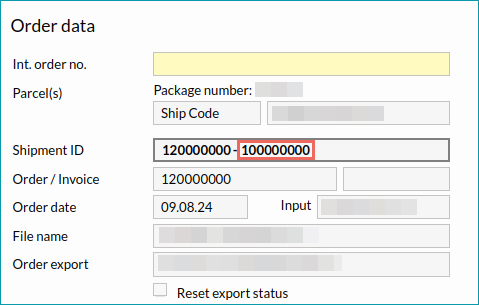
Fig. 6: Highlighted order number to use when creating delivery notes manually in TB.One
DATA |
TIME/FREQUENCY |
|---|---|
Catalogue (Full) |
Daily from 4:00 a.m |
Stock (Delta) |
Daily, every 60 minutes |
Media |
With catalogue |
Retrieve and import orders |
2x per hour |
Order messages |
04:00 / 04:40 / 06:00 / 06:40 / 08:00 / 08:40 / 10:00 / 10:40 / 12:00 / 12:40 / 14:00 / 14:40 / 16:00 / 16:40 / 18:00 / 18:40 |