Marketplaces > Marketplace Integration > Article Data (Marketplace Integration)
Article Data (Marketplace Integration)
Each product consists of one or more articles. An article is one variant of a product:
•The articles within a product differ only in a few key characteristics, such as colour or size. These distinguishing properties (so-called “variant dimensions”) must be added to the article data.
•Each article has its own set of data such as the EAN, stock, and price.
•Depending on the channel, there may be additional information you can or must provide. Refer to your Channel Sheet for more information.
Once you have added all product and article data, activate the articles to sell them on the channels you have booked.
Go to “Articles > Product list” and select the product you want to configure articles for.
Variant Creation
Go to the “Article list” tab to create variants/articles.
•If your product has no variants, it only needs a single article. To learn how to create an article for a product without variants, click here.
•To learn how to create multiple articles/variants for a product, click here.
ATTENTION: |
Retail Pricing
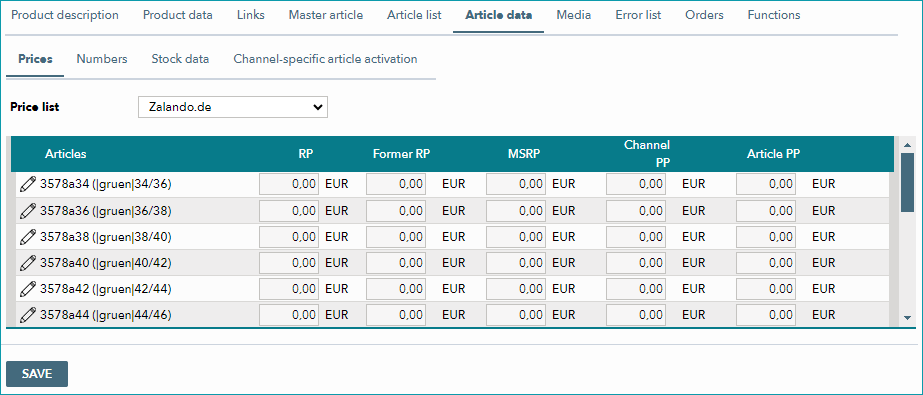
Fig.1: Pricing
1.Go to the “Article data” tab. The menu will open on the sub-tab “Prices”. It contains a drop-down menu labeled “Price lists” and a list of all the articles in the product with their price information.
2.Select the price list/channel for which you want to add prices from the “Price list” drop-down menu.
3.Add the prices in your channel’s currency (including VAT).
a.Enter the retail price in the column “RP”.
b.Depending on the channel, it may be possible to display a former retail price or the MSRP in the shop for marketing purposes. To find out if you can/must fill in one of the fields “Former RP” and “MSRP”, check the row “X-14: Cross prices” on your Channel Sheet.
c.Some channels require a purchase price to calculate their commission. Check the row “X-07: Commission Group” on your Channel Sheet to find out whether you need to enter a “Channel PP” value.
d.You can enter the price you paid for the article in the column “Article PP”. This data is for your information only and will not be exported to the channel.
TIP: •You can use the bulk editing function in the article list (“Articles > Article list”) to copy prices from another price list (find more information on bulk editing here). •If the prices are the same for all the product’s articles, you can enter them centrally on the tab “Master article” (find more information about the master article here). •Newly created prices use the channel’s “Regular” VAT rate. If necessary, you can change the VAT rate to “Reduced” or “Free” by opening the article directly from the article list (“Articles > Article list”; go to the menu section “Price data” on the tab “Article data”). •You can define minimum prices as well as maximum/minimum price reductions for your channels at “Channels > [Your Channel] > Settings” in the section “Price export check”. Find more information here. |
Article Numbers
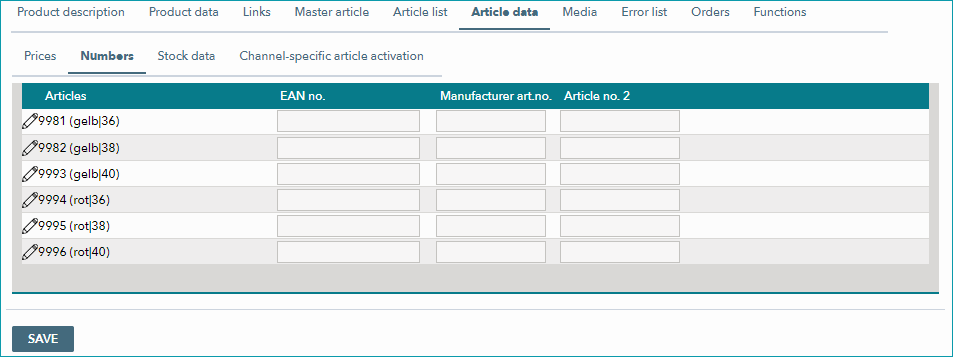
Fig.2: Article Numbers
1.Go to the “Numbers” sub-tab (on the tab “Article Data”).
2.Enter the EAN for each article. Each EAN must be unique for that article. It is not possible to use the same EAN for more than one article within the same product or across multiple products. Make sure that the EANs you use are valid. TB.One checks the technical validity of the EAN before exporting an article to a channel.
3.Check the row “E-01: Article numbers” on the Channel Sheet to find out if you need to provide the manufacturer’s article number or a secondary article number (“Article no. 2”) for your channel.
Pack Sizes and Intrastat
Depending on the channel, you may need to enter additional shipping information, such as the size of the package used to ship the article, the weight of the package, or the article’s Intrastat category and country of origin.
1.Check the field “E-02: Shipping Information” on your Channel Sheet to find out what information you need to provide.
2.If all articles in the product have the same shipping information:
a.Go to the tab “Master article”.
b.Activate the data group containing the shipping information by selecting the checkbox in the upper left corner and enter your information (see Fig.3).
c.Save your settings.
3.If the articles differ in their shipping information:
a.The tabs “Article list” and “Article data” display all of the product’s articles. Open an article by clicking on  in the respective row.
b.Scroll down to the “Dimensions” section and enter the shipping information.
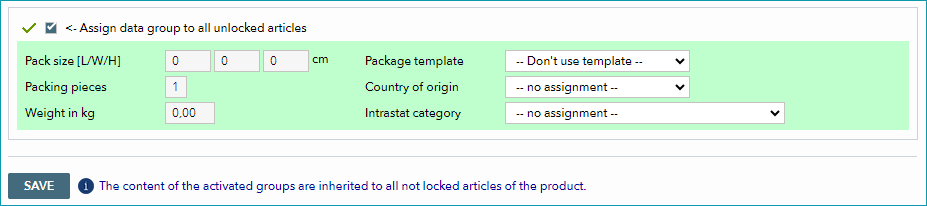
Fig.3: Master article - shipping information
TIP: |
Commision Group
Some channels use commission groups to calculate their commissions. These commission groups are defined in your contract with the channel.
Check the row “X-07: Commission Group” in your Channel Sheet to find out whether you have to include a commission group in your article data. If so, the Channel Sheet will tell you how to proceed.
Article Activation

Fig. 4: Article activation
When you have added all the necessary information to the product and its articles, activate the articles on the “Article data” tab to export them to the channels. Follow the instructions on this page.