TB.One > Product and Article Data > Data Quality & Error Management > SolutionCenter > SolutionCenter - Overview
SolutionCenter - Overview
ATTENTION: The article error hub replaces the SolutionCenter |
The SolutionCenter can be used to detect and solve errors in the product/article export in order to increase your export quota. It provides a solution-oriented approach that helps you find the menu in TB.One where the error can be resolved and contains quick guides.
WHAT IS THE SOLUTIONCENTER
When your exported data is validated against the target channel's requirements, faulty or incomplete data may cause the export to fail. In that case, you have to edit, correct, and/or complete the data.
With the SolutionCenter, we want to make this process as easy as possible. Here, all failed exports are displayed along solution instructions. Furthermore, you can view various statistics and error evaluations. You can access the SolutionCenter by clicking on the menu option "Articles > SolutionCenter" in TB.One, or by accessing the URL https://solutioncenter.tradebyte.com.
DEFINITIONS
The SolutionCenter uses specific terminology to describe errors:
SECTION: |
|---|
Genrally, there are four different factors which may lead to the creation of an error message. The SolutionCenter groups errors into so called "sections" based on these factors:
|
POTENTIAL: |
The potential indicates how much revenue was lost on a channel due to errors. It is composed of the total selling prices of all faulty articles. In the calculated total, each article is only considered once even if it can be exported to multiple channels once the error is resolved. |
ERROR LEVEL: |
Errors can occur on one of two levels:
|

STRUCTURE AND FUNCTIONS
The SolutionCenter contains different menus which can be accessed via the main navigation bar at the top.

Functions
You can access the SolutionCenter's individual pages via the tabs in the page's header: Choose between the "Dashboard", "Error List", or "Global Filters".
User role and account
The right side of the navigation bar shows your user role (user account) and the TB.One account you are currently working in (including the TB.One account number).
Language switch
Use the language drop-down to switch between the German and English UI.
Release Notes and Privacy Policy
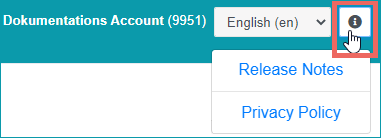
Click on the info icon to view these two buttons:
▪"Release Notes" links to a pop-up window providing information on functional releases.
▪"Privacy Policy" links to in-depth information on the privacy policy on the Tradebyte website (www.tradebyte.com/en/privacy-policy/).
NOTIFICATION BELL FOR RECENT ERROR LIST CHANGES
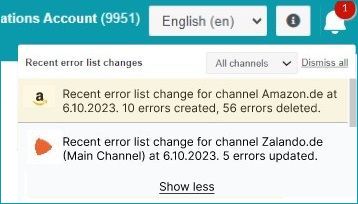
Click on the bell to open a new window. There, you will find the last 10 notifications concerning the newest changes to your error list for each channel for
▪New error messages
▪Updated error messages
▪Solved error messages
To get an insight over your notification history, click the “Show more” button. The view will expand to show the history for all messages of the last three days. To filter for notifications from a specific channel, select the corresponding channel from the drop-down menu “All channels”. Once you have read them, clear your history by using the "Dismiss all" option.
Clicking on one of the links below will take you to a page that describes the corresponding menu:
For further information, see also:
•Proof of data quality - overview
•Error messages sent by the channels