TB.One > Setup, Configuration & User Accounts > Configuring Documents > Configuring Documents - Overview
Configuring Documents - Overview
In the menu "Admin > System settings > Documents" you can configure the output of your documents for order processing and shipping.
You should configure the documents described and/or linked to in the table below:
DOCUMENT CONFIGURATION |
|---|
6. DHL Package List If you mainly ship your packages via DHL, you can specify an address for the DHL package list and indicate whether article weights are required in the corresponding section at "Admin > System settings > Documents". If you choose to enable this option, you should also submit a default weight that will be used if the article itself has no weight value. This will ensure that all articles are included on the package list. |
7. Company Logo In the section "Company logo" at "Admin > System settings > Documents", you can define a company logo, that will then be printed on the documents whenever the channel does not require a different logo to be printed. Without a logo, it is not possible to print invoices, delivery notes, etc. Optionally, the logo may also be printed on shipping and return labels (if not defined otherwise by the channel). For you own shop, you can specify whether or not the logo will appear on the delivery note in the sub-section "Shipping Labels". At the bottom of the menu, you can store your own logo for each channel if you sell your goods with different logos on different channels. |
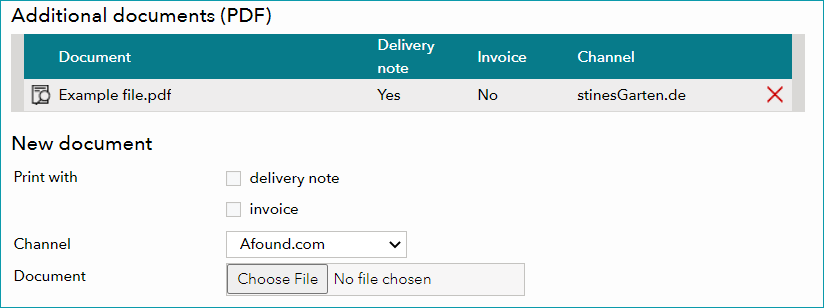
8. Additional Documents In the section "Additional documents (PDF)" you can define other (non-standard) documents, which are to be created automatically when printing delivery notes and/or invoices. Choose, whether the additional document should be printed along with the delivery notes and/or invoices and select the channel for which it is intended. Then, click on "Choose file" to select the appropriate PDF file from your system. Confirm by clicking the "Save" button at the bottom. Once configured, the additional documents are listed in a table above the configuration section. Note that these additional documents are channel-specific.
|
For further information, see also: