TB.One > Setup, Configuration & User Accounts > Dynamic Storage Management > DISTRIBUTION FROM GOODS RECEIPT TO OTHER BIN LOCATIONS
DISTRIBUTION FROM GOODS RECEIPT TO OTHER BIN LOCATIONS
Once you have booked the articles into the incoming goods compartment, they need to be distributed to other bin locations. We recommend transferring the articles by using a bar code scanner and the so-called "scan window". The option "Open scan window" can be found in the left navigation bar in several places in TB.One:
•At "Storage > Articles in stock" in the tab "Article list" or "Batch processing"
•At "Basic data > Storage > Warehouse settings"
•At "Basic data > Storage > Dynamic bin locations"
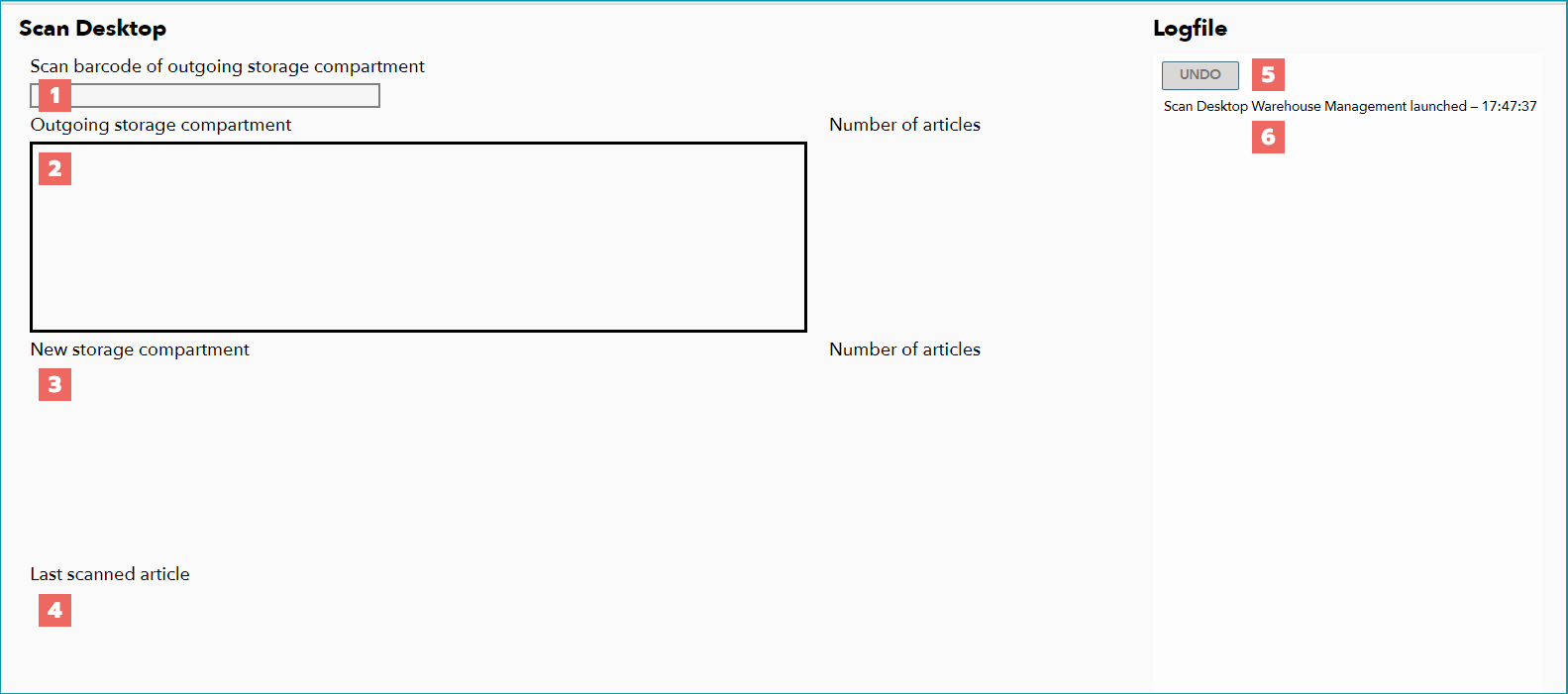
The scan window contains the following elements:
NUMBER |
DESCRIPTION |
|---|---|
|
This field is used to scan the bar code of the bin location or the article EAN. The menu is context-sensitive and will always prompt you to scan the correct bar code for the current step of the process. |
|
Once the label of the bin location has been scanned, the designation of the bin location in which the article is located (before redistribution) is shown in the section "Outgoing storage compartment". Additionally, the section displays the number of articles which are currently being stored in that compartment. |
|
Once the new bin location for the article has been scanned, it is displayed here. Additionally, the section displays the number of articles which are currently being stored in that compartment. |
|
Article number, product designation and variant dimension of the article scanned most recently are displayed here. |
|
Click here to undo the booking for the article scanned most recently. |
|
Here, you can see all bookings that were made in the current window. The list also displays information about the affected articles, their previous and new bin locations, time stamps and the number of articles available. |


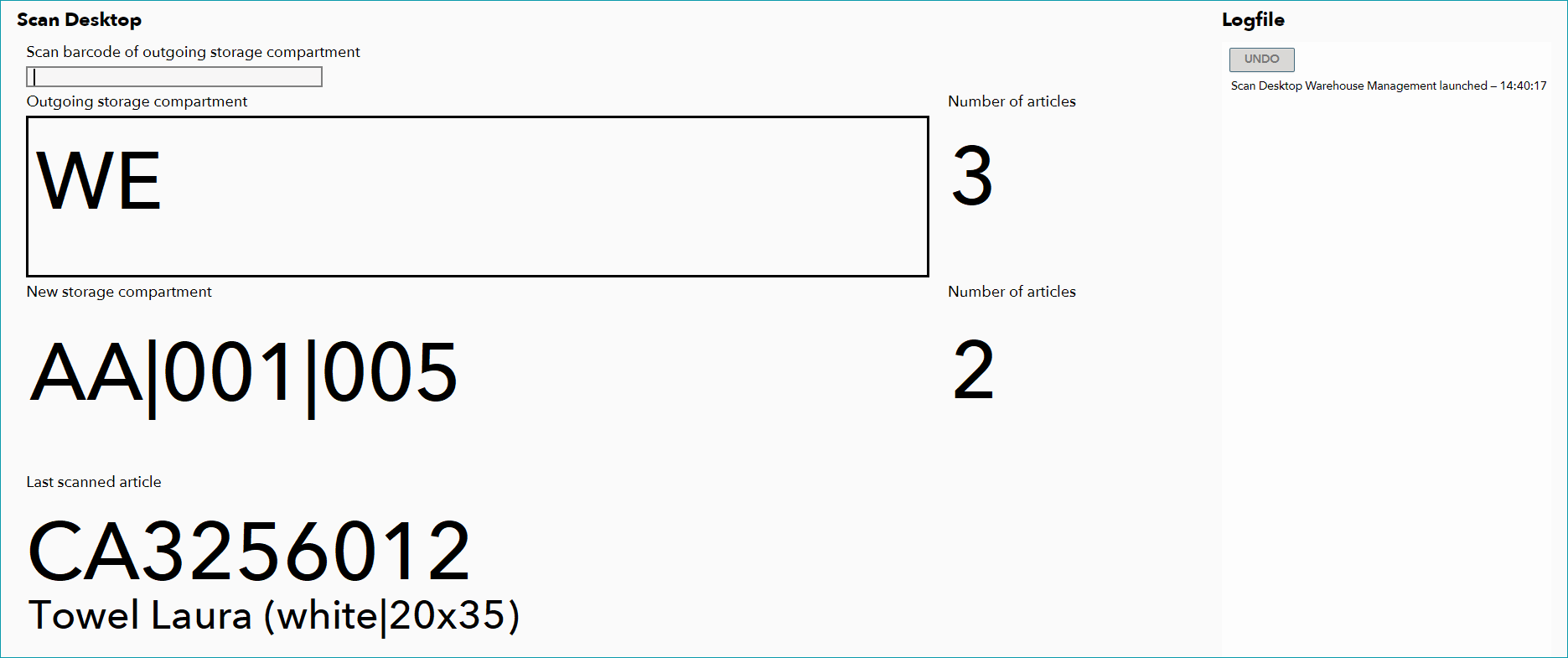
To move articles from one bin location to another, scan the current bin location followed by the destination bin location. Once you have scanned both bin locations, scan all articles that are being transferred from the old to the new bin location. If any problems occur during this process, the window's background will turn red and the cause of the problem will be described in the history (logfile) on the right.
TIP:
|
 Open the menu "Basic data > Storage > Dynamic bin locations".
For further information, see also:
•Dynamic storage management - overview