TB.One > Setup, Configuration & User Accounts > Dynamic Storage Management > ORDER PROCESSING WITH DYNAMIC STORAGE MANAGEMENT
ORDER PROCESSING WITH DYNAMIC STORAGE MANAGEMENT
Open the order processing menu at "Orders > Order list". When using dynamic storage management, it is mandatory to print pick lists for your orders.
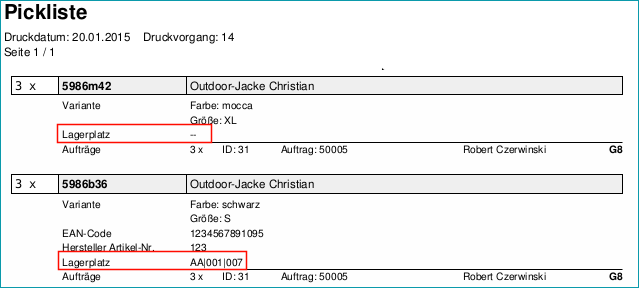
Pick lists are essential for dynamic storage management. When pick lists are printed, stock from specific bin locations is automatically reserved for the respective order. The locations from which the ordered articles have to be retrieved are, therefore, printed on the pick list. Please note, that bin locations can only be printed if the corresponding articles were booked into a warehouse that is active for the channel via which the order was created:
ATTENTION: |
In the section "Dynamic warehouse management" at "Admin > System settings", you can adjust whether printing a pick list will cause stock in specific bin locations to be reserved for the pick, and which order types should be affected by the setting. You may choose stock reservation for confirmed orders only, for pending and confirmed orders, or no stock reservation at all. This does not affect the overall stock reservations in TB.One, which do not refer to specific bin locations and are necessary to keep track of the overall stock listed for channels.
Once the pick list has been printed, the order can either be fulfilled via the Scan Desktop, via the order list/order detail view, or by using the interface (CSV/XML).
Returns are processed more or less in the same way as they are for static storage management (manuell/CSV/XML). The main difference is, that returned goods need to be booked into the default bin location for returns. To redistribute returned goods, use the approach outlined on the page "Distribution from goods receipt to other bin locations" and define the incoming returns bin location as the source.
For further information, see also:
•Dynamic storage management - overview