TB.One > Product and Article Data > FAQ - Product and Article Data > How to Read the Product List
How to Read the Product List
You can use the product list ("Articles > Product list") to get an overview of your products and search for products with certain properties.
The menu has two sections. A filter section at the top, and a list section below.
With the options on the tab "Pages" in the left navigation bar, you can create new products, export the filtered product list, and reset the filter.
THE FILTER SECTION
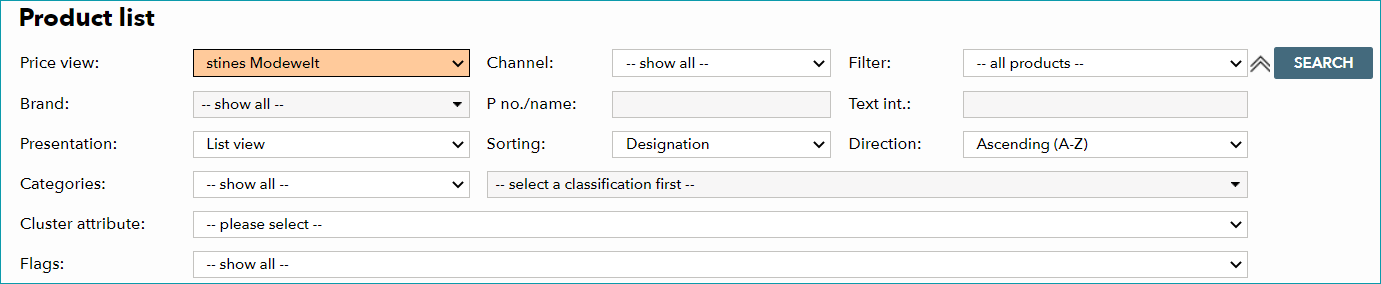
FIELD |
PURPOSE |
|---|---|
Price view |
The list below the filter shows a price for each product. This field determines, on which channel that price is based. |
Brand |
Limits the list to products of the selected brand. |
Presentation |
The filter's results can either be displayed as a list or as a gallery of preview images. Use this field to switch between the two views. The gallery view shows a preview image for each product (if available), but does not contain all of the information that is present in the list view. |
Categories |
Select your internal categories or a channel category tree from the first field. Use the second field to limit the list to a certain category from the classification selected in the first field. |
cluster |
Limits the list to products that were assigned a certain cluster. |
Flags |
Limits the list to products that were assigned a certain flag. |
Channel |
Limits the list to products that are sold on a certain channel. |
P no./name |
Use this free text field to search for products by their names (designations) or product numbers. |
Sorting |
This field determines, how the list is ordered (e.g. by product designation, quantity sold, creation date, etc.). |
Filter |
This field contains other convenient filtering options: Products without a category, with(out) assigned article(s) |
Text int. |
With this field, you can search for internal product comments. |
Direction |
Sort the list in ascending or descending order. |
|
Hides/shows part of the filter section. |


ATTENTION: |
THE LIST SECTION

COLUMN |
DESCRIPTION |
|---|---|
|
A green checkmark in this column signifies, that the product contains activated articles. The flag icons show, for which channels the product is activated. |
|
The icon The product number is also displayed in this column. Clicking on it will take you to the tab "Product description" in the product details. |
|
A click on the icon |
|
This column shows the retail price for the channel selected in the field "Price view" in the filter section. |
|
This column shows, how much time has passed since the product was created (in days, weeks, or months). |
|
This column shows, how many articles were sold for the corresponding product (returned articles are not taken into account). |
|
This column shows, how many articles were returned for the corresponding product. |
|
This column shows the relation between sold and returned articles in percent. |


 signifies, that the corresponding product contains media. A click on the icon will take you to the product's
  signifies, that the corresponding product contains variants, while the icon
  shows that the product does not have any variants. A click on one of these icons will take you to the tab "
 will open the product preview. A click on the product designation will take you to the tab "
 is displayed here, the product contains an internal comment. Hover the cursor over the icon to display the comment.


For further information, see also: