TB.One > Product and Article Data > FAQ - Product and Article Data > How to Read the Article List
How to Read the Article List
TIP: |
You can use the article list ("Articles > Article list") to get an overview of your articles, search for articles, and use the bulk editing feature.
The menu has two main sections. A detailed description of the filter section at the top of the menu can be found here. The list below the filter section shows all articles that correspond to the filter.
On the tab "Pages" in the left navigation bar, you can choose to create new products, use the bulk editing feature, export the (filtered) article list, or reset the filter.
ARTICLE LIST COLUMNS
COLUMN |
DESCRIPTION |
|---|---|
|
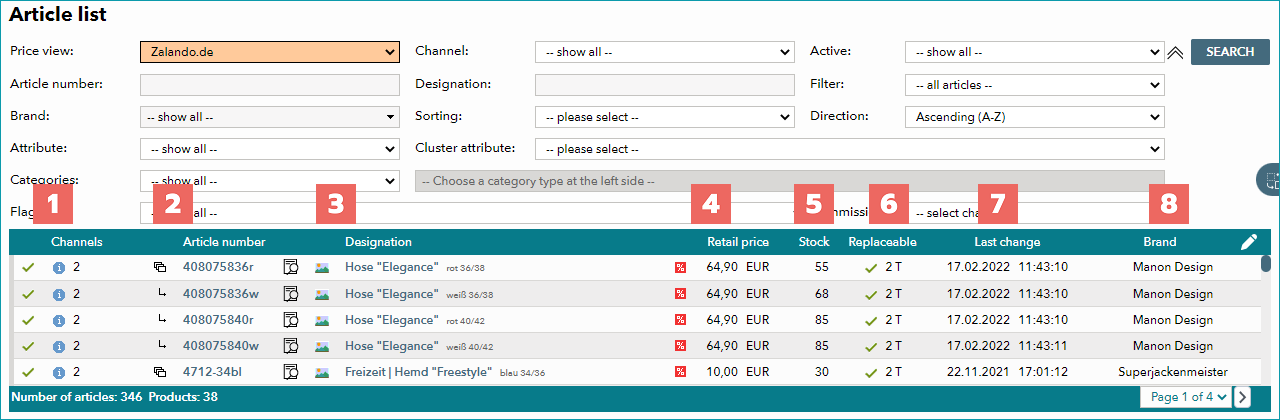
A green checkmark in this column signifies that the article is active. Hovering on the "i" icon will show the channel flags for all channels the article is assigned to. To the right of the icon, you can see the number of channels on which the article is active. |
|
This column displays the article numbers. Clicking on a number will take you to the respective article data. The icon to the left of the article number shows whether or not the article has variants.
If any media are available for this article, the icon |
|
This column shows the product's designation and the concrete variant values for the specific articles. Clicking on the designation will take you to the product description menu. Clicking on the |
|
This column shows the retail price for the channel selected in the drop-down list "Price view". If the price is discounted (i.e. if there is a cross price for this article), the icon |
|
This column shows the number of pieces that are currently in stock for the article. |
|
This column indicates the replaceability of the respective article. If the article is replaceable, a green checkmark and the replacement time in business days are shown here. |
|
This column shows the date and time at which the article was last modified. |
|
This column indicates the article's brand (the brand is maintained on the product level). |


 The article is not a variant. This is the product's only article.
 The article is a variant. This is the first article of the product that is currently being displayed in the list.
 The article is a variant. The first article within the same product is listed above and marked with
  is displayed to the left of the article number. A click on the icon will take you directly to the product's media menu.
 icon will open the article preview.
 will be displayed next to the price.


TIP: |
For further information, see also:
•Configuring/personalizing the article list: see the page "personalizing TB.One"